
11. Troubleshooting and FAQ
This chapter answers the questions that come up most often: why the app is read-only, what to do when the license server cannot be reached or the app stops, why a company shows as unavailable, and what to check when a backup will not restore, an import stops part-way, or the mail server's certificate is refused. It also explains how to reach support, what a support session is, and how to move to a new PC, accept a new license agreement after an update, or uninstall.
In this chapter
- The app is read-only
- License server problems
- The app does not start or stops responding
- A company is shown as unavailable
- Backup and restore problems
- Signing in and sessions
- Office server and other PCs
- Imports, labels and stock
- E-mail and spelling
- Logs and contacting support
- Support sessions
- Moving, updating and uninstalling
The app is read-only
Why can't I save anything?
A red bar under the top bar says why. Each reason has its own fix:
| The red bar says | Why | What to do |
|---|---|---|
| "License expired. App is in read-only mode." | The license and its grace period (a trial: its 30 days) are over. | Ask the vendor for a renewed key and activate it (Chapter 2). The Renew your license box on the License page shows the address. |
| "The license server refused this license: …" | The license server no longer accepts your key (for example, the license was cancelled). | Contact support and quote the reason shown. |
| "This license has not been verified with the license server for N days. …" | The key is checked online and no check has succeeded for 30 days. | Connect the PC to the internet and click Check now (see License server problems). |
| "No active license — most features are disabled." | No license key is active. | Activate your key, or ask for a trial key (Chapter 2). |
When you try to save while the app is read-only, the message "A valid license is required." appears (for a refused or unverified license: the reason), with a link to the license settings.
What can I still do while the app is read-only?
You can sign in and out, open every page, search, and view, print and export reports and lists. Admins can activate a key, run Check now, enter an override code and make a backup (Create Backup Now); every user can change their own password. You cannot create, change or delete anything, import files or restore a backup yourself.
Is my data safe?
Yes. Read-only never deletes anything. As soon as a valid key is activated or a license check succeeds, everything can be edited again, without a restart.
I am not an Admin. What do I do?
Tell your Admin: only Admins can open the License page and activate a key. If support gives you an override code, you can enter it yourself with Enter override code in the red bar.
License server problems
What does "The license server has not been reached for N days" mean?
Your key is checked online at every start and every 24 hours. That amber reminder appears after 7 days without a successful check and names the date by which the PC must connect. You can keep working until then. After 30 days without a successful check the app becomes read-only until a check succeeds.
How do I get the check to succeed?
- Connect the PC to the internet.
- As an Admin, open License in the sidebar (or click Check now → in the bar).
- Under License server check, click Check now.
"The license server accepted this license." means everything is back to normal. If you see "The license server could not be reached. Check the internet connection and try again.":
- Check that other programs on this PC can reach the internet.
- If your network uses a company firewall or proxy, ask your provider for the license server's address and have it allowed.
- If a message mentions that this computer's clock was ahead, set the correct date and time in Windows, then try again.
Support gave me an override code. Where do I enter it?
On the License page (Enter override code), in the red read-only bar (Enter override code) or, while the app is read-only, on the sign-in page (Enter override code, no sign-in needed). Type the code into Override code and click Apply code. The PC must be connected to the internet: the code is checked with the license server. Step by step: Chapter 2.
My override code was not accepted
The message says why:
- already used or expired: a code works once and only for 30 minutes after support created it. Ask for a new one.
- issued for a different license: ask support for a code for the license installed on this PC.
- voided or blocked: no override code can unlock a cancelled license. Ask your provider about a new key.
- "The license server could not be reached to verify the code.": connect the PC to the internet and try again.
- "That is a backup restore code …": you entered a code meant for restoring a backup. Ask support for a license override code.
- "This license has expired. An override code cannot extend it …": activate a renewed key instead.
What does the license check send?
Your license key and an identifier of this installation. It sends no business data such as products, orders, stock or prices.
The app does not start or stops responding
A "Startup Failed" window appears
The window says "The application failed to start." with a reason (for example "The app's data service stopped while starting."), what to do, and the support e-mail address; it offers Retry and Quit.
- Click Retry. The app starts again.
- If it fails again, restart Windows and start the app once more.
- If it still fails, send the log file
backend.log(the window names it; see also Where are the log files?) and the text of the window to the support e-mail address.
If the reason says "The app's program files are incomplete", the program files are damaged or were removed (for example by antivirus software). Run the setup file again; your data is kept.
"Data from a newer version" when the app starts
A window titled LivingRoom - Data from a newer version says "Your data was saved by a newer version of this app. This version cannot open it, and nothing was changed. Install the newer version again to use your data."
Why: an older version was installed over a newer one. The newer version had already updated your data - or encrypted it (version 2.4 and later, see Chapter 10) - and the older one cannot read it.
What to do: click Quit and install the newer version again (the setup file you used before, or ask your software provider). Your data is untouched and opens as before.
"Your data is protected" when the app starts
A window titled LivingRoom - Your data is protected says "Your data is protected, and its key is not available to this Windows user on this PC. Start the app as the Windows user who set it up, or unlock it with your recovery code. Nothing was changed."
Why: your data is encrypted, and Windows keeps its keys for one Windows user on one PC. This window appears on a new PC, under another Windows user, after Windows was reinstalled, or after an administrator reset your Windows password.
What to do: start the app as the Windows user who set it up. If that is not possible, click Enter recovery code and type your recovery code (see If the app says your data is protected). Without the code, install the app as a new installation and restore a backup. Without the code, that Windows user and a backup, the data cannot be recovered - not by support either.
"Backup before the update failed" when the app starts
A window titled LivingRoom - Backup before the update failed says "This app could not back up your data before updating it, so it changed nothing and did not start. …"
Why: after an update, the first start backs up your data before it changes anything. That backup could not be written, most often because the disk is full.
What to do:
- Free some disk space (for example, copy older backups off the PC and delete them from
%APPDATA%\LivingRoom\backups). - Click Try again. The next start also tries again.
- If it keeps failing, click Quit and send
backend.log(see Where are the log files?) to support. Your data has not been changed.
"Server stopped": the server stopped unexpectedly
LivingRoom runs a background server on your PC. If it stops while you work, a window titled LivingRoom - Server stopped says "The LivingRoom server stopped unexpectedly …" and "Restart the app to start it again. Changes that were not saved before it stopped are lost."
- Click Restart the app. The app closes and starts again with a new server (or click Quit and start it later yourself).
- Sign in and check the last thing you were working on: anything you had not saved has to be entered again.
- If it happens again, send
backend.logand the time it happened to support.
"Cannot reach the server" when a page loads
A window titled … - Cannot reach the server says "The page could not be loaded. Click Retry once the server is running again, or restart the app." Click Retry first; if that does not help, click Restart the app.
Inside a page you may instead see "Cannot reach the LivingRoom server. Make sure the app is running, then try again." Wait a few seconds and try again. If it keeps happening, quit the app (File › Quit (close all windows)) and start it again.
"Already running" when the app starts
A window titled Already running says "Another copy of this app is already using this data, on this PC (possibly under another Windows user). Only one copy may use it at a time. Close the other copy, then click Try again."
Why: only one copy of the app may work on one set of data at a time; two at once could undo each other's work. Another copy is still running: most often in the system tray of another Windows user on this PC who shares the data folder, or one that is still closing.
What to do: close the other copy (in the other Windows user: right-click the tray icon › Quit), then click Try again. If you cannot find it, restart Windows. Nothing was changed.
I double-click the icon and nothing new opens
The app is already running: only one copy can run at a time, and starting it again brings the open window to the front. Look for the teal LivingRoom icon on the taskbar. With background mode on, the app may be running in the system tray without a window: starting it again (or clicking its tray icon) opens a window with the sign-in page.
I closed the app, but it is still running
Background mode is on (an Admin setting, see Chapter 10): after the last window is closed, the app stays in the system tray (the small icons next to the clock) so that automatic backups and e-mails go on. You are signed out. To stop it completely, right-click the tray icon and choose Quit, or use File › Quit (close all windows) in an open window.
The first start takes very long
The first start sets up the databases, and antivirus software often scans the new program. Up to a minute or more is normal. Later starts are quicker.
A company is shown as unavailable
In the company switcher the company is greyed out with "(unavailable)", and on the Companies page it has an amber Unavailable badge with one of two reasons.
"This company's data was saved by a newer version of the app. This version cannot open it, and nothing was changed. Install the newer version again to open it." A newer version of LivingRoom has updated this company's data, and an older version is installed now. Install the newer version again; nothing in the company has been changed.
"This company's data is protected with a key that is not on this PC (another Windows user or PC set it up). Restore a backup of it, or contact support." The company's data was encrypted under another Windows user or on another PC, for example a company folder copied in by hand. Restore a backup of that company (Chapter 10), or contact support.
"This company's data belongs to another LivingRoom installation on this PC."
Why: each company's data belongs to one installation of LivingRoom. This keeps two installations from writing to the same company at the same time. You see the message when this installation lists a company whose data another installation on this PC owns, for example after company data was copied between installations by hand.
What to do:
- Work with that company in the installation that owns it.
- To bring the company into this installation, make a backup in the installation that owns it and restore it here with the same license key (Chapter 10).
- Do not copy company folders by hand.
- If you do not know which installation owns the company, contact support.
Backup and restore problems
Backups and restores are explained in Chapter 10. Only Admins can see and restore backups.
My backup is not in the Existing Backups list
The list in Settings › Backup shows only backup files (names ending in .webak) that are directly in this Windows
user's backups folder, %APPDATA%\LivingRoom\backups.
- Click Open Folder next to "Backups saved to:" to open that folder.
- Copy the backup file into it (not into a subfolder). Do not rename the file or change its
.webakending. - In Existing Backups, click Refresh.
The backup is in the list but has no Restore button
Read the note under the backup:
- "This backup was made under another license or install. Restoring it needs your software provider's support: a signed restore code from them, entered with the license key the backup was made with - or the backup's own backup password." The backup was made with a different license key than the one active now, for example on another PC with another license. Click Restore... on it and enter the backup's backup password, or its license key and a restore code from support (see How to restore a backup).
- "This file cannot be read as a backup (its header is damaged)." The file is damaged. Copy it again from where you keep your backup copies.
The Restore button is greyed out
The app is read-only, and the note says "This install is read-only (…), so a backup cannot be restored here. Your software provider's support can restore it for you." Fix the license first (see The app is read-only), or ask support to restore it for you.
The restore says the backup was made by a newer version
"This backup was made by a newer version of the app. This version cannot restore it. Nothing was restored. Install the newer version again to restore it." Restore the backup with the version that made it (or a newer one).
A restore archived some of my companies
A full restore brings back the backup's company list, but your license's company limit still applies. If the backup lists more active companies than your license allows, the extra ones are restored but archived (the main company stays active first), and the restore message names them: "Archived because your license's company limit is reached: …". Their data is complete. To use one, archive another company and restore it on the Companies page (see Chapter 3).
"A backup or a restore is already running"
Only one backup or restore runs at a time, for the whole installation: someone else (or another window, or the automatic backup) started one. The Backup tab says what is running. Wait until it has finished, then try again.
"This backup or restore is no longer known to the app"
The app was closed or restarted while a backup or restore was running, so it stopped part way. Open Settings › Backup and look at Existing Backups: a backup that finished is listed; start a new one if yours is not. After an interrupted restore, check your data; if it looks wrong, restore the Safety backup before a restore.
"There is not enough free disk space to restore this backup"
Before a restore replaces anything, the app checks that the drive has room for the restored data and the safety backup. The message says how much space is needed, on which drive, and how much is free; nothing was restored. Free up space on that drive (for example move old backups to a USB drive), then try again.
The amber bar says "Automatic backup failed"
The automatic backup could not be written; the bar gives the reason. The app tries again every hour. Click Back up now and make a backup yourself with Create Backup Now; if that fails too, free some disk space or contact support. See Chapter 10.
The off-site copy failed
Settings › Backup › Off-site copy says "Last copy …: failed - …" with the reason, and with e-mail set up you get an "Off-site backup copy" message. The most common reasons: the drive or the cloud folder is not available ("a disconnected drive?"), or the sync tool held the file. The backup itself was made and is in Existing Backups. Connect the drive (or start the sync tool), then make a backup with Create Backup Now: it is copied again. The app tries each copy three times. See How to keep a copy of your backups off this PC.
I lost my recovery code
While the PC that keeps the data still works, an Admin can show the code again: Settings › Security, enter your own password, Show recovery code - then print or save it this time. Make a new code replaces it (the old one stops working). If the PC or the Windows user is gone as well, only a backup brings the data back.
The restore asks for an additional password
Whoever made the backup set an extra password for it (the backup is marked Password protected). Type it into Additional password (set when this backup was made) and click Unlock. Without that password the backup cannot be restored.
I lost my license key
Backups are encrypted with your license key. The License page shows only the start of the license ID, not the key. Ask your software provider for a copy of your key, and keep it with your backups from then on. If you set a backup password, it opens the backups made since then without the license key (see How to set a backup password).
Signing in and sessions
"Your license allows N concurrent user(s). Please try again when another user logs out."
Max Users on the License page is the number of different people who can be signed in at the same time. One person with several windows counts once. With an office server, the people signed in on all the PCs count together; one person signed in on two PCs counts once.
- Ask a colleague who no longer needs the app to click Log out.
- If the app closed unexpectedly, the earlier session still counts until it times out. Sign in as that same person (your own earlier session never blocks you) and log out properly, or ask an Admin to end it: Users page, Active Sessions, Revoke. The card also shows how many seats are in use, for example "2 of 3 user seats used".
- A support session uses a seat too.
- If you regularly need more seats, ask the vendor about a license with more users.
Why was I signed out?
The sign-in page tells you:
- "Session expired. Please sign in again." You were inactive longer than the session timeout (480 minutes unless your Admin changed Session Timeout (minutes) in Settings › Operational). A bar warns you 5 minutes before, and a countdown with Stay logged in appears in the last minute.
- "You were signed out: your session was ended (by an administrator or a password change). Please sign in again." An Admin ended your session, or your password was changed.
- "You were signed out in another window. Please sign in again." Someone clicked Log out in another window of the app: logging out signs out every window.
Anything typed but not saved is lost, so save your work regularly.
"Too many login attempts. Try again in N minutes."
After 10 failed sign-in attempts within 15 minutes, signing in is blocked for a while. Wait the time shown, then try again carefully (check Caps Lock).
"Incorrect username or password."
Check Caps Lock and the spelling of your username. If you are sure both are right, your account may have been deactivated: ask your Admin. If you forgot your password, see Chapter 2.
Office server and other PCs
These questions are about office server mode: one PC keeps the data and the other PCs of the office use it (see Chapter 10).
"Can't reach the office server" when the app starts
On a PC connected to an office server, a window titled … - Office server says "Can't reach the office server 192.168.1.20:8443" (with your server's address) and "Check that the server PC is on, that the app runs there, and that this PC is on the office network." It offers Retry, Change office server… and Quit.
- Check that the office server PC is on and awake, and that the app runs there (its icon in the system tray). If someone quit it there, start it again on that PC.
- On the office server PC, Settings › Office Server should say On — answering at …. If it says Off, an Admin turned it off; if it says On, but not answering, see the office server says "On, but not answering". If the card shows a firewall warning in an amber box, follow it (see "Windows Firewall has a rule that blocks this app").
- Check that this PC is on the office network (not a guest Wi-Fi), and that Windows treats the network as Private on the office server PC (Windows: Settings › Network & internet › the network › Network profile type).
- Click Retry.
Change office server… forgets the office server: the app then starts on this PC on its own (with the data this PC had before, if any), where an Admin can connect it again.
"Cannot reach the office server …" while you work
A page says "Cannot reach the office server 192.168.1.20:8443. Make sure the server PC is on and this PC is on the office network, then try again." The causes are the same as above. Once the office server is back, carry on: after a restart of the office server you do not need to sign in again (unless your session timed out). If the office server was turned off, or a backup was restored there, you are signed out and sign in again.
"The office server's certificate has changed"
At start, a window says "The office server's certificate has changed", with the certificate this PC knows and the one now shown, and offers Change office server… and Quit. Nothing was sent to the server.
Why: an Admin clicked Make a new certificate on the office server PC, or the office server moved to another PC. Rarely, something on the network pretends to be your office server.
What to do: ask your Admin whether the certificate was renewed or the office server moved. If so, click Change office server… and connect again with the new connection code (see Chapter 10). If nobody did, click Quit and contact your IT person or support.
"Different versions"
Every PC must run the same version as its office server.
- "This PC runs …; the office server runs …. Update this PC." Install the office server's version on this PC (the same setup file). Update this PC says which version.
- "The office server runs …; this PC runs …. Update the office server first." Install the newer version on the office server PC first, then start this PC again.
"That PC answers, but it is not an office server"
The connection code leads to a PC where the office server is turned off. On that PC, turn it on in Settings › Office
Server, then try again. "That is not a connection code" means the text you typed is not in the form
192.168.1.20:8443 · 3F9A-12C4-B7D1-E09A: copy it again from the office server's card.
The office server says "On, but not answering"
On the office server PC, Settings › Office Server shows On, but not answering: … and the tray icon shows a message. The other PCs cannot connect. The text after the colon says why:
- "The office address … cannot be used on this PC any more (…)": either the PC got another address from the router, or another program uses the port (the text in brackets is Windows' reason). If Office address of this PC lists another address now, choose it; if the address is still listed, choose another Port. Click Save and connect every other PC again with the new connection code. Ask whoever looks after your router to reserve the address so it does not change again.
- "Your license does not include office server mode.": the license has expired or no longer includes it. See the License page; the other PCs are signed out until it is fixed.
- "The office server's certificate is missing; make a new one.": click Make a new certificate and connect the other PCs again with the new code.
"Windows Firewall has a rule that blocks this app"
On the office server PC, Settings › Office Server shows this in an amber box, with the rule's name and the networks it covers.
Why: a Windows Firewall rule blocks the app. Windows adds one when its own Windows Security Alert about the app is answered with Cancel; an IT person may also have added one. A blocking rule wins over the office server's own rule, so the other PCs cannot connect on that kind of network.
What to do: click Remove the blocking rule and answer Yes when Windows asks; only rules that block this app are removed. If your IT person manages the firewall, ask them instead (Windows Defender Firewall › Advanced settings › Inbound Rules). The same box says when the office server's own rule is missing (Add the firewall rule) or when Windows treats the network as Public (make it Private).
"… is set on the office server PC itself"
On a connected PC, the data folder, background mode, updating the app and the Danger Zone say "… is set on the office server PC itself (the computer that keeps the data), not on this PC." These belong to the PC that keeps the data: do them there. If the server refuses an action with "This can only be done on the office server PC itself …", the same applies.
"Use the … desktop app to connect to this office server."
Someone opened the office server's address in a web browser. The office server answers only the desktop app: install the app on that PC and connect it (see Chapter 10).
Imports, labels and stock
"The import stopped at line … of …"
A large sales or settlement import is saved in parts of 2,000 lines. When something goes wrong part-way, the lines before it are already saved and the message says how many, for example "The first 4,000 lines were imported and saved. Import the same file again to finish: the lines already imported are skipped." The Import History shows the import as Partial. Fix what the message names, then import the same file again: nothing is imported twice. See Chapter 7.
If the message is "The app was closed or restarted while this ran, so it was stopped and not finished. Start it again.", import the same file again in the same way.
"Waiting for the import that is running for this company to finish"
Only one import of a company runs at a time. Yours starts by itself when the other one ends; you can keep working meanwhile.
"Sales file is too large (limit 100 MB)"
Sales and settlement files can be up to 100 MB; product, purchase-order, warehouse-invoice and other files up to 25 MB. Split a larger sales file by date range (for example one file per month) and import the parts one after another.
Why can't I reverse this receipt?
A receipt can be reversed only while nothing has happened to its units. "Some of these units were transferred. Reverse the transfer first, or use an adjustment." means part of the received batch was moved - to another warehouse, or to another bin with Bin Transfer - so the receipt's batch is no longer the whole delivery. Correct the stock with an adjustment instead (see Chapter 6). The reversal dialog lists every other reason, for example units already sold.
My labels print too small, too large or shifted
Print the PDF at Actual size (100 %), not "Fit to page". For a label printer, set the label size in the printer's driver to the size you chose on the Labels page (for example 2" x 1") and switch off any scaling. For Avery sheets use plain Letter paper settings. See Chapter 6.
A label does not scan in Receiving
The barcode on a label is the product's custom barcode, else its UPC / EAN (GTIN), else its Walmart item ID. A product with none of these gets its SKU as the barcode, and the app does not look SKUs up when you scan. Add a barcode or the GTIN to the product (Product Detail), then print the label again.
E-mail and spelling
"SMTP test failed: the mail server's certificate could not be verified"
Before LivingRoom sends any e-mail (and before it sends the mail password), it checks the mail server's certificate. The message says what failed in brackets, for example "self-signed certificate", "certificate has expired" or "Hostname mismatch", and nothing was sent. A supplier follow-up shows the same text after "The e-mail could not be delivered:".
- Hostname mismatch: the SMTP Host is not the name on the server's certificate. Enter the host name your
e-mail provider gives (for example
smtp.office365.com), not an IP address or another name of the same server. - Self-signed or expired certificate, or an unknown authority: the mail server's certificate is not valid. Ask whoever runs the mail server (your IT person or your provider) to renew it or to install one from a recognised certificate authority. A company mail server whose own authority is installed in Windows' certificate store is accepted.
There is no setting to send without the check: it keeps your mail password from being read on the way. See Chapter 9.
Why are some words underlined in red?
LivingRoom checks the spelling of what you type in English (US), on your computer: a red underline marks a word it does not know. Right-click the word to see up to six suggestions (or "No spelling suggestions"), and click one to replace it. The same menu has Cut, Copy and Paste. Product names, SKUs and other words the dictionary does not know are underlined too; you can ignore the line, nothing is changed or refused because of it. Fields for keys and codes are not checked. No dictionary is downloaded for this.
Logs and contacting support
Where are the log files?
In %APPDATA%\LivingRoom\logs\. The file to send is backend.log: it records the background server's
messages, including errors and why an automatic backup failed.
- Press the Windows key + R.
- Type
%APPDATA%\LivingRoom\logsand press Enter. - File Explorer opens the folder with
backend.log.
What should I send to support?
- The version: on the About page, for example "Version 2.0.0".
- What you did, what you expected and what happened, with the exact message text or a screenshot.
- The date and time it happened.
- The file
backend.logas an e-mail attachment. - Your Support Fingerprint, if support asks for it (License page, Copy).
Never send your password.
How do I make a support file?
A support file gives support the facts they need without your data: the version, the computer's system and disk space, the settings and the end of the app's log. Names, e-mail addresses, phone numbers, addresses, passwords, keys and other secrets are removed before the file is made, and nothing is sent automatically. Admins make it:
- At the bottom of the sidebar, click About.
- Under Send to support, click Make a support file and save the file (
support-file-...zip). - Write an e-mail to the support address shown below the button, describe what happened, and attach the file.
The file replaces sending backend.log by hand: it holds the end of that log, cleaned.
How do I contact support?
- At the bottom of the sidebar, click About.
- Scroll down to Support & Licensing. Under Contact & Support you find License Renewals, Bug Reports and General Support. Each link opens a new e-mail to support@livingroomlogistics.com in your e-mail program.
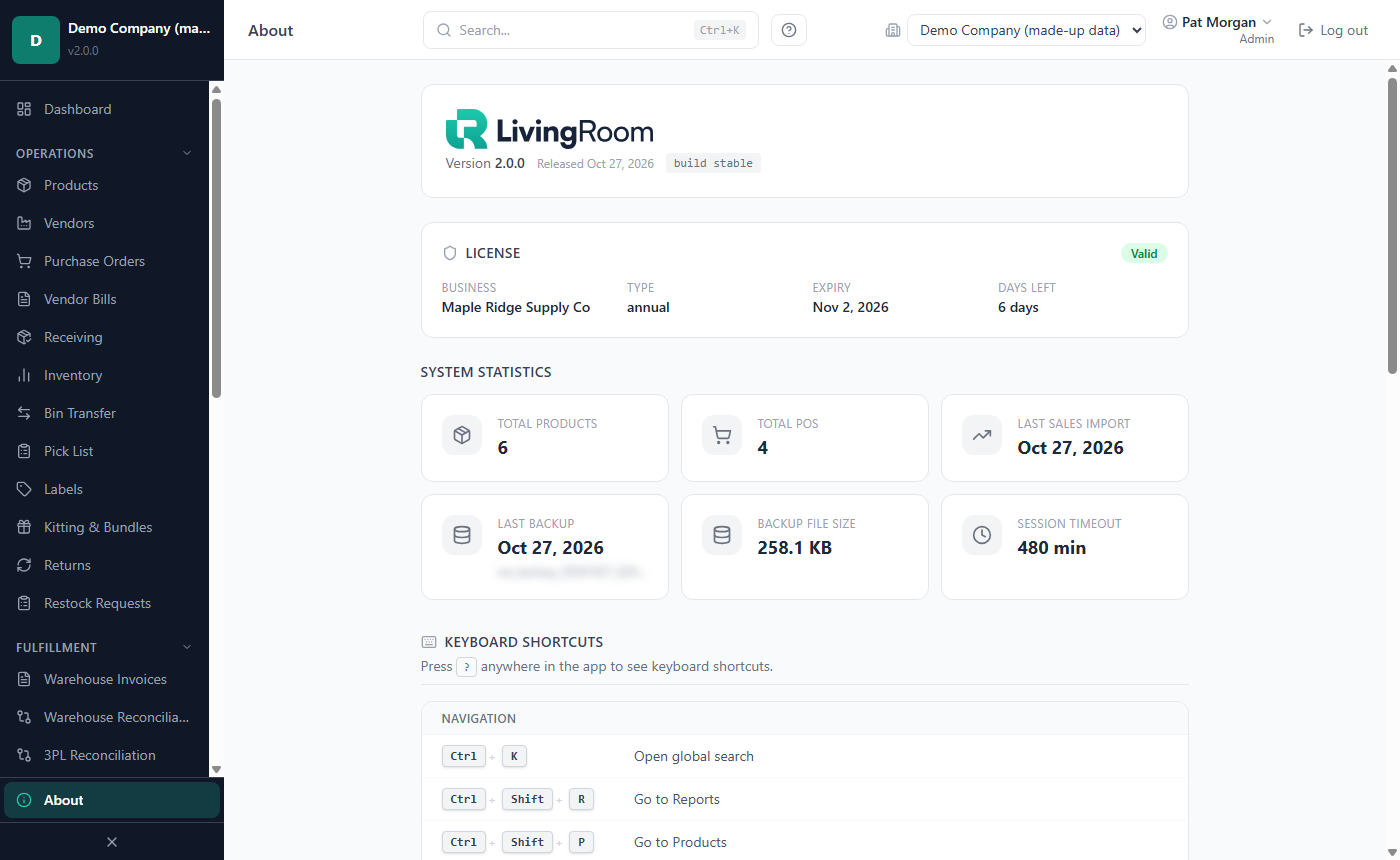
The Support / Contact card higher up on the About page shows your own company's contact e-mail (from Company Profile), not the vendor's.
Support sessions
What is a support session?
In a support session the vendor signs in on your PC to look at a problem with you and fix it. They sign in with a
support account and a short-lived support token (a code that starts with WE-ACCESS-). You never give anyone your
password.
- Contact support and agree on a time. Support tells you how to share your screen or give remote access.
- If support asks for it, send your Support Fingerprint: on the License page click Copy next to it, or on the sign-in page copy it from "Need vendor support? Your support fingerprint:" (shown after a first sign-in attempt). The fingerprint identifies your installation; it is not a password and not your license key.
- Support creates a token that works only on your installation and only for a limited time.
- Click Log out. Support signs in on the sign-in page with their support account and the token.
With an office server, the support session takes place on the office server PC: a support sign-in on another PC of the office is refused.
How can I tell that a support session is running?
At the top right, the role under the user name is Super User, and an amber line reads "Vendor · expires" followed by the time the session ends (point at it to see the full date). The session cannot be extended past that time: shortly before, the app shows "This vendor session cannot be extended. You will be logged out in …".
What can support do and not do?
Support can work in the app like an Admin, and also restore backups that you cannot restore yourself. For your security, a support session cannot change or reset any password, create users or password reset keys, or create keys for outside access to your data. It also cannot accept the End-User License Agreement (or a new version of it after an update) or the AI assistant's consent for you: one of your Admins does that, signed in with their own account.
The support sign-in and every change made in a support session are recorded. In the Activity Log the user name is followed by "(vendor access)", and in the audit trail the note ends with "[vendor access]". Viewing and searching are not recorded. You can end the session at any time with Log out.
How do I see when support signed in?
Every support session is recorded on your PC: when it started and when it ended - when support signed out, when it timed out after a time with no activity, or when the support token expired, whichever came first. This record is kept for 3 years. Clearing the Activity Log does not remove it.
- When you sign in. The first time each Admin signs in after a support session, a bar under the header reads "Vendor support signed in to this installation." It lists each support session that Admin has not seen yet, newest first: when it started (your local date and time) and how long it lasted, or "still signed in". The bar does not stop you working. Close it with the x once you have read it: it does not come back for those sessions. A session that was still signed in comes back once, after it has ended, with its length. Each Admin has their own bar; other roles do not see it, and neither does the support session itself.
- Any time later. On the License page, the Support sessions card lists every recorded support session: when it started, how long it lasted and how it ended. All support sessions on the bar opens it.
If you have a question about a support session, contact support at the e-mail address the bar and the card show.
Moving, updating and uninstalling
How do I move to a new PC?
On the old PC:
- As an Admin, go to Settings › Backup and click Create Backup Now (keep All Companies ticked if the choice is shown).
- Click Open Folder and copy the newest
.webakfile to a USB drive or a cloud folder. - Have your license key ready (the e-mail from your provider).
On the new PC:
- Install LivingRoom and complete the setup wizard (Chapter 2). Create an Admin account (it is replaced in step 9) and activate the same license key. If activation says "License already activated on 1 machine(s). Maximum is 1. Contact support to reset or upgrade.", contact support to move the activation to the new PC.
- Press the Windows key + R, type
%APPDATA%\LivingRoomand press Enter. If there is nobackupsfolder yet, create one. Copy the backup file intobackups. - In LivingRoom, go to Settings › Backup. In Existing Backups, click Refresh.
- Click Restore on your backup. Keep every company ticked, so that the users and settings come along (a full
restore). Type
RESTOREand click Restore All Companies + Global Data. - When Restore Complete appears, click Restart Now.
- Sign in with your usual username and password from the old PC: the full restore brought back the users and passwords of the backup.
Use a backup made with the key you activate on the new PC: make a fresh one on the old PC just before you move. If you only have backups made with an older key, contact support.
Two other ways, since version 2.4: a backup with a backup password also opens with that password; and if your data is encrypted, you can copy the whole data folder to the new PC and unlock it with your recovery code (see How to move to a new PC).
How do I install an update?
Make a backup first (Settings › Backup › Create Backup Now), then run the new setup file over the installed version. Your data is kept. The first start of the new version backs up your data and then updates its databases. Details: Chapter 10. Once your vendor offers automatic updates, an Admin can have the app install them by itself (see Automatic updates).
"The license agreement has changed" after an update
The new version comes with a new End-User License Agreement, and the app asks an Admin to accept it once for the whole installation. Read the text, tick I have read and accept the End-User License Agreement and click Accept. The window cannot be closed without accepting; if you do not want to accept, quit the app and contact your vendor. Once one Admin has accepted, nobody is asked again. Users in other roles are not asked and can keep working.
If a vendor support session is signed in, it sees the text with "Our support cannot accept the license agreement for the customer" and a Close button: one of your Admins accepts it at their next sign-in, with their own account. The setup wizard is the same: if you finish it while a support session is signed in on the PC, it stops with "A vendor support session is signed in on this PC, and our support cannot accept the End-User License Agreement for you. …". Your Admin account is created already: have the support session signed out (Log out), then click Go to Dashboard again.
"The update was not installed"
On an installation for all users of the PC, an automatic update installs only after you click Install update, and Windows asks for an administrator to approve it. The message means nobody approved it (or the installer could not start). Nothing was changed: the app keeps running on the current version, and you can click Install update again when an administrator is at the PC.
How do I uninstall?
- Quit LivingRoom (File › Quit (close all windows), or Quit on its tray icon if it runs in the system tray).
- Open Windows Settings › Apps › Installed apps, find the program and click Uninstall. For an installation for all users, Windows asks for an administrator's permission.
The program folder is removed completely. Your data stays on the PC in %APPDATA%\LivingRoom\ (databases,
companies, backups and logs). If you install the program again later under the same Windows account, everything is
still there.
Important: To remove your data as well, first copy any backups you want to keep, then delete the
%APPDATA%\LivingRoomfolder yourself. This cannot be undone.
Related chapters