
3. Companies, users and sessions
LivingRoom keeps each of your businesses in its own company, and each person who works in the app signs in with their own user account and role. This chapter explains how to add and manage companies, how to add users and decide what they may do, and how sign-in sessions, several windows, the Activity Log and the keyboard shortcuts work.
In this chapter
- What a company is
- How to switch to another company
- How to add a company
- How to set up a new company with the setup wizard
- How to try the app with a demo company
- How to rename, archive or restore a company
- How to look at all companies at once (Global view)
- How to add a user
- How to give a user access to a company
- How to change a user's role
- How to reset a password or give a password reset key
- How to deactivate or reactivate a user
- Roles: who can do what
- How sign-in sessions work
- How to work in several windows
- How to see who did what (Activity Log)
- Keyboard shortcuts and search
What a company is
A company is one complete, separate set of business data: its own products, vendors, purchase orders, warehouses, inventory, sales, settlements, reports and company settings. Each company has its own database, so nothing crosses from one company to another. If you run two stores, or a store and a prep-center business, set each up as its own company.
Things that belong to the whole installation, not to one company:
- the users, their passwords and roles,
- the license,
- the app's accent colour, the session timeout, the inventory costing method and the data folder (see Chapter 10),
- the backups (one backup holds every company).
How many companies you can have at the same time depends on your license. The Companies page shows how many you use, for example "2 of 3 companies used". Archived companies do not count toward the limit.
How to switch to another company
You always work in one company at a time, the active company. Its name is shown at the top of the sidebar.
- Click the company switcher at the top right of the window, next to your name.
- Choose the company you want.
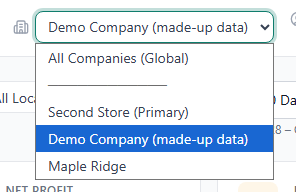
The app opens the Dashboard of that company. Every page you open from now on shows that company's data.
- You only see the companies you have access to. Admins see every company and also the entry All Companies (Global) (see Global view).
- The first company that was created is marked (Primary).
- A company marked (unavailable) cannot be opened: its data belongs to another LivingRoom installation on this PC, or it was saved by a newer version of the app (see Chapter 11).
- If you have several windows open, switching in one window switches all of them (see How to work in several windows).
Tip: If you see "You don't have access to any company yet", ask an Admin to give you access to a company, then sign in again.
How to add a company
Add a company when you start a new, separate business in LivingRoom. Only Admins can add companies.
In the sidebar, under Settings & Admin, click Companies.
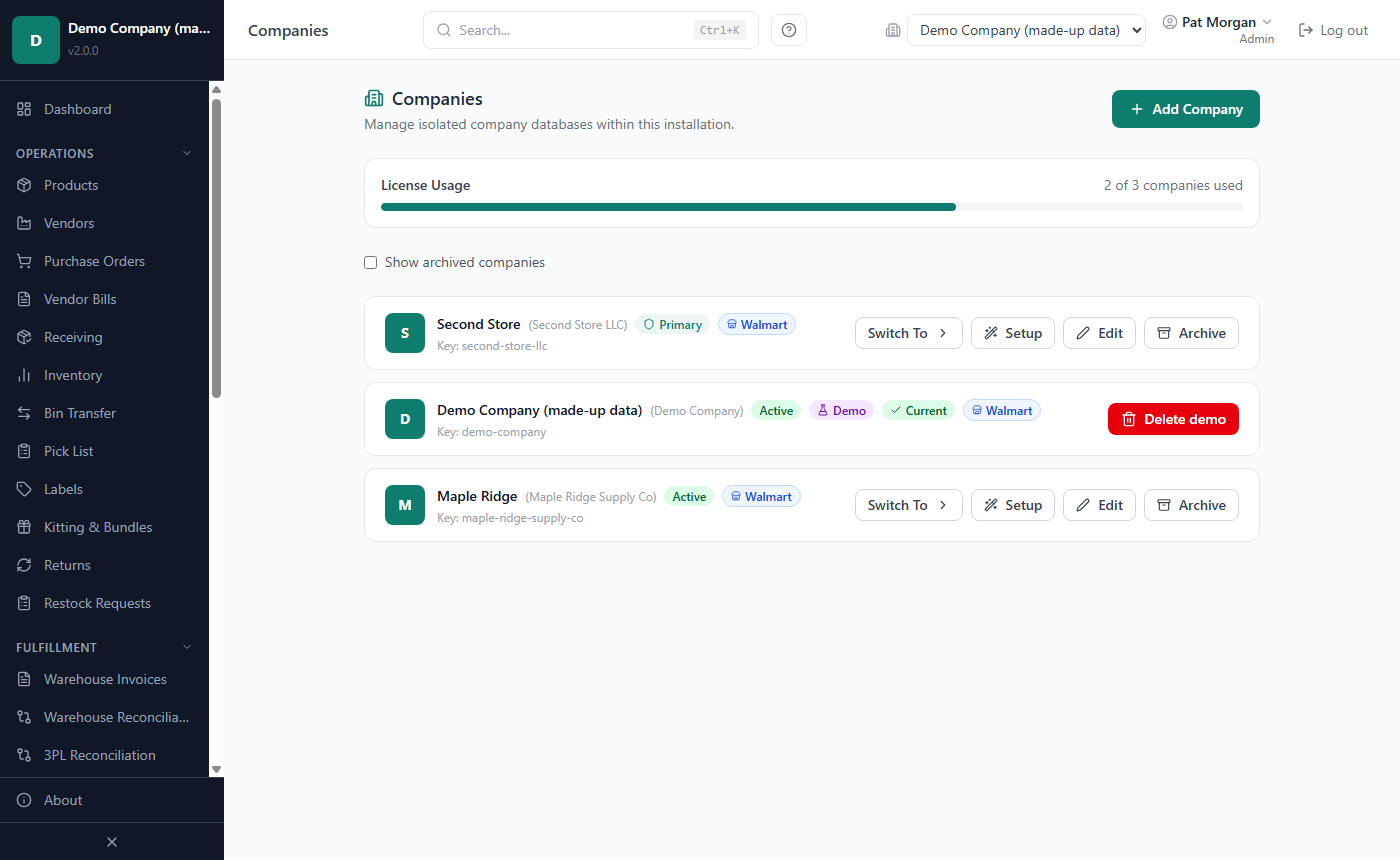
Click Add Company. If the button is greyed out, your license's company limit is reached (the page says "Company limit reached. Contact support to upgrade your license."). Archiving a company you no longer use frees its place (see How to rename, archive or restore a company).
In the Add Company dialog, enter the Company Name.
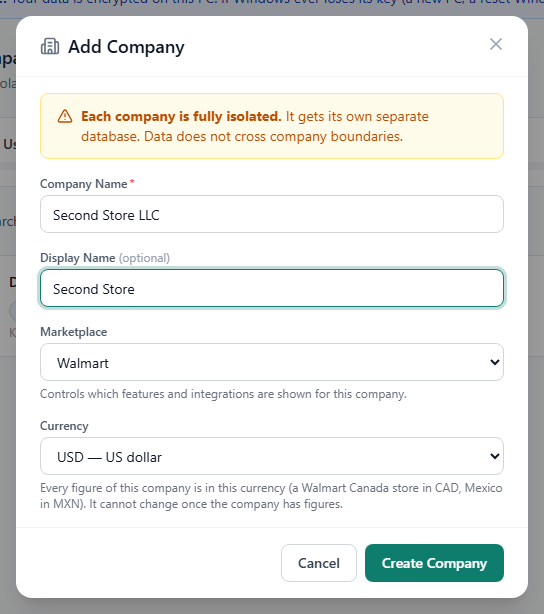
Optional: enter a Display Name, a short name that is shown in the company switcher.
Choose the Marketplace: Walmart, Amazon, eBay, Etsy or Custom. This decides which features, integrations and terms the app shows for this company.
Optional: under Grant Access To, tick the users who should be able to open this company. Admins can open every company automatically, so they are not listed.
Click Create Company.
The company is created with its own, empty database and the company setup wizard opens (next section). On the Companies page the new company gets its own card.
Note: You can also start from the Global view: its Add Company button opens the same dialog.
How to set up a new company with the setup wizard
The company setup wizard walks you through the first settings of a new company in about two minutes. It opens by itself after you add a company (and again after Wipe Business Data, see Chapter 10). Only Admins can run it. You can skip any step and change everything later in Settings.
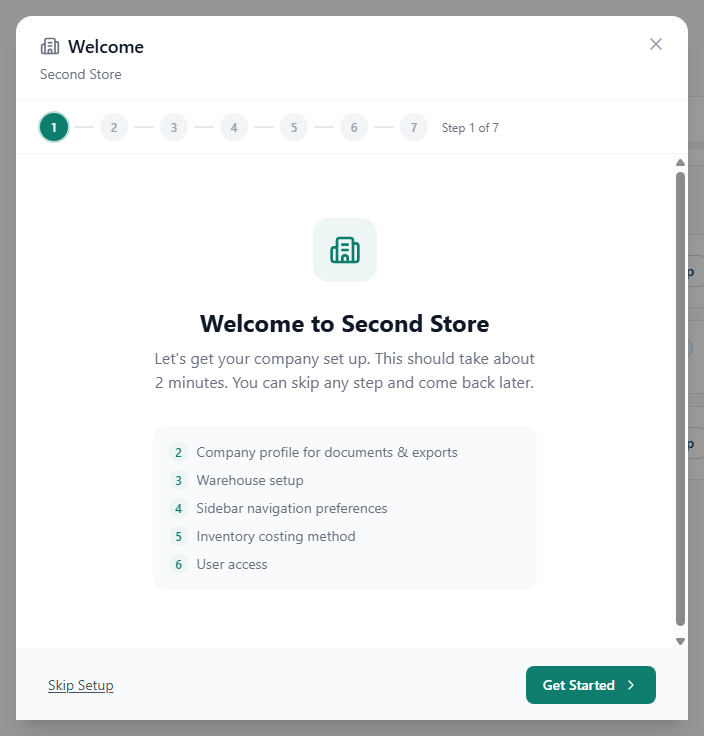
- Welcome — click Get Started.
- Company Profile — upload the Company Logo that is printed on your purchase orders and other documents, and enter the Address, Phone and Email (all optional). The company name is shown but not editable here. Click Next.
- Warehouses — click Add a warehouse and enter a Warehouse Name, a Type and an optional Address. The types are Receiving Warehouse, Fulfillment Location and Both (Receiving + Fulfillment), as in Settings › Warehouses. You can add up to five at a time. If your other companies already have receiving warehouses, Add from another company copies one in. Click Next. (Warehouses are explained in Chapter 5.)
- Navigation ("Choose Your Sidebar") — untick the pages this company does not need. They are hidden from the sidebar for everyone in this company. Click Next.
- Costing Method — FIFO (oldest stock is sold first, the default) or FEFO (stock closest to expiry is sold first). This one setting is shared by all companies of the installation. To change it, pick the other method and tick Change the costing method for all companies. If you are not sure, keep FIFO. Click Next.
- Users ("Set Up User Access") — under Assign Existing Users, tick the users who should open this company, or click Create a new user for this company and fill in Full Name, Email, Username, Password (at least 8 characters) and Role. Click Next.
- Complete — the summary shows each step as Saved, Kept or Skipped. Click Go to Dashboard.
The wizard switches to the new company and opens its Dashboard.
To stop early: click Skip Setup (first step) or Set Up Later (other steps), then Skip for Now. Continue Setup returns you to the wizard. Entries on the current step that you have not saved with Next are lost; the dialog warns you about that.
To run the wizard again later: on the Companies page, click Setup on the company's card. The wizard shows the values already saved, so you only change what you need.
How to try the app with a demo company
A demo company is filled with made-up products, vendors, purchase orders, sales and settlement rows, so you can look around and try things before you enter your own data. It is meant to be thrown away.
- Open Companies (an Admin or the Super User). On a new installation with no company yet, a page that needs a company also offers Try a demo company, next to Add Company.
- Click Try a demo company. Making it takes a few seconds ("Making the demo company with made-up products, orders and sales…").
- Click Switch To on its card.
What to know about it:
- It is called Demo Company (made-up data) and has a Demo badge on the Companies page. Its card has only Switch To and Delete demo. Its orders and purchase orders are dated around today.
- It does not count against your license's company limit, so a license for one company still lets you add your own company.
- It is left out of the Global view's totals and reports.
- Only one demo company exists at a time (the button is gone while one exists).
- On a new installation it is the main company until you add your own.
- When you are done, click Delete demo on its card (Admins and the Super User) and confirm. The demo company and all its data are deleted; your own companies are not touched. It cannot be archived.
How to rename, archive or restore a company
Only Admins can change companies.
Rename a company or change its marketplace
- Open Companies and click Edit on the company's card.
- Change the Company Name, the Display Name or the Marketplace Type.
- Click Save Changes. If you changed the marketplace type, confirm with Change type. Orders that do not name a marketplace stay with the company's current primary marketplace, and the terms used across the app switch to the new type.
Note: The name on the Companies page is the name in the company list and switcher. The name printed on your documents is set separately in Settings › Company Profile (see Chapter 10).
Archive a company you no longer use. Archiving hides it from the company list and the switcher; its data is not deleted, and it no longer counts toward your license's company limit.
- On the company's card, click Archive (or click Edit and then Archive this company).
- Confirm with Archive company.
You cannot archive the only active company.
Restore an archived company
- On the Companies page, tick Show archived companies.
- Click Restore on the archived company's card.
The company is active again with all its data. The setup wizard does not start for a restored company. A restored company counts toward your license's company limit again: when the limit is reached, the restore is refused with "Company limit reached. Your license allows 1 company." (with your license's number) - archive another company first.
Deleting a company for good is not available to Admins: an archived company's data stays on the PC. If you need a company's data removed from the computer permanently, contact support (see Chapter 11).
How to look at all companies at once (Global view)
The Global view gives Admins a summary across all companies. Only Admins can use it.
- Click the company switcher.
- Choose All Companies (Global).
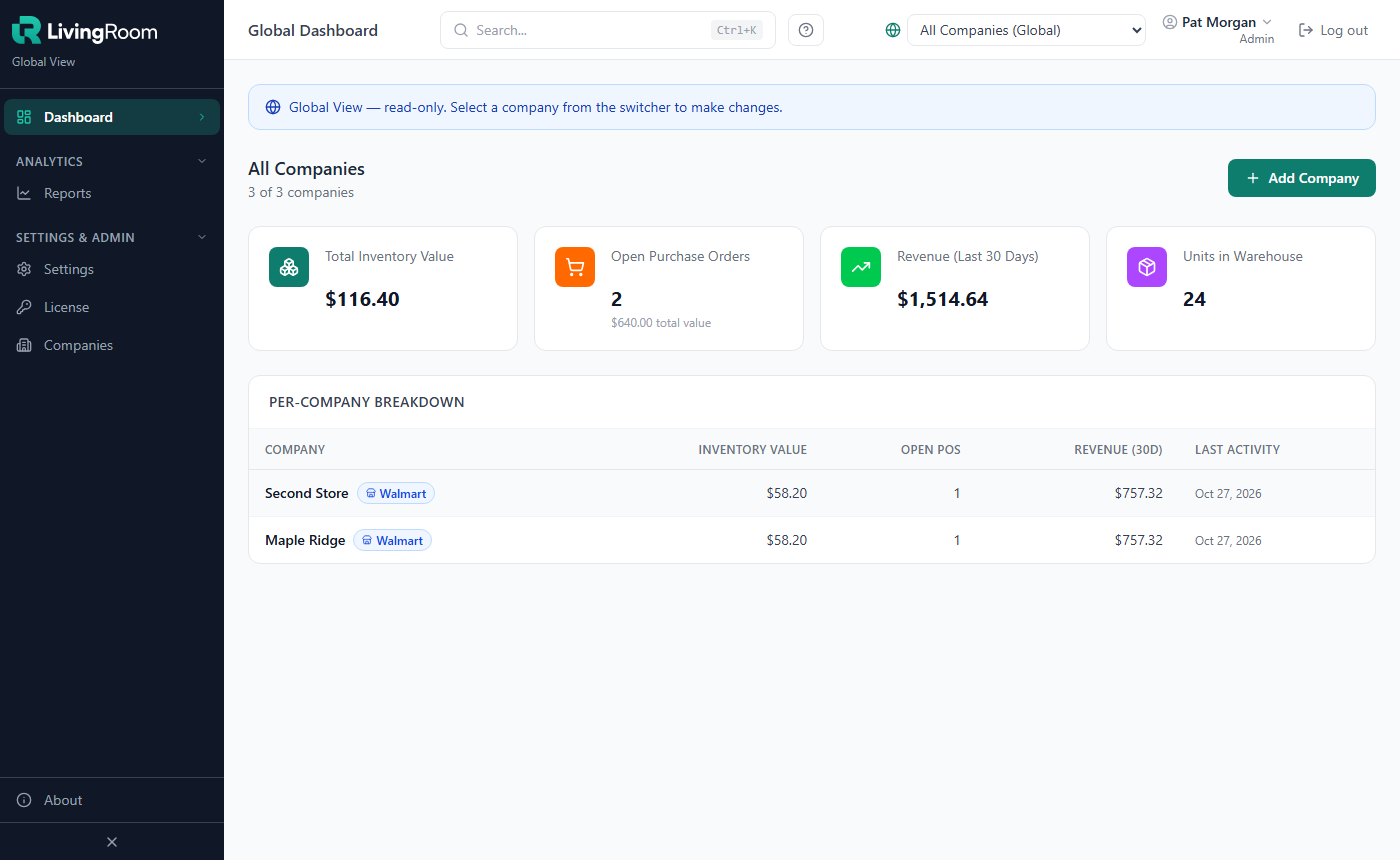
The Global Dashboard shows:
- how many companies you use out of your license limit, and an Add Company button,
- four totals across all companies: Total Inventory Value, Open Purchase Orders (count and total value), Revenue (Last 30 Days) and Units in Warehouse,
- the Per-Company Breakdown: inventory value, open POs, revenue of the last 30 days and the last activity date of each company. A company with nothing in it yet shows "No data yet".
The Global view is read-only: the blue banner says "Global View — read-only. Select a company from the switcher to make changes." The sidebar only shows Dashboard, Companies, Reports, Settings and License. In Reports you can combine several companies (see Chapter 8). In Settings, the company tabs ask you to select a company first; the settings that apply to the whole installation (such as the session timeout, backups and the license) can be used here.
With many companies the Global view reads them four at a time, so its totals and the reports in the Global view come back sooner.
To leave the Global view, click a company name in the breakdown table, or pick a company in the switcher.
How to add a user
Give everyone who works in LivingRoom their own user account. Never share one account between people: the Activity Log records who did what, and the license limits how many people can be signed in at once.
Admins can add users with any role. Managers can add users with a lower role (Purchaser, Receiving, Reports Only).
In the sidebar, under Settings & Admin, click Users.
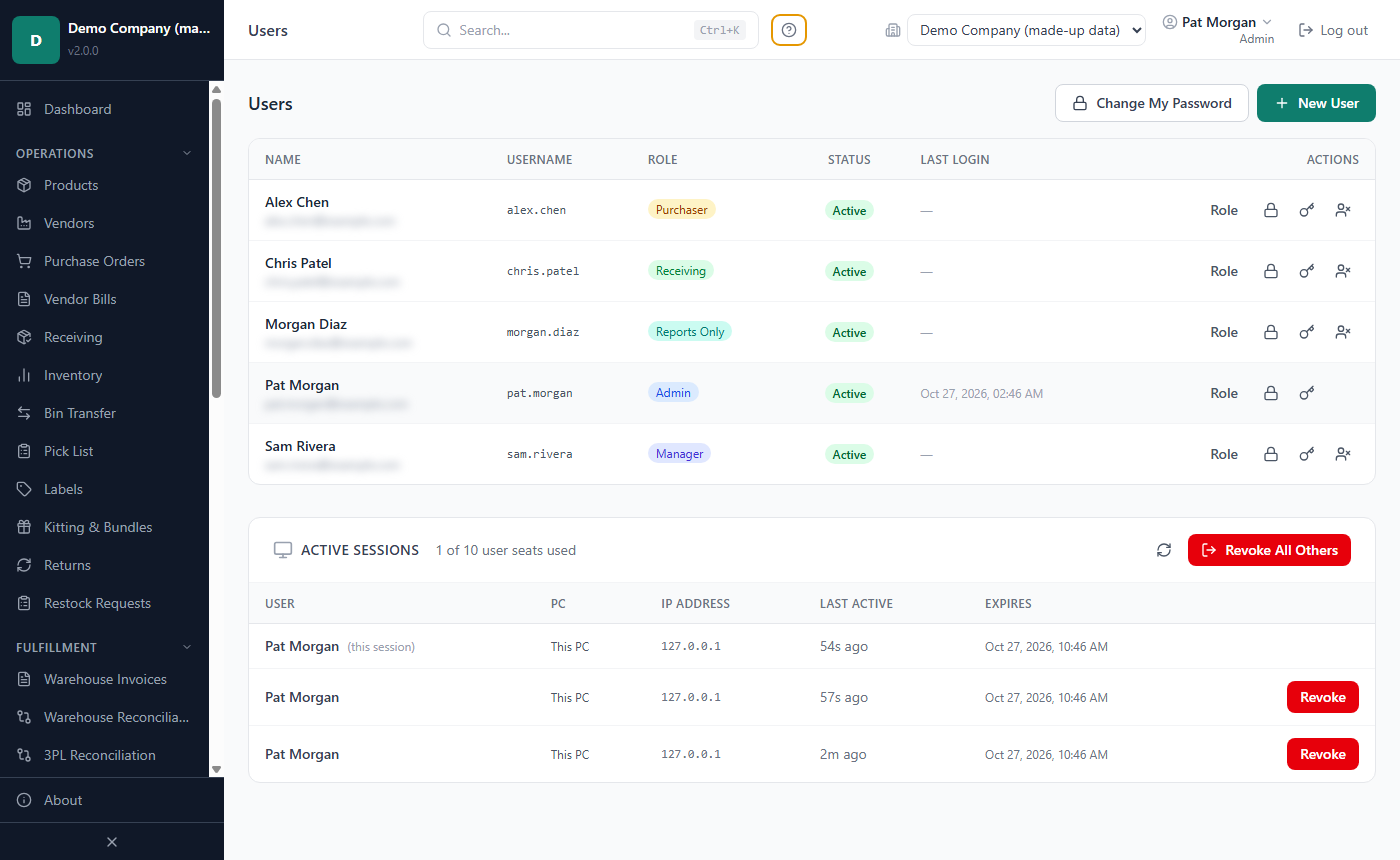
Click New User.
Enter the Username (what the person types to sign in), the Full Name, an optional Email and a Password of at least 8 characters.
Under Roles (select one or more), tick the role or roles (see Roles: who can do what). A user with several roles may do everything each of the roles allows.
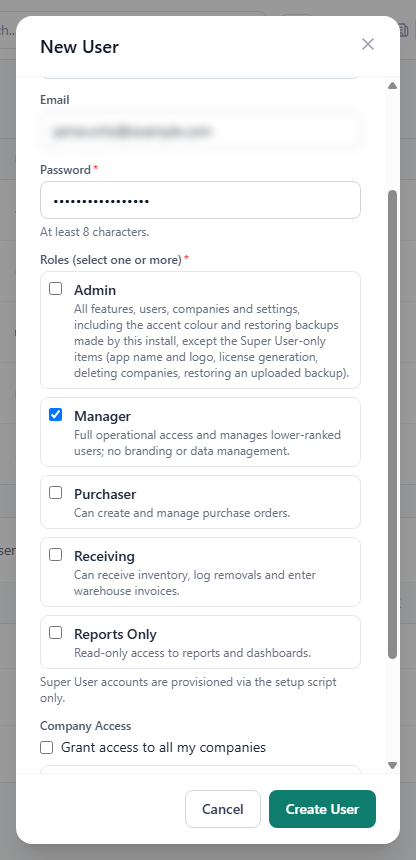
Under Company Access, leave Grant access to all my companies ticked, or untick it and tick only the companies this person should open. An Admin opens every company automatically, so the section says so instead.
Click Create User.
A message confirms the new user and the companies they can open. Tell the person their username and password; they can then choose their own password (see below).
Important: A user without any company access can sign in but cannot work in any company. Only Admins can grant company access. A Manager who creates a user must ask an Admin to grant it.
Change your own password: click your name at the top right and choose Change My Password, or click Change My Password on the Users page. Enter the Current Password, the New Password and Confirm New Password, then click Change Password.
How to give a user access to a company
Admins open every company automatically. Every other user only sees the companies they have been given access to. An Admin can give access in three places:
- when creating the user (Company Access in the New User dialog, see above),
- when adding a company (Grant Access To in the Add Company dialog),
- in the company's setup wizard, for users who already exist:
- Open Companies and click Setup on the company's card.
- Click Get Started, then Next through the steps until Set Up User Access.
- Under Assign Existing Users, tick the users and click Next.
- Click Go to Dashboard on the last step.
If the user is signed in at that moment, they may need to sign out and sign in again before the company appears in their switcher.
Note: The screens do not offer a way to take one company away from a user yet. If someone should no longer use the app at all, deactivate the user.
How to change a user's role
- Open Users and click Role in the user's row.
- In the Edit User dialog, tick or untick roles.
- Click Update Roles.
- You cannot change your own role; ask another Admin.
- The only active Admin cannot lose the Admin role. Make another user an Admin first.
- A user's name, username and e-mail cannot be changed here.
How to reset a password or give a password reset key
Reset a forgotten password when the person can tell you they are locked out:
- Open Users and click the lock icon (Reset Password) in the user's row.
- Enter the New Password (at least 8 characters) and Confirm Password.
- Click Reset Password.
The user is signed out everywhere at once and signs in with the new password. Give it to them in person or by phone, and ask them to change it.
Give a password reset key so a user can reset their own password later without you:
- In the user's row, click the key icon (Generate Password Reset Key) and confirm with Generate key. Any older password reset key of this user stops working.
- Click Copy Key and give the key to the user securely.
- Click Done — I have saved the key. The key is shown only once.
The user uses it on the sign-in screen: Locked out? Use a password reset key →, then enters their Username, the Password Reset Key, a New Password and Confirm New Password, and clicks Recover Account. Each password reset key works once. (It is not the recovery code, which unlocks the data on a new PC.)
How to deactivate or reactivate a user
Deactivate a user when the person leaves or should no longer sign in. Their records stay in the app (for example, the purchase orders they created still show their name).
- Open Users and click the deactivate icon (Deactivate) in the user's row.
- Confirm with Deactivate.
The user loses access immediately and their status shows Inactive. To let them back in, click the activate icon (Activate) in the same row.
- You cannot deactivate yourself.
- The only active Admin cannot be deactivated.
- Managers can only deactivate users with a lower role than their own.
- Deleting a user account for good is not available to Admins; deactivating is the normal way to remove access.
Roles: who can do what
Every user has one or more roles. There are five roles:
- Admin — everything a customer can do, including users, companies, settings, backups, the license and the Danger Zone.
- Manager — full day-to-day work in the companies they have access to, and management of lower-ranked users there. No branding, backups, license or data management.
- Purchaser — products, vendors and purchase orders.
- Receiving — receiving and stock work, warehouse invoices, sales and settlement imports.
- Reports Only — reports and dashboards, no data entry.
| What | Admin | Manager | Purchaser | Receiving | Reports Only |
|---|---|---|---|---|---|
| Dashboard, Restock Requests list | Yes | Yes | Yes | Yes | Yes |
| File a restock request | Yes | Yes | Yes | Yes | — |
| Products, Vendors, Import Templates | Edit | Edit | Edit | View | — |
| Create and edit purchase orders | Yes | Yes | Yes | View | — |
| Close or reopen POs, close a PO line short | Yes | Yes | — | — | — |
| Receive stock (Receiving page) | Yes | Yes | — | Yes | — |
| Inventory page | Yes | Yes | — | Yes | View |
| Adjust, transfer and count stock; Returns; Kitting & Bundles | Yes | Yes | — | Yes | — |
| Warehouse Invoices | Yes | Yes | — | Yes | — |
| Sales Import, Sales Orders, Settlement Import, Settlement Orders | Yes | Yes | — | Yes | — |
| Import a file the app flags as a duplicate anyway | Yes | Yes | — | — | — |
| 3PL Reconciliation, Inbound Shipments | Yes | Yes | — | Yes | Yes |
| Lot Reconciliation: view / count a lot | Yes | Yes | — | Yes | View |
| Bin Transfer, Pick List | Yes | Yes | — | Yes | — |
| Labels | Yes | Yes | Yes | Yes | — |
| Business expenses (Expenses page) | Yes | Yes | — | — | View |
| Reports, Cost Intelligence, Reimbursements, Warehouse Reconciliation | Yes | Yes | — | — | Yes |
| Users page | All users | Lower roles in their companies | — | — | — |
| Activity Log | Yes | Their own and their users' entries | — | — | — |
| Settings | All tabs | Company tabs only | — | — | — |
| Companies page, Global view, License page | Yes | — | — | — | — |
| Backups and restore, Wipe Business Data, Factory Reset | Yes | — | — | — | — |
Notes:
- The sidebar only shows the pages a role can open, and the keyboard shortcuts only work for those pages.
- Hiding a page under Sidebar Navigation (see Chapter 10) hides it for everyone in that company; it does not change what a role may do.
- In Settings, a Manager sees Company Profile (without the logo), Operational, Integrations, Warehouses, Adj. Categories and Column Mapping. The session timeout and the costing method are shown read-only.
How sign-in sessions work
Each time someone signs in, LivingRoom starts a session for them.
Session timeout. A session ends after a period without activity: 480 minutes (8 hours) unless an Admin changed it under Settings › Operational › Session timeout (see Chapter 10). While you click, type or scroll, the session is kept alive for you.
- Five minutes before the end, an amber banner appears below the header: "Your session expires in 5 minutes. Click here to stay logged in." Click it to continue.
- In the last 60 seconds a Session about to expire dialog counts down. Click Stay logged in to continue, or Log out now.
- If you do nothing, you are signed out and the sign-in screen says "Session expired. Please sign in again." Anything you had not saved is lost.
Logging out. Click Log out at the top right. This signs you out of every window.
How many people can be signed in at once. Your license sets how many users can be signed in at the same time. Each person counts once, however many windows they have open. When all seats are taken, the next person to sign in sees "Your license allows 3 concurrent user(s). Please try again when another user logs out." (with your license's number).
With an office server (several PCs using one PC's data, see Chapter 10), the people signed in on all the PCs count together, and one person signed in on two PCs counts once. Your license then shows Office server with its number of seats, for example Office server — 5 seats.
Admins and Managers can see who is signed in at the bottom of the Users page, in Active Sessions, for example "2 of 3 user seats used". The PC column shows where each session is: This PC on a PC on its own; with an office server, the name of the PC, or Server PC for the office server itself. To free a seat:
- ask the other person to log out, or
- click Revoke in their row. They are signed out immediately.
Revoke All Others signs out only your own other sessions (for example, a window you left open on another PC).
Tip: A session that was not logged out, for example because the PC was switched off, keeps its seat until it times out. If a seat seems blocked, revoke that session.
When the vendor gives you remote help in a support session (see Chapter 11), the support login can always sign in, and while it is signed in it takes up a seat.
How to work in several windows
You can keep more than one LivingRoom window open, for example a product page next to a purchase order.
Open a second window
- On the Inventory, Purchase Orders or Receiving page, click the quick-view icon next to a product name.
- In the product's quick view, click Open in New Window.
The product page opens in its own window. It is a full app window: you can use the sidebar there like in the main window.
How the windows work together:
- All windows are equal and use one sign-in. Activity in any window keeps everyone's session alive, and the timeout warning is shared.
- One active company for all windows. If you switch company in one window, the other windows follow and show "The company was changed in another window. This window now shows …". A save from a window that still showed the old company is refused with "Not saved: …", so nothing is saved in the wrong company.
- Log out in one window logs out all windows. The other windows show "You were signed out in another window. Please sign in again."
- Closing a window while others are open asks: Close all windows (quits the app and signs you out) or Keep the other windows open. Tick Don't ask again to keep your choice. Closing the last window ends your session.
- File › Quit (close all windows) closes every window and signs you out.
- With background mode on (an Admin setting), closing the last window still signs you out, but the app stays in the system tray for its scheduled work; File › Quit or Quit on the tray icon stops it (see Chapter 10).
- Starting LivingRoom again while it is already running does not open a second copy; it brings the open window to the front.
- With an office server, these rules hold on each PC: each PC has its own windows, its own active company and its own sign-in. Switching company or logging out on one PC does not change the other PCs.
The Edit menu has the usual Undo, Redo, Cut, Copy, Paste and Select All. You can open the menus from the keyboard: Alt+F opens File and Alt+E opens Edit (press Alt alone to show the underlined letters).
How to see who did what (Activity Log)
The Activity Log shows who did what and when. Admins and Managers can open it (a Manager sees their own entries and those of the users they manage).
In the sidebar, under Analytics, click Activity Log.
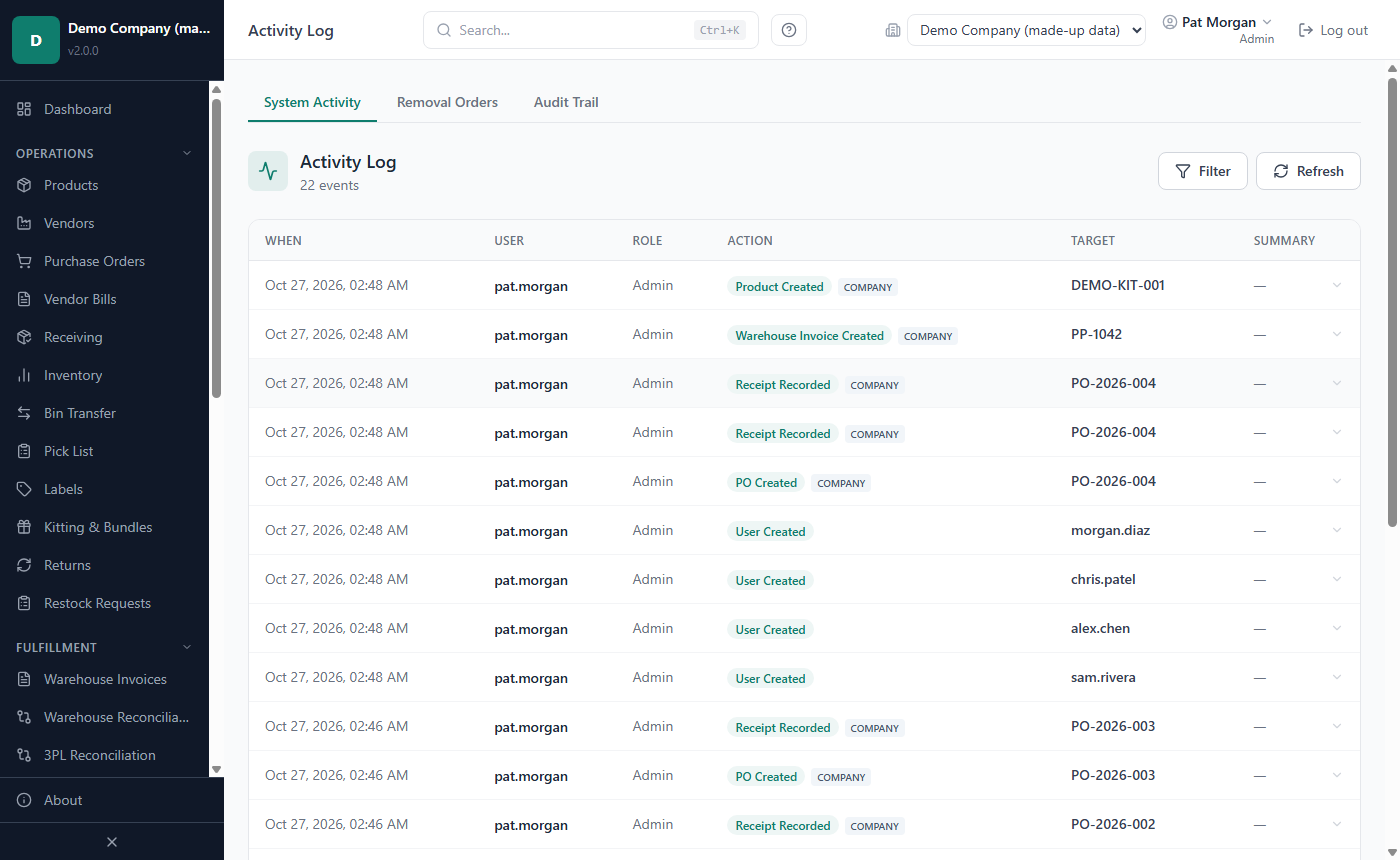
Choose a tab:
- System Activity — sign-ins and actions such as receiving stock, editing orders, changing users and settings. Columns: When, User, Role, Action, Target, Summary. Click a row to see the details. Entries marked Company were recorded in this company.
- Removal Orders — the removal orders of the active company (see Chapter 6).
- Audit Trail — field-level changes in the active company, such as batches, bins, holds and PO costs, with the old and new value and the reason entered.
To narrow the list on System Activity, click Filter, enter a Username, choose an Action or a date range (From, To) and click Apply. Refresh reloads the list.
Actions taken in a vendor support session are listed under the vendor's support login, marked "(vendor access)".
The Audit Log tab in Settings is a separate, more technical record for Admins (see Chapter 10).
Keyboard shortcuts and search
Press ? (when you are not typing in a field) or click the ? button at the top of the window to see the shortcuts you can use. The list only shows shortcuts to pages your role can open; the About page has the same list.
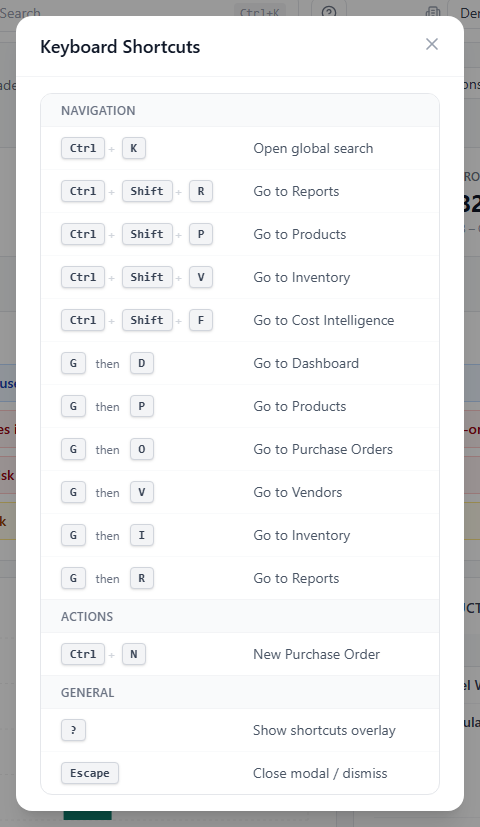
| Keys | What it does |
|---|---|
| Ctrl + K | Open the search box |
| Ctrl + Shift + R | Go to Reports |
| Ctrl + Shift + P | Go to Products |
| Ctrl + Shift + V | Go to Inventory |
| Ctrl + Shift + F | Go to Cost Intelligence |
| G then D | Go to Dashboard |
| G then P | Go to Products |
| G then O | Go to Purchase Orders |
| G then V | Go to Vendors |
| G then I | Go to Inventory |
| G then R | Go to Reports |
| Ctrl + N | New Purchase Order |
| ? | Show the shortcuts overlay |
| Escape | Close a dialog or dismiss a message |
For the "G then" shortcuts, press G, let go, and press the second key within about a second and a half. These shortcuts do not work while you are typing in a field or while a dialog is open. In the Global view, shortcuts to company pages ask you to select a company first.
Search. Press Ctrl + K or click the search box at the top ("Search products, POs, vendors..."), and type at least 2 characters of a name, SKU or number. Results are grouped (Products, Purchase Orders, Vendors, Receiving, Invoices). Use the arrow keys and Enter, or click a result, to open it. View all results for "…" opens the full results page. Search only covers the active company and only the kinds of records your role can open.
Related chapters
- Chapter 2 — Installing, first start and your license: the first Admin account and the license that sets your company and user limits.
- Chapter 5 — Vendors, purchasing, receiving and prep centers: warehouses.
- Chapter 8 — Reports and dashboards: reports across several companies in the Global view.
- Chapter 10 — Settings, backups and updates: the session timeout, sidebar navigation and the company profile.
- Chapter 11 — Troubleshooting and FAQ: support sessions and contacting support.