
10. Settings, backups and updates
This chapter walks through the Settings page as an Admin sees it, explains what a backup contains, how automatic and manual backups work and how to restore one, and how to install an update. It ends with the two Danger Zone actions, which delete data and should be used with great care.
Most settings belong to the company you have open. A few apply to the whole installation (every company and every user); the screen says so next to them, for example "Applies to all companies on this installation".
In this chapter
- The Settings tabs at a glance
- How to change the accent colour (App Branding)
- How to set your company details for documents (Company Profile)
- How to adjust the operational settings
- How to choose where new company data is stored (Data Folder)
- The other Settings tabs
- What a backup contains
- How automatic backups work
- How to make a backup now
- How to keep a copy of your backups off this PC
- How to choose how many backups are kept
- How to restore a backup
- How to move to a new PC
- How to install an update
- How to use one set of data on several PCs (office server)
- How to clear test data (Wipe Business Data)
- How to start over (Factory Reset)
The Settings tabs at a glance
To open Settings, click Settings in the sidebar under Settings & Admin. Admins see every tab below. Managers see Company Profile, Operational, Integrations, Warehouses, Adj. Categories and Column Mapping. Purchaser, Receiving and Reports Only users do not have Settings.
| Tab | What it holds | Applies to | Where explained |
|---|---|---|---|
| App Branding | The app's accent colour | The whole installation | This chapter |
| Company Profile | Company name, address, phone, e-mail and the logo printed on documents | This company | This chapter |
| Operational | General options, session timeout, costing method, data folder, sidebar pages, e-mail | Mixed (marked on screen) | This chapter and Chapter 9 |
| Integrations | Marketplaces, QuickBooks, 3PL, Reporting API | This company | Chapter 9 |
| Web Companion | The Web Companion (optional read-only access for other tools) | This company | Not needed for normal use |
| Warehouses | Prep centers and fulfillment warehouses | This company | Chapter 5 |
| Adj. Categories | Reasons for inventory adjustments | This company | Chapter 6 |
| Container Types | How products are packed (Bag, Box, Glass, Plastic, Porcelain, Wood, or your own) | This company | Chapter 4 |
| Column Mapping | How the columns of your sales and settlement files are read | This company | Chapter 7 |
| Office Server | Sharing this PC's data with the other PCs of the office, or using another PC's (Admins) | The whole installation | This chapter |
| Backup | Backups, retention, the backup password, the off-site copy and restore | The whole installation | This chapter |
| Security | What is encrypted on this PC, and your recovery code | The whole installation | This chapter |
| Updates | The version you are running and the update history | The whole installation | This chapter |
| Period Close | Closing a month or a year, with a snapshot of the units and value (Admins) | This company | Chapter 13 |
| Audit Log | A detailed change record | This company (Global view: installation) | This chapter |
| License | License status | The whole installation | Chapter 2 |
| Danger Zone | Wipe Business Data, Factory Reset | — | This chapter |
Note: In the Global view (All Companies, see Chapter 3) the company tabs say "Select a company from the top menu to open this tab." Pick a company in the switcher first. The installation-wide settings work in the Global view too.
How to change the accent colour (App Branding)
The accent colour is used for buttons, highlights and the active sidebar item, for every company and user of this installation. Admins can change it.
Open Settings › App Branding.
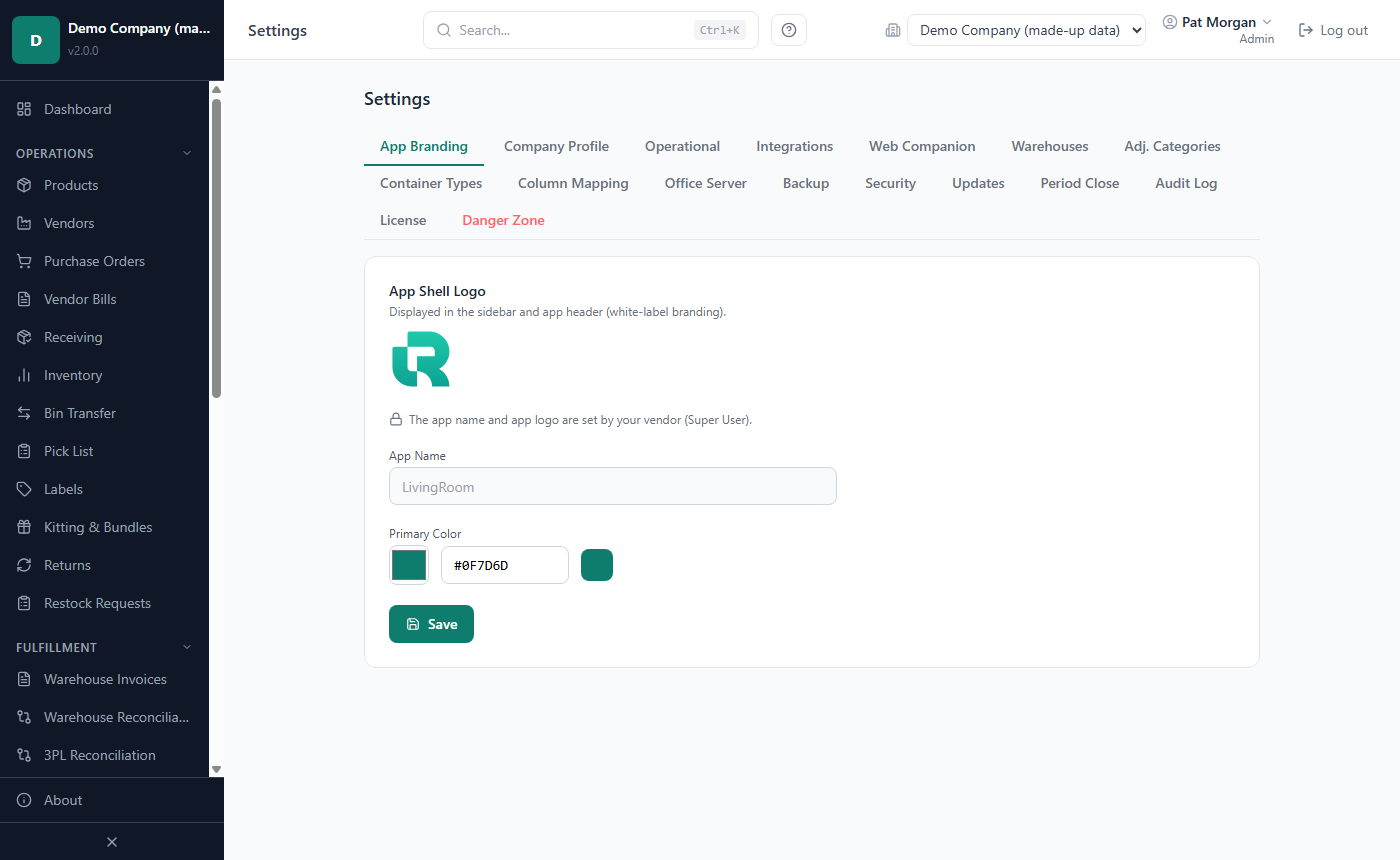
Under Primary Color, click the colour box and pick a colour, or type a colour code such as
#2563ebin the field next to it. The small square shows the result.Click Save. "Branding saved" confirms it.
The app name ("LivingRoom") and the app logo are set by your vendor; the tab shows them read-only with a lock note. Your own company name and logo for documents belong in Company Profile (next section).
How to set your company details for documents (Company Profile)
The company profile is printed on your purchase order and goods-received (GRN) PDFs and shown on the Dashboard. Each company has its own profile. Admins and Managers can edit the text; only Admins can change the logo.
Open the company in the switcher, then Settings › Company Profile.
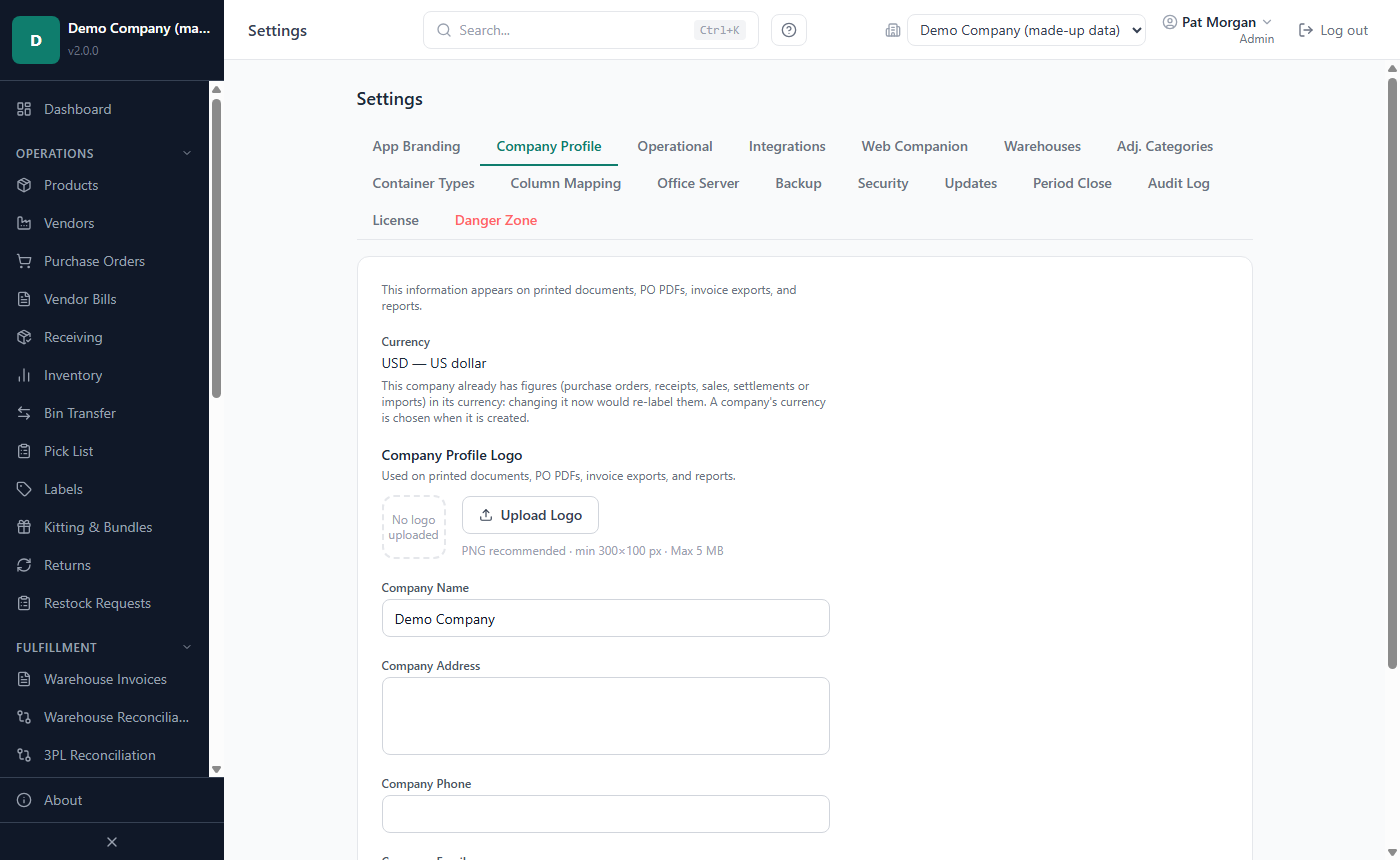
To add the logo: under Company Profile Logo, click Upload Logo and choose a PNG or JPG file (PNG recommended, at least 300 × 100 pixels, at most 5 MB). To remove it, click Remove Logo and then Remove. The logo is saved as soon as it is uploaded.
Fill in Company Name, Company Address, Company Phone and Company Email.
Show 'Made with LivingRoom' on documents is on for every company until an Admin turns it off. While it is ticked, your purchase orders, goods received notes (GRN), invoices and packing slips carry a small grey line at the foot of each page: the LivingRoom mark and the words "Made with LivingRoom". Untick it to print them without that line. Your own company logo stays the only logo at the top either way. Only an Admin can change it; a Manager sees the box but cannot change it.
Click Save. "Company profile saved" confirms it.
Tip: If Company Name is empty, the tab warns you. Enter the name you want on your documents; it can differ from the name in the company list (which you change on the Companies page).
How to adjust the operational settings
Open Settings › Operational. The tab is a column of cards; each card has its own save button.
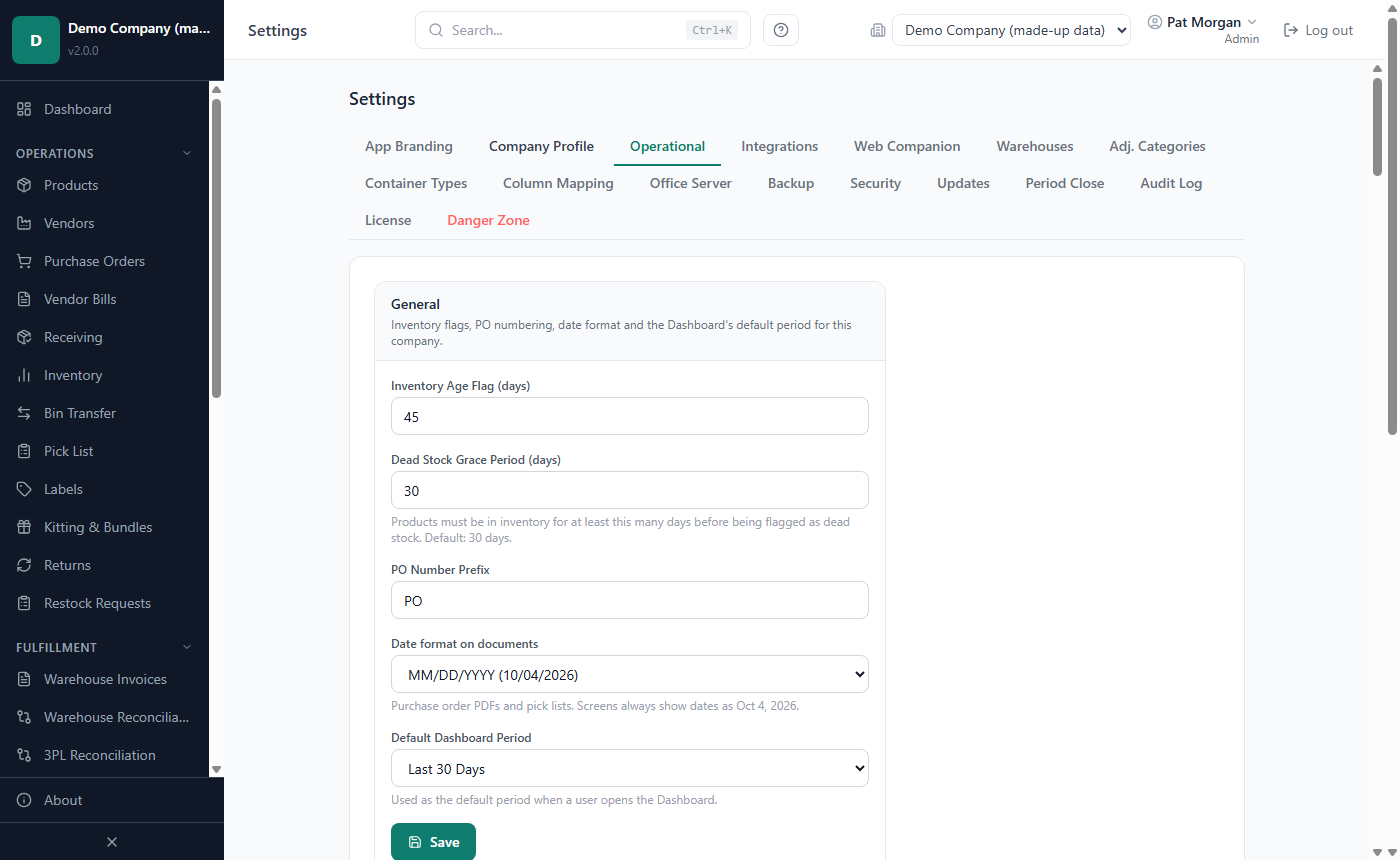
General (this company)
| Setting | What it does |
|---|---|
| Inventory Age Flag (days) | How many days stock may sit in a warehouse before it is flagged as aged. Default 45. |
| Dead Stock Grace Period (days) | Products must have been in stock at least this many days before they can be flagged as dead stock. Default 30. |
| PO Number Prefix | The letters in front of new purchase order numbers. Default "PO". |
| Date format on documents | How dates are printed on purchase order PDFs and pick lists: MM/DD/YYYY (the default), DD/MM/YYYY, YYYY-MM-DD, DD.MM.YYYY, MM-DD-YYYY or DD-MM-YYYY. Screens always show dates as Oct 4, 2026. |
| Default Dashboard Period | The period the Dashboard opens with, for example Prior Month (the default), Last 30 Days or Year to Date. |
Click Save. "Operational settings saved" confirms it.
Session timeout
Session timeout (all companies and users) sets how many minutes someone can be inactive before they are signed out (see Chapter 3). The default is 480 minutes; the field shows it in words ("= 8 hours"). You can enter 5 to 10080 minutes (7 days). Only Admins can change it.
- Enter the number of minutes in Session Timeout (minutes).
- Click Save.
The new value applies to each user from their next sign-in, or the next time their session is renewed.
Inventory costing method (all companies)
Inventory Costing Method decides which stock batches are used first when items are sold, removed or used in kits: FIFO — First In, First Out (the oldest received batches, the default) or FEFO — First Expired, First Out (the batches closest to expiry; undated batches follow). It applies to every company of the installation and changes the cost of goods and profit recorded from now on; past transactions are not changed. The method does not govern transfers: a bulk transfer between warehouses moves the oldest received batches first, and the per-product Transfer to Warehouse dialog lets you choose the batches.
Only Admins can change it: choose the method, click Save Costing Method and confirm with Switch method. Products with their own costing override keep it. See Chapter 6 for how batches are used.
Important: Change the costing method only when you have a clear reason, such as selling food or supplements with expiry dates. It affects the profit figures of all your companies.
Data folder (all companies)
See the next section, How to choose where new company data is stored.
Background mode (all companies)
Background mode keeps the app running in the system tray (the small icons next to the clock) after you close the last window, so automatic backups, e-mail alerts and other scheduled work go on. It is off unless an Admin turns it on, and it applies to the whole installation.
- Open Settings › Operational and scroll to Background mode (all companies).
- Switch on Keep running in the tray.
With background mode on:
- Closing the last window still signs you out. The app's icon, the teal LivingRoom icon, stays in the tray.
- Click the tray icon, or right-click it and choose Open, to get a window with the sign-in page.
- Right-click the tray icon and choose Quit, or use File › Quit (close all windows), to stop the app completely.
- Start with Windows appears under the switch and in the tray icon's menu. It is a choice for your own Windows user: when it is on, the app starts in the tray, without a window, each time you sign in to Windows. It can be chosen in the installed app only.
Turning background mode off also turns Start with Windows off. Closing the last window then quits the app again.
Sidebar Navigation (this company)
Switch off the pages this company does not use, so the sidebar stays short. Dashboard, Settings, License and About are locked and always shown. Click Save Navigation; the sidebar changes at once for everyone in this company. Hiding a page does not change what anyone is allowed to do.
E-mail cards
Email Notifications, Supplier Communication and SMTP Server (email delivery) set up the daily e-mail digest, automatic reminders to suppliers for overdue purchase orders, and the mail server the app sends through. They are explained in Chapter 9.
How to choose where new company data is stored (Data Folder)
Each company's database, and the copies of the files you import, are stored in the data folder. By default this is %APPDATA%\LivingRoom\Data for your Windows user. The setting applies to the whole installation, only Admins can change it, and it only affects new companies and new import copies: existing companies and files stay where they are.
Open Settings › Operational and scroll to Data Folder Path (all companies).
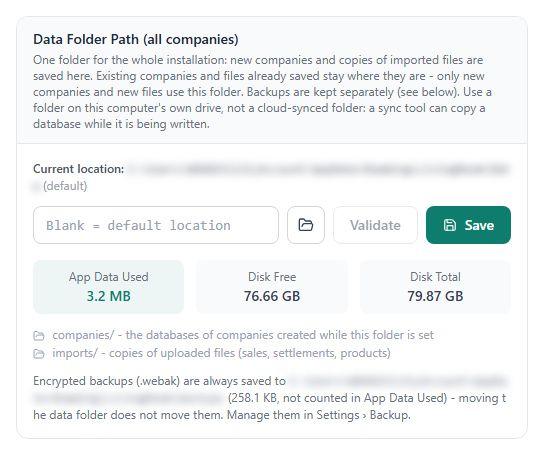
Click the folder button and choose a folder, or type a full path such as
D:\InventoryData. Leave the field blank to use the default location.Click Validate. A green message means the folder can be used.
Click Save. The card confirms "Data folder saved: … New companies and new files use it."
The card also shows the Current location, App Data Used, Disk Free and Disk Total, and lists earlier folders that still hold companies created before a change.
Important: Choose a folder on a drive that is always connected to this PC. A company whose folder is on a removed USB drive or a disconnected network drive cannot be opened. Backups are not kept in the data folder; they always go to the backups folder (see below).
The other Settings tabs
- Integrations connects marketplaces, QuickBooks, a 3PL and the Reporting API. See Chapter 9.
- Web Companion — an optional read-only connection for other programs. You do not need it for normal use; leave it off unless support asks you to set it up. To see your figures on a phone on the office network, use Office Server › Phones on the office network instead (see Chapter 13).
- Warehouses — your prep centers and fulfillment warehouses. See Chapter 5.
- Adj. Categories — the reasons you can pick when you adjust inventory (for example damaged or found stock). See Chapter 6.
- Container Types (Admins) — the case and pallet types used on products. See Chapter 4.
- Column Mapping — how LivingRoom reads the columns of your sales and settlement files. See Chapter 7.
- Office Server (Admins) turns this PC into the office server that the other PCs of the office use, or connects this PC to one. See How to use one set of data on several PCs.
- Updates shows the Current Version and the Update History. Updates are installed with the installer (see How to install an update).
- Audit Log (Admins) is a detailed record of changes: When, User, Action, Table and Note, 25 entries per page. Filter by a date range or an action, and click Export CSV to save the filtered list to a file of your choice. It shows the open company's record; in the Global view it shows installation-wide changes. For an easier overview of who did what, use the Activity Log (see Chapter 3).
- License shows your license status and lets you activate a key. See Chapter 2.
What a backup contains
A backup is one file ending in .webak, named with the date and time it was made. It contains everything you need to get your business back:
- the installation's global data: users, passwords, roles, company access, the company list and the installation-wide settings,
- every company's data (archived companies too), with their attachments and document logos.
Backups are written to the backups folder, %APPDATA%\LivingRoom\backups, on this PC. The Backup tab shows the folder at the top ("Backups saved to: …").
Every backup is encrypted with a key of its own. That key is locked in the backup twice: once with your license key, and once with your backup password if you set one (see How to set a backup password). Either opens the backup. You can also add an extra password when you make a backup by hand: that backup then needs your license key and the extra password - or your backup password alone, if one was set.
Important: Keep your license key somewhere safe, away from this PC (for example printed, or in a password manager). Without the license key - or the backup password - a backup cannot be opened. If you set an extra password on a backup, you also need that password to restore it.
Your license key also unlocks your backups. By default every backup opens with your license key. Anyone who has your license key and a copy of a backup file can open that backup. Keep the license key private, like a password. An Admin can turn this off once a backup password is set: with Only the backup password opens my backups (see How to set a backup password), new backups open with the backup password alone. Backups made before keep opening with the license key, and the backup made before an update always opens with it, so that an older version can restore it.
The data inside a backup stays encrypted as it is on this PC (see Your data is encrypted on this PC).
Backups need an installed license key: without a license, no backup is made.
How automatic backups work
LivingRoom makes an automatic backup when the last automatic backup is 24 hours old or more. It checks about five seconds after it starts and then every hour while it stays open, so an app left running for days still gets a new backup every day. With background mode on, this goes on after the last window is closed.
- Automatic backups appear in the list with the label Automatic.
- The first start after an update also makes a backup before the update changes your data. It appears with the labels Automatic and Before an update (see How to install an update).
- There is no on/off switch for the automatic backup.
- If an automatic backup fails, Admins and the Super User see an amber bar at the top of every page: Automatic backup failed: with the reason. The app tries again at the next hourly check. Back up now opens this tab, so you can make a manual backup at once; the × hides the bar until the next failure. Without a license key no automatic backup can be made (the license bar already says so).
Tip: If you keep the app open for days at a time, make a backup yourself with Create Backup Now at the end of each working day.
How to make a backup now
Make a backup before any big change: an update, a large import, a restore, or a Danger Zone action. Only Admins can make backups. This also works while the app is read-only (an expired or unverified license).
Open Settings › Backup.
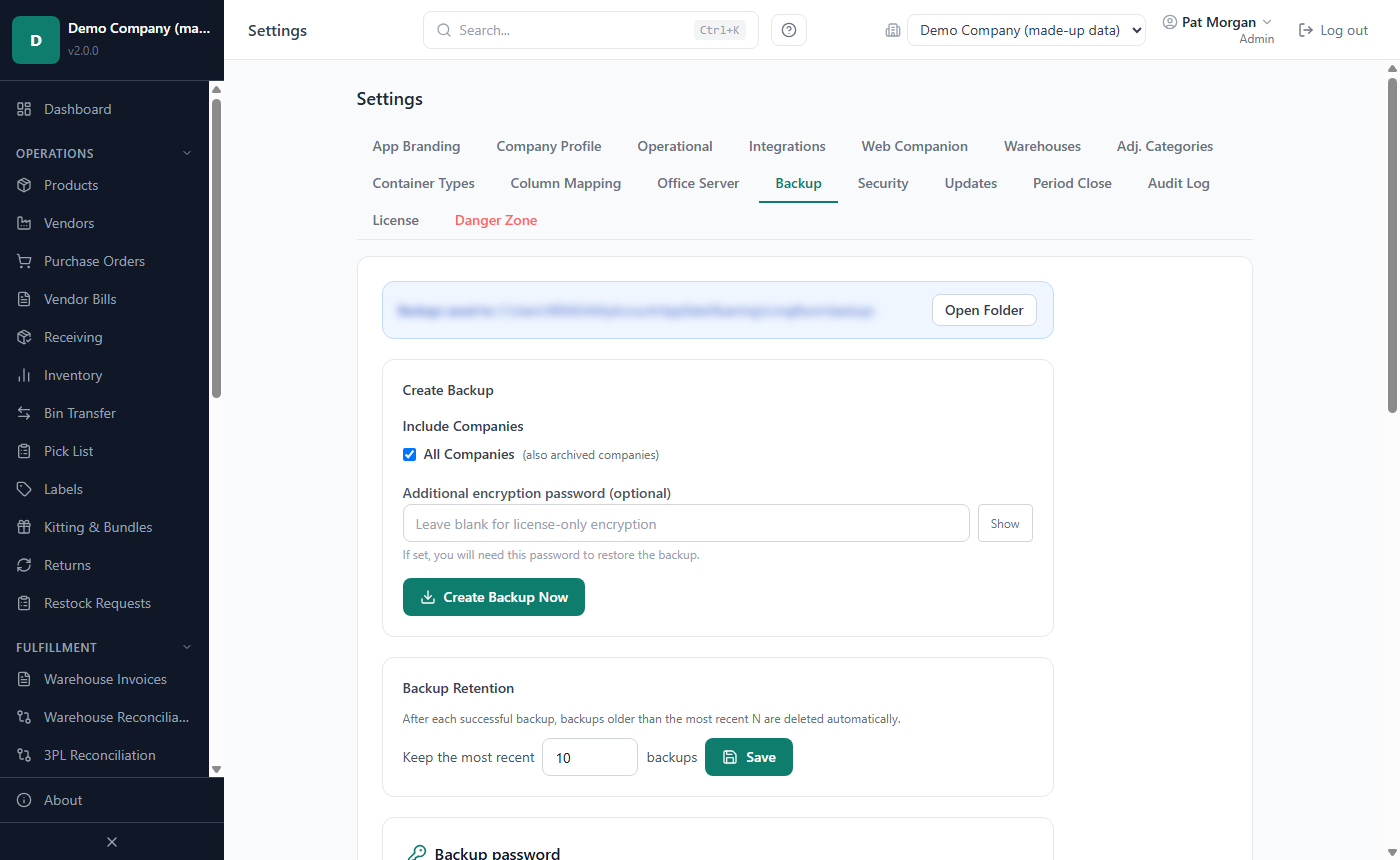
If you have more than one company, All Companies is ticked under Include Companies. Keep it ticked for a complete backup. (You can untick it and pick companies, but a complete backup is the one to keep.)
Optional: enter an Additional encryption password. Leave it blank to protect the backup with your license key only. If you set one, write it down: you need it to restore this backup.
Click Create Backup Now.
A bar shows how far the backup has got and what it is doing (for example "Compressing the data of …"). On a large installation this can take a few minutes; you can keep working meanwhile, also in other windows. If you leave the Backup tab and come back, the bar is shown again. Only one backup or restore runs at a time: while one runs, the tab says so and another one has to wait.
A green message names the new file, for example "Backup created: … (2 company databases …)". The backup appears at the top of Existing Backups with the label Manual (and Password protected if you set a password). If older backups were removed by the retention setting, the message lists them.
The Existing Backups list shows each backup's date and time, size, label and the companies it contains. Use the search box ("Search by filename or company...") and the sort list (Newest first, Oldest first, Largest first, Smallest first, By company) to find one. Click Refresh to read the folder again.
To delete a backup, click its bin icon (Delete backup) and then Delete. To delete several, tick them, click Delete Selected, type DELETE and confirm. Deleted backup files cannot be recovered.
How to set a backup password
A backup password lets you open your backups on any PC with the password alone - no license key of yours and no support needed. (The PC you restore on needs the app activated with a license key or a trial key, because every restore first makes a safety backup there.) The app keeps no copy of the password: write it down and keep it safe.
- Open Settings › Backup and find Backup password.
- Enter the password twice (at least 10 characters) and your own sign-in password.
- Click Save.
Every backup made from now on opens with the backup password (and still with your license key). Backups made before keep the password they were made with. To change it, enter a new one and Save; Remove takes it away (not while the off-site copy is on).
Only the backup password opens my backups (not the license key): with this switch on, new backups open with the backup password only. Use it when you keep backups somewhere else (a cloud folder): then someone who finds your license key on this PC still cannot open them. If you forget the backup password, such a backup cannot be opened at all. The backup made before an update is the exception: it still opens with the license key (so that the previous version can restore it) and stays on this PC - it is never copied off-site. To restore a backup that only the backup password opens, enter the password in the restore dialog (see How to restore a backup).
How to keep a copy of your backups off this PC
Backups on the same PC do not help if the PC is lost, stolen or its disk fails. Let the app copy every backup to a folder outside it - a OneDrive or Dropbox folder, or a USB drive:
- Set a backup password first (above). For copies that only the backup password opens, also turn on Only the backup password opens my backups; otherwise your license key opens them too.
- Open Settings › Backup and find Off-site copy (on the office server PC, if you use one).
- Type the folder, for example
C:\Users\you\OneDrive\Backups, and click Save. The folder must exist and must not be inside the app's own data or backups folders.
From then on every backup - manual, automatic, before an update, before a restore - is copied there as well, and the folder keeps as many backups as the list on this PC. Last copy shows when the newest one arrived; if a copy fails (the drive is not connected, the sync tool holds the file), it says why, and with e-mail set up you get a message. Turn off stops the copies.
You can still copy a backup by hand: click Open Folder next to "Backups saved to: …" and copy the .webak file. The files are encrypted, so they are safe to store in a cloud folder. Keep your license key and your backup password separate from the backup files.
Your data is encrypted on this PC (Security)
All your data - every company and the installation's own data - is stored encrypted on this PC. Windows keeps the keys for the Windows user who uses the app. Nothing changes in how you work. The first start of version 2.4 encrypts the existing data once, right after the backup before the update; the splash shows "Protecting your data" with each company in turn while it does this. Everyday screens are as quick as before; reports that read your whole history at once (such as profit by product for all time) take somewhat longer with the data encrypted.
Settings › Security shows each database as Encrypted or Not encrypted yet. A database that could not be encrypted yet (for example because its drive was too full) stays usable as it is; the app tries again at every start, and the tab lists it with the reason.
Note: The encryption protects the data files and the backups. It does not cover files you export (CSV, PDF), e-mailed reports, or anyone who signs in to Windows as you. For the best protection turn on BitLocker for the drive.
How to keep your recovery code
If Windows can no longer open your data - a new PC without a backup, or a Windows profile that was reset - the recovery code unlocks it. Keep it as carefully as your license key. The app makes the code when it first protects your data; until an Admin has kept it, a blue bar Keep your recovery code appears after signing in (Show it now opens the Security tab; on the other PCs of an office the bar says to do it on the office server PC).
- Open Settings › Security (on the PC that keeps the data).
- Enter your own sign-in password and click Show recovery code.
- Click Print or Save as file and keep the code away from this PC (in a drawer, a password manager).
- Click I have kept it. Until you do, the tab reminds you.
Make a new code replaces the code: the old one stops working.
If the app says your data is protected
When the app starts with a window LivingRoom - Your data is protected ("Your data is protected, and its key is not available to this Windows user on this PC. … Nothing was changed."), start it as the Windows user who set it up. If that is not possible (a new PC, a reset profile), on the PC that keeps the data:
- Click Enter recovery code. The window Unlock your data opens.
- Type the 25-character code (upper or lower case; the dashes and spaces are optional) and click Unlock.
- The app starts as usual, now for this Windows user. If the code is wrong, the window says why: check it and try again. Cancel goes back to the first window; Quit closes the app.
The other PCs of an office do not show this window: they say that the office server cannot be reached until the data is unlocked on the office server PC.
Without the recovery code, use a backup: install the app as a new installation and restore the backup with your license key or your backup password (see How to restore a backup). Without the code, the Windows user and a backup, the data cannot be recovered.
How to choose how many backups are kept
LivingRoom keeps only the newest backups and deletes older ones automatically after each successful backup. The default is the 10 newest. Manual, automatic and safety backups all count toward this number.
- Open Settings › Backup.
- Under Backup Retention, enter a number in Keep the most recent … backups (1 to 1000).
- Click Save.
If the new number is lower than the number of backups in the list, the app asks for confirmation and tells you how many old backups the next backup will delete.
Example: you keep 10 backups and make one manual backup each evening, plus one automatic backup each morning. That is 2 backups a day, so the list covers the last 5 days. If you want to go back further, raise the number, or keep your weekly off-PC copies.
How to restore a backup
Restoring puts the data of a backup back in place. Use it to undo a serious mistake or to recover after a problem. Only Admins can restore, and only backups of this installation (made with the installed license key, also before a renewal of the same license) - or, with its backup password or a restore code, a backup made elsewhere (see the end of this section). Restoring is not possible while the app is read-only, for example after the license has expired; the Backup tab then shows the reason.
Important: an installation without a license key cannot restore. Every restore first makes a safety backup of this installation, and a backup needs a license: on a new installation, activate your license key (or a trial key) first, then restore.
- Tell everyone else to save their work and log out.
- Open Settings › Backup and find the backup in Existing Backups.
- Click Restore on that backup.
- In the Restore this backup dialog, check Created (the date of the backup). If it says Password protected: Yes, enter the Additional password (set when this backup was made) and click Unlock. If the backup opens only with its backup password (it was made with Only the backup password opens my backups; the list marks it Backup password only), the dialog asks for it: type it under Backup password: and click Unlock. Restore from File asks the same way.
- Under Companies to restore, choose what to restore:
- All companies ticked = full restore. Every company in the backup and the global data are replaced: users and passwords, roles, company access, the company list, the app's accent colour and the installation-wide settings go back to the state of the backup. Companies created after the backup disappear from the company list (their files stay on the disk). Your license and data folder are kept, and so are this installation's own office server, phone and Reporting API settings (a backup's never arrive). If the backup lists more active companies than your license allows, the ones beyond the limit are restored but archived (the main company is kept active first); the result names them.
- Only some companies ticked = partial restore. Only the ticked companies are replaced with the backup copy. Users, passwords, roles, company access and settings do not change, and the companies you did not tick are not touched.
- Type
RESTOREin Type RESTORE to confirm. - Click Restore All Companies + Global Data (full) or Restore Selected Companies (partial).
- A bar shows how far the restore has got: checking the backup, the safety backup (below), then each company. When Restore Complete appears, click Restart Now.
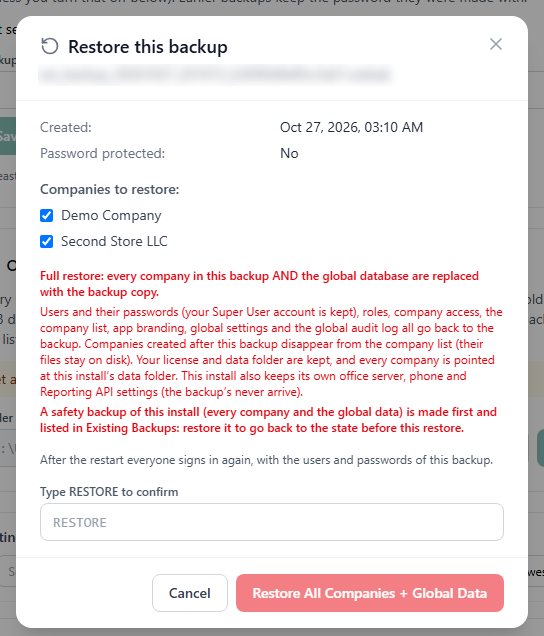
LivingRoom restarts with the restored data. After a full restore everyone signs in again, with the users and passwords that were in the backup.
Only one backup or restore runs at a time. If one is already running (also an automatic backup, or one started in another window), the restore is refused with "A backup or a restore is already running. Wait until it has finished, then try again." The hourly automatic backup skips its turn while a backup or restore runs and tries again at the next check. Keep the app open until the restore has finished: if it is closed in the middle, the restore stops part way (restore the safety backup, below, if the data looks wrong).
Every restore makes a safety backup first. Before anything is replaced, a backup of the current state of the whole installation is written and listed in Existing Backups with the label Safety backup before a restore. If the restore was a mistake, restore that safety backup to go back.
Important: Everything entered after the backup was made is lost for the restored companies (and, after a full restore, for users and settings). Restore the newest backup that is still from before the problem.
Backups from another PC or another license. A backup made under a different license shows Restore... instead of Restore. Click it and enter either:
- the backup's backup password, or
- the license key the backup was made with and a restore code (it starts with
WER-) from your software provider - ask support for it and give them the install code shown under Settings › License › Test unlock.
Then click Read the backup and continue as above. A restore code works once, on this PC only, for a few days. Without a backup password or a code such a backup cannot be restored by an Admin; contact support (see Chapter 11).
Large backups. A backup of any size can be restored, also from a file. Before a restore replaces anything, the app checks that the disk has room for what it writes - the restored data (a backup unpacks to about four times the size of its file) and the safety backup. If a drive is too full, the restore says how much space it needs, on which drive, and how much is free, and nothing is restored: free up space on that drive (or move old backups off it), then try again.
How to move to a new PC
You move your business to a new PC with a backup and your license key (or the backup's backup password). If your data is encrypted, you can instead copy the whole data folder - see the end of this section.
- On the old PC: make a backup (Create Backup Now), click Open Folder and copy the new
.webakfile to a USB drive or cloud folder. Then close LivingRoom there (File › Quit (close all windows)). - On the new PC: install LivingRoom and complete the first-start setup, including your license key (see Chapter 2). If the new PC does not accept your license key, contact support.
- On the new PC, open Settings › Backup and click Open Folder. Copy the
.webakfile into this folder. - Click Refresh in Existing Backups. The backup appears in the list.
- Click Restore, keep all companies ticked (full restore), type
RESTOREand click Restore All Companies + Global Data. - Click Restart Now and sign in with a user and password from the old PC.
Copying the data folder instead. If your data is encrypted (Settings › Security), you can also move the whole data
folder: close the app on the old PC (File › Quit (close all windows)), copy the whole data folder
(%APPDATA%\LivingRoom, or the folder chosen in Data Folder) to the same place on the new PC, install the
app there and start it. It says your data is protected: click Enter recovery code and type your recovery code
(see If the app says your data is protected). Copy the folder complete,
with its database folder: the recovery code works only with the files kept there. Without the recovery code, use a
backup (steps above).
How to install an update
Updates come as a new installer file from your vendor. You install the new version over the old one; your companies, users, settings and backups are kept. (Your data is stored in %APPDATA%\LivingRoom, which an update, and even uninstalling, leaves in place.)
- Make a backup first. Open Settings › Backup, click Create Backup Now and copy the new file off the PC (see above). The new version also backs up your data before it updates the databases (next steps), but that backup stays on this PC: the copy you made is the one to count on if the PC fails.
- Ask everyone to log out, then close LivingRoom: File › Quit (close all windows).
- Run the new installer and choose the same options as when you first installed (see Chapter 2).
- Start LivingRoom. The first start can take a little longer: the app first backs up your data (listed in Existing Backups with the label Before an update), then updates the databases - and, the first time data protection is on, encrypts them (see Your data is encrypted on this PC).
- Check the version on the About page or in Settings › Updates (Current Version).
- If the new version comes with a changed End-User License Agreement, the first time an Admin signs in the app shows The license agreement has changed: read it, tick I have read and accept the End-User License Agreement and click Accept. Users in other roles are not asked (see Chapter 2).
If the backup before the update cannot be made, the app changes nothing and does not start: a window titled LivingRoom - Backup before the update failed explains it. Free some disk space if the disk is full, then click Try again; the next start also tries again. If it keeps failing, contact support.
Installing an older version over a newer one: the installer asks "You're installing an older version (…) over a newer one (…). Continue?" Answer No unless support told you otherwise. If the newer version changed how your data is stored, the older one cannot open it: it shows LivingRoom - Data from a newer version and changes nothing (click Quit and install the newer version again), and it cannot restore a backup made by that newer version. If the newer version did not change it, the older version opens your data (it backs it up first, as after any change of version) and simply does not have the newer features. The What's new page of each version says which case it is. If this PC is an office server, turn the office server off before you install an older version (see below).
Tip: Unless automatic updates are on (below), the app does not download or install updates by itself. If you are not sure whether you have the newest version, compare the version on the About page with the one your vendor announced.
Automatic updates (all companies)
Settings › Updates › Automatic updates lets an Admin have the app install new versions by itself. It is off unless an Admin turns it on, and it applies to the whole installation. Until your vendor offers automatic updates, the card shows Coming soon and the switch cannot be used.
With Install new versions automatically on, the app:
- checks for a new version a minute after it starts and then once a day, also while it runs in the tray (background mode);
- downloads a newer version and installs only one that is signed by the software publisher;
- installs it the next time the app is closed. To install it at once, click Restart and update now (or Restart to update on the tray icon's menu): the app closes, installs the update and starts again;
- backs up your data at the first start of the new version, before the update changes anything (as described above).
If the app is installed for all users of the PC, an update is never installed by itself: the card says the new version is ready, and it installs when you click Install update. Windows then asks for an administrator to approve it. If nobody approves, the card says The update was not installed and nothing is changed; you can try again later. Check now looks for a new version straight away.
How to use one set of data on several PCs (office server)
In an office, several PCs can work on the same companies at the same time. One PC, the office server, keeps the data and runs the app for the others; the other PCs (client PCs) show that PC's data over the office network. Each person signs in on their own PC as usual. Nothing goes to the cloud: the data stays on the office server PC (and in the backups you copy off it).
What you need
- A license with office server mode. The License page then shows a line Office server, for example Office server — 5 seats: the number of people who can be signed in at the same time, on all PCs together. A trial never includes it. Without it, Settings › Office Server says Not included in your license; ask your software provider.
- One PC that stays on while others work. It keeps the data, makes the backups and runs the scheduled work. A desktop PC on a network cable is the best choice; a laptop that leaves the office takes the data with it.
- The office server PC works with up to 20 people on a 2-core PC (tested). For more than 10 people at once we recommend 4 or more cores. With more than 20 people at once on a 2-core PC, the busiest screens (the Dashboard first) open more slowly. To see how many cores a PC has, open Task Manager › Performance › CPU and look at Cores.
- All PCs on the same office network, which Windows treats as a Private network (Windows: Settings › Network & internet › your network › Network profile type). On a Public network the other PCs cannot reach the office server.
- The same version of the app on every PC (see Updates on several PCs).
- An Admin of the app and, on the office server PC, someone who can approve Windows' administrator prompt once (for the Windows Firewall rule).
How to turn this PC into the office server
- On the PC that will keep the data, sign in as an Admin and open Settings › Office Server.
- In Office address of this PC, choose the address the other PCs will use. The list shows this PC's addresses on the office network with the network's name, for example "192.168.1.20 (Ethernet)". Leave Port at 8443 unless your IT person tells you otherwise.
- Click Turn the office server on.
- Windows first asks "Do you want to allow this app to make changes to your device?" (Windows PowerShell): click Yes. This adds one Windows Firewall rule that lets the other PCs in, on private networks only. Only then does the office server start, so Windows has no reason to ask about the app itself.
- The card shows State: On — answering at 192.168.1.20:8443, the connection code (for example
192.168.1.20:8443 · 3F9A-12C4-B7D1-E09A) and the full certificate fingerprint. Click Copy to copy the code: you type it on each other PC.
If you click No in step 4 (or Windows cannot add the rule), the app asks Turn the office server on without the firewall rule? Choose Turn on without it only if your IT person looks after the firewall; otherwise close the box and click Turn the office server on again. Should Windows ever show its own Windows Security Alert for the app, tick only Private networks and click Allow access. Never click Cancel there: Windows then adds a rule that blocks the app, and the other PCs cannot connect.
With the office server on:
- Background mode stays on (it cannot be turned off while this PC is the office server) and the app starts with Windows on this PC, so the others can work while nobody is signed in here. Closing the last window leaves the app in the system tray. Do not quit it while others work.
- The card shows how many PCs are connected now, and their names.
- If the other PCs cannot reach it any more (its address is gone, the port is taken, the license no longer allows it), the card says On, but not answering: … and the tray icon shows a message (see Chapter 11).
Firewall warnings. On the office server PC the card checks the Windows Firewall and says, in an amber box, what would keep the other PCs out, with the fix:
- "Windows Firewall has a rule that blocks this app: …": a blocking rule wins over the office server's own rule. Click Remove the blocking rule and answer Yes when Windows asks (only rules that block this app are removed), or ask your IT person to delete it in Windows Defender Firewall › Advanced settings › Inbound Rules.
- "The Windows Firewall rule for TCP port … is missing": click Add the firewall rule and answer Yes.
- "Windows treats this PC's network as Public": make the office network Private in Windows (Settings › Network & internet › your network › Network profile type › Private network).
Tip: Ask whoever looks after your router to reserve this PC's address for it (a "DHCP reservation"), so it does not change. If it changes, the other PCs must be connected again with the new code.
Answer on every network adapter makes the app answer on every network this PC joins, a VPN too. Leave it off unless your IT person needs it; the firewall rule still allows private networks only.
How to connect a PC to the office server
Do this on each PC that should use the office server's data. Install the app there first (the same version as on the office server; Only for me is fine).
- On a PC where the app has never been set up, the setup wizard's first page has Another PC of your office keeps the data? Connect to its office server instead: click it. On a PC that already uses the app, sign in as an Admin and open Settings › Office Server; the box is under Use an office server.
- Type the connection code from the office server's card (the Connection code is under Settings › Office Server on the office server PC) and click Connect.
- "Ready to connect to the office server …" appears with the certificate fingerprint. Check that it is the one shown on the office server PC.
- Click Restart and connect. The app restarts, says "Connecting to the office server …" and shows the sign-in page.
- Sign in. The users and passwords are the office server's.
If the code is wrong, nothing is saved: "This is not the office server shown on the server PC (the certificate does not match the code). Check the code." The 8 characters after the address belong to the office server's certificate: they make sure the PC connects to your office server and to nothing else on the network.
Important: A PC that had data of its own keeps it, untouched, while it uses the office server, but does not show it. To bring a company from that PC to the office server, make a backup on that PC and contact support: a backup from another installation needs support to restore (see How to restore a backup).
What works differently on a connected PC
- The data, the backups and the office server's settings are on the office server PC. Settings › Office Server shows "This PC uses an office server" with the server's address and Change office server… / Use this PC on its own again.
- The data folder, background mode, updating the app and the Danger Zone are not offered there. They say "… is set on the office server PC itself (the computer that keeps the data), not on this PC." Do these on the office server PC.
- An Admin can make a backup from any PC (Create Backup Now), but it is made and kept on the office server PC; Open Folder works only there. A restore signs everyone out on every PC.
- Exports, PDFs and other downloads are saved on the PC you work on (you choose the place in the Save dialog).
- Each PC has its own active company and its own windows. Two people can work in two companies at the same time. Switching company, or logging out, affects the windows of your own PC only.
- A support session (see Chapter 11) takes place on the office server PC.
- If the office server PC is off or cannot be reached, the other PCs cannot work: they keep no copy of the data. They show "Cannot reach the office server …" until it is back.
How seats are counted on several PCs, and how to see who is signed in where: see Chapter 3.
Updates on several PCs
Every PC must run the same version as the office server. Update the office server first, then the other PCs:
- Ask everyone to log out. On the office server PC, make a backup and copy it off the PC.
- Install the new version on the office server PC (How to install an update) and start it.
- On each other PC, run the same setup file. Until you do, the PC says Different versions: "This PC runs …; the office server runs …. Update this PC." Update this PC says which version to install.
A PC with a newer version than the office server says "The office server runs …; this PC runs …. Update the office server first." When automatic updates become available (they show Coming soon today), the other PCs take their update from the office server, so they never install a version the office server does not run.
When the office server's certificate changes
The office server proves who it is with a certificate, valid for five years; the card shows Certificate valid until … and warns two months before the end. Make a new certificate (on the office server PC) replaces it: every other PC then shows "The office server's certificate has changed" and must be connected again with the new connection code (Change office server… in that message, then the steps above). Make a new certificate only when the old one is about to expire or may have been copied.
Important: If a PC shows "The office server's certificate has changed" and nobody made a new certificate or moved the office server, do not connect it again. Something on the network may be pretending to be your office server: contact your IT person or support.
How to turn the office server off, or use a PC on its own again
- On the office server PC: Settings › Office Server › Turn off. Every other PC is signed out and cannot connect until it is turned on again. The certificate is kept, so the PCs need no new connection code. The firewall rule stays; it lets nothing in while the office server is off.
- On another PC: Settings › Office Server › Use this PC on its own again, or Change office server… to connect to another office server. The PC restarts with the data it had before it was connected (or with the setup wizard, if it never had any). Nothing changes on the office server.
Important: Turn the office server off before you install an older version on the office server PC: an older version may not have office server mode, and the other PCs keep their seats until their sessions time out.
How to move the office server to another PC
- On the old office server: Create Backup Now and copy the backup off the PC.
- On the new PC: install the app, complete the setup wizard with your license key and restore the backup (full restore), as in How to move to a new PC.
- On the new PC: turn the office server on. It makes a new certificate and shows a new connection code.
- On every other PC: Change office server… (in the "Can't reach the office server" message or in Settings › Office Server) and connect with the new code.
- On the old PC: turn the office server off, or uninstall the app.
How to set up the AI assistant on this PC (Beta)
The AI assistant answers questions about your figures with an AI model that runs on this PC. An Admin sets it up once, on the PC that holds the data, under Settings › Integrations › AI assistant. Nothing is turned on until you do.
If the card says Coming soon, the assistant's model is not available to download yet. It will be in an update.
What the PC needs: 16 GB of memory or more, a processor with AVX2 (most from 2015 on) and about 5 GB of free disk space. A graphics card that holds the model makes answers much faster, but is not needed.
If you use an office server, set the assistant up on the server PC. The other PCs never download a model. They show the Ask button as soon as the server has the assistant, and their questions are answered on the server.
Click Scan this PC. The app checks the PC's memory, processor, graphics card and free disk space. It then measures the PC's speed for about 15 seconds, and shows each model with its grade and its reasons:
- Compatible - you can download it;
- Compatible but slow - you can download it after a warning that says how long a typical answer will take. Before the download this is an estimate shown as a range (for example "about 70-110 seconds"), because a short test cannot be exact;
- Not compatible - you cannot download it, and the scan says why (for example "It needs 16 GB RAM; this PC has 8.").
The best model for this PC is selected for you.
Click Download to download the selected model (about 2.2 to 2.8 GB). The app keeps working while it downloads, and a download that stops continues where it stopped the next time. The app checks the file's checksum before it is used, and refuses a damaged or changed file.
- On a PC without internet, click Install from a file... and choose the model file (
.gguf) you copied to the PC. The app accepts only the model files it offers, checked by their checksum. The same grades apply. After the download, the app measures the real speed with the installed model and grades the PC again. From then on the card shows the measured time (for example "about 95 seconds (measured on this PC)").
- On a PC without internet, click Install from a file... and choose the model file (
Optional: click Test speed to measure again, for example after a hardware change.
Turn on Let users ask the assistant on this PC. Read the consent screen - it names the model and its license - and click I agree, turn it on. Only one of your Admins can agree, signed in with their own account: a vendor support session sees the consent screen without that button.
Other settings:
- Unload the model after 5, 10 or 30 minutes without a question: this frees the memory the model uses. The next question loads it again.
- Free the memory now unloads it at once.
- Remove model deletes the model file from the PC and shows how much space is freed.
The model file is kept in the app's own data folder (not with your companies) and is never part of a backup. The Online add-on on the same card is coming soon.
One question at a time: the PC answers one question at a time. If someone else is asking, a new question waits its turn, and the panel shows Waiting for the assistant…. At most 5 questions wait. A question that has waited 5 minutes stops, with a message to try again later.
How to clear test data (Wipe Business Data)
Use Wipe Business Data to empty one or more companies, for example to remove test entries before you start working for real. The companies themselves, the users and the license stay. Only Admins can do this.
What is deleted in each chosen company: products, vendors, purchase orders, receipts, inventory and batches, adjustments and transfers, returns and removal orders, kits and bundles, warehouse invoices, sales orders and settlements, restock requests, marketplace listings, the import history, and the company's activity and audit records. All warehouses are replaced by one warehouse called "Default Warehouse". The Company Profile is emptied (address, phone, e-mail and document logo; the company name is set back to the company's name).
What is kept: the company in the company list, users, roles and company access, adjustment categories, payment terms, import templates, operational settings, integration connections, the license and all backups. Purchase order numbering continues where it was. A 3PL connection must be linked to a warehouse again (see Chapter 9).
Make sure you have a recent backup that you could go back to.
Open Settings › Danger Zone.
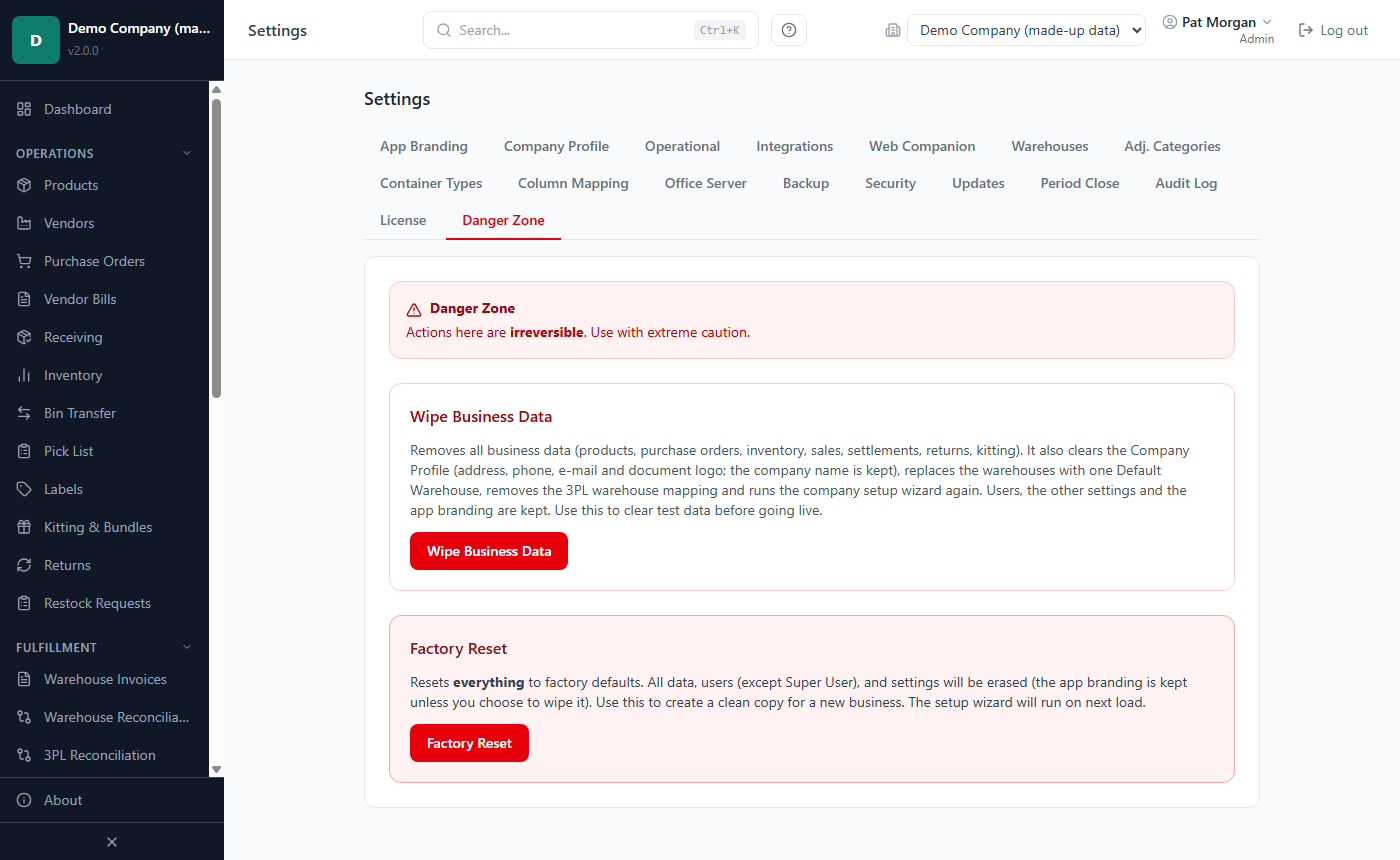
Click Wipe Business Data.
If you have several companies, tick the companies to wipe. Only the company you have open is ticked to begin with; Select All and Deselect All change the selection. Check the list carefully.
Leave Create a backup before wiping (recommended) ticked. If that backup fails, nothing is wiped.
Type
WIPE DATAin the confirmation field.Click Wipe Data.
A green message lists the wiped companies. The company setup wizard opens for the first wiped company so you can enter its profile and warehouses again (see Chapter 3).
Important: A wipe cannot be undone on the spot. The only way back is to restore a backup made before the wipe (the backup made in step 5 is listed in Existing Backups).
How to start over (Factory Reset)
Factory Reset returns the whole installation to the state of a new install. Use it only when you really want to start from nothing, for example when the PC is passed to a different business. Only Admins can do this.
What is deleted: every company with all its data, data files and settings, every user account, and all company access. The roles are reset to the standard roles. On the software vendor's own installation, the vendor kit is removed too; it is imported again from its .wevkit file. The AI assistant's model file is deleted from the PC too. You are signed out, and the first-start setup wizard appears so that a new Admin can be created (see Chapter 2).
The companies' folders are deleted wherever they are: in the current data folder and in every data folder this installation used before (see Data Folder), so no old company data is left behind on the disk. A folder that another installation of the app uses is left alone, and the backups folder is never touched.
What is kept: the license (unless you tick Also wipe the license key), the app branding such as the accent colour (unless you tick Also wipe the app branding and operational settings), and the backup files in the backups folder.
- Make a backup and copy it off the PC.
- Open Settings › Danger Zone and click Factory Reset.
- Read the dialog. Leave Create a backup before resetting (recommended) ticked. If that backup fails, nothing is reset.
- Only if you need to, tick:
- Also wipe the app branding and operational settings — sets the app branding, the e-mail (SMTP) settings and the data folder back to the defaults.
- Also wipe the license key — the installation becomes read-only until a license key is activated again. Tick this only when the software is being handed over to a different licensee.
- Type
FACTORY RESETin the confirmation field. - Click Factory Reset.
Important: A factory reset removes all companies and users of this installation. If you kept the license, the new Admin can bring the old data back by restoring a backup from Settings › Backup (a full restore). If you also wiped the license key, the same license key must be activated again first.
Related chapters
- Chapter 2 — Installing, first start and your license: installing, the first-start setup, the License page.
- Chapter 3 — Companies, users and sessions: companies, the setup wizard, users and roles, sessions.
- Chapter 4 — Products: container types.
- Chapter 5 — Vendors, purchasing, receiving and prep centers: warehouses.
- Chapter 6 — Inventory: adjustment categories and how batches are used.
- Chapter 7 — Sales and settlements: column mapping.
- Chapter 9 — Integrations: marketplaces, QuickBooks, 3PL, Reporting API and e-mail.
- Chapter 11 — Troubleshooting and FAQ: contacting support.