
6. Inventory
This chapter covers the stock you hold once it has been received: where it is, what it is worth and how to keep the numbers right. You will learn how to work with batches and lots, correct stock with adjustments and cycle counts, move stock between warehouses, log removals, turn restock requests into purchase orders, build kits, record customer returns and compare your records with Walmart and your 3PL.
In this chapter
- The Inventory page
- Batches and lots
- Inventory adjustments
- Cycle counts
- Transfers between warehouses
- Pick lists
- Labels
- Removal orders
- Restock requests
- Kitting and bundles
- Returns
- Warehouse Reconciliation (Walmart WFS)
- 3PL Reconciliation
- Inbound Shipments
- Related chapters
The Inventory page
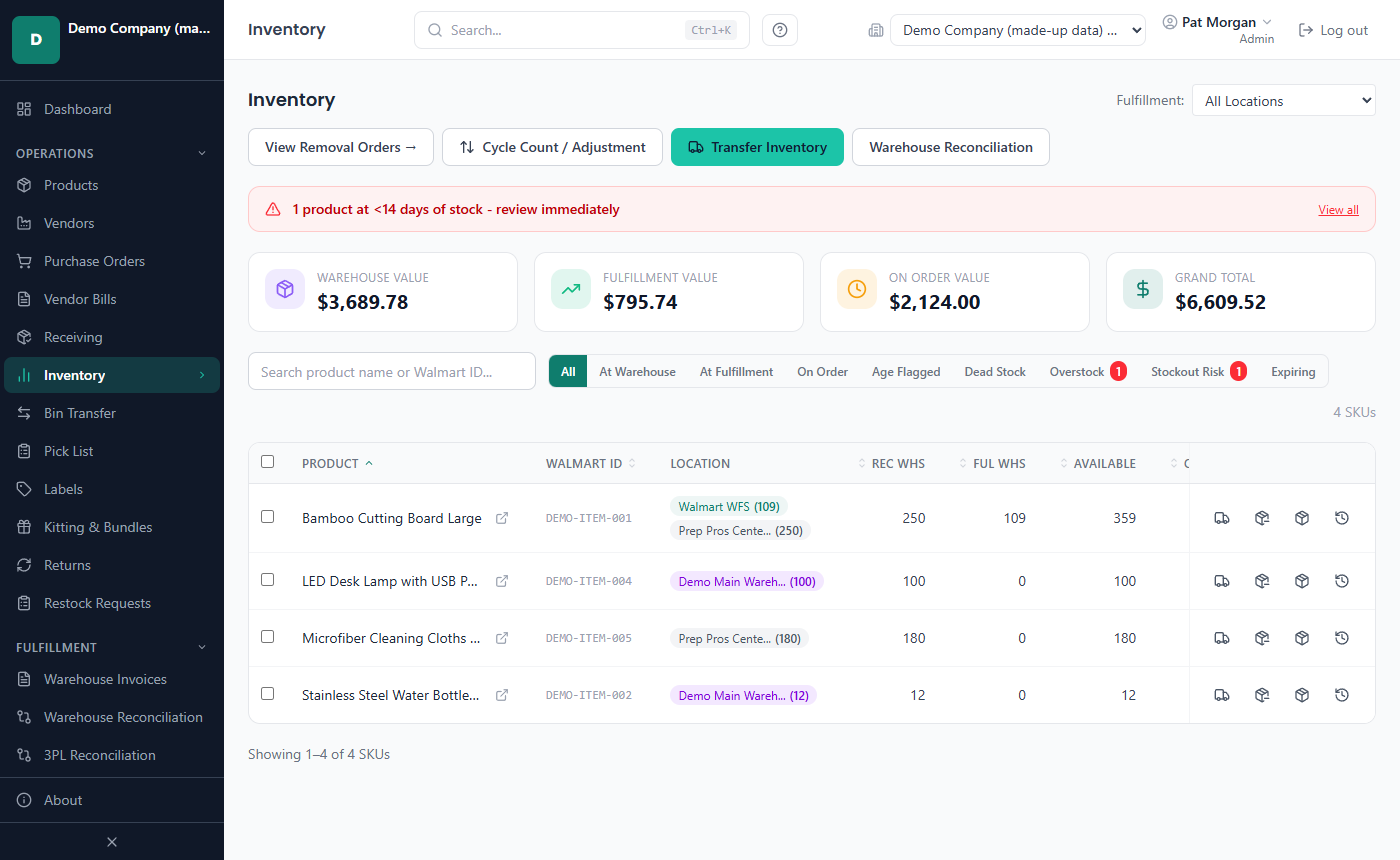
The Inventory page shows each product's stock, where that stock is, what it is worth and how long it will last.
Admins, Managers, Receiving and Reports Only users can open it. Only roles that receive stock (Admins, Managers and Receiving) see the buttons that change stock: Cycle Count / Adjustment, Transfer Inventory, Transfer to Warehouse and Log Removal.
How to open the Inventory page
- Select a company in the header (the Inventory page shows one company at a time).
- Click Inventory in the sidebar.
What the page shows
The four cards at the top show the value of your stock:
| Card | What it counts |
|---|---|
| Warehouse Value | Stock at receiving warehouses (prep centers, home storage). |
| Fulfillment Value | Stock at fulfillment locations such as Walmart WFS. |
| On Order Value | Units still to be received on open purchase orders, with their share of the PO's shipping, fees and tax. |
| Grand Total | The three values added together. |
The table has one row per product:
| Column | Meaning |
|---|---|
| Product / Walmart ID | The product. The small icon next to the name opens a quick view of the product. |
| Location | One chip per warehouse with the units you can use there. A long warehouse name is shortened; point at the chip to see it in full. Units on hold are not in the chips; they are shown as "On hold: n units (not available)". |
| Rec Whs | Units at receiving warehouses (units on hold included). |
| Ful Whs | Units at fulfillment warehouses (units on hold included). |
| On Order | Units on open purchase orders. |
| Days Stock | How many days your stock lasts at the average daily sales of the last 4 weeks (counted back from your latest imported order), rounded down. Red under 14 days, amber 14 to 29, green 30 or more. A dash means there were no sales in those 4 weeks. |
| Avg Cost | Average landed cost per unit. A warning sign means no warehouse fees have been allocated yet, so the cost may still go up. |
| Total Value | Units × cost. |
| Ful Age | Days since the oldest batch arrived at a fulfillment location. Red when it is older than the age flag. |
Days Stock needs the Reports permission. Receiving users see a dash in this column.
The buttons at the end of each row - Transfer to Warehouse, Log Removal, Batches and History - stay in view when the table scrolls sideways. In a window narrower than 1536 pixels they show their icons only (a truck, a box with a minus sign, a box and a clock with an arrow); point at a button to see its name.
Use the filters above the table to narrow the list:
- Search product name or Walmart ID... finds products by name or Walmart item ID.
- The tabs: All, At Warehouse, At Fulfillment, On Order, Age Flagged, Dead Stock, Overstock,
Stockout Risk and Expiring. A red number on a tab shows how many products it holds.
- Age Flagged: the oldest batch at a warehouse or at a fulfillment location is older than the Inventory Age Flag (days) setting (default 45 days, Settings › Operational).
- Dead Stock: products with stock but no sales in those same 4 weeks, once their oldest batch is at least as old as the Dead Stock Grace Period (days) setting (default 30 days).
- Overstock: more than 180 days of stock. Stockout Risk: less than 14 days of stock.
- The bin list (All bins, No bin assigned or one bin) appears when you use bin locations. With a bin chosen, Rec Whs, Ful Whs and Total Value count only the stock in that bin.
- Fulfillment: appears next to the page title when you have more than one fulfillment warehouse. Choose one to see only the products stocked there, or All Locations.
- Clear Filters resets the search, tab and bin (not the Fulfillment: choice).
A red banner above the cards warns when products have less than 14 days of stock left.
How to see a product's movement history
- Click a product row, or click History at the end of the row.
- The Inventory Movements window lists every receipt, transfer, sale, adjustment, return, removal and kitting session for the product, newest first, with the warehouse, lot and expiry where they apply.
- Click Close.
How to find stock that is about to expire
- On the Inventory page, click the Expiring tab (the Dashboard's expiry alert opens the same tab).
- Read the list above the table: batches that expire within 30 days (or have already expired), and batches without an expiry date of products that are costed FEFO (first expired, first out). FEFO uses undated batches last.
- To correct an expiry date, click Batches on the product's row (see the next section).
Batches and lots
Every receipt creates a batch: units of one product, received on one day, at one warehouse, at one cost. A batch can carry a lot number, an expiration date, a bin location and your own reference. You enter these when you receive (see Chapter 5) and you can change them later here.
When you sell, remove or use stock in a kit, LivingRoom takes units from the batches in order: oldest received first (FIFO), or earliest expiry first (FEFO). The order is the Inventory Costing Method in Settings › Operational, unless a product has its own setting.
How to view and edit a product's batches
Admins, Managers and Receiving can edit batches. Other roles can look at them.
On the Inventory page, click Batches on the product's row.
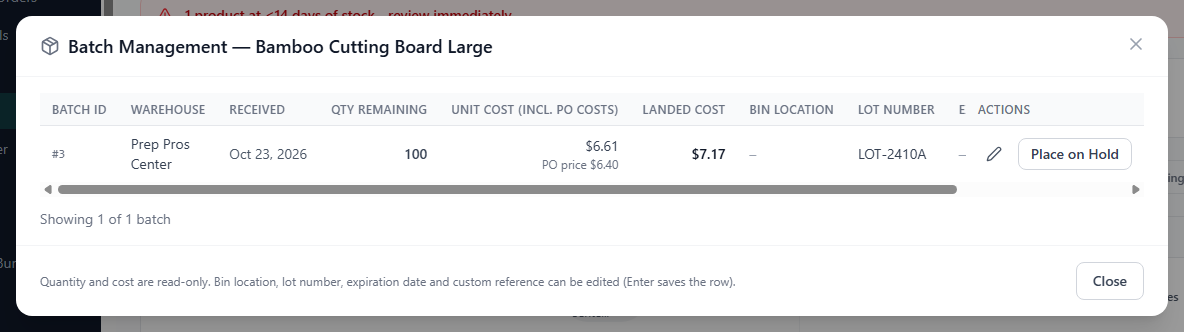
Find the batch. The window shows Batch ID, Warehouse, Received, Qty Remaining, Unit Cost (incl. PO costs), Landed Cost, Bin Location, Lot Number, Expiration Date and Custom Ref. Expiry dates are red when expired or within 14 days, amber within 30 days.
Click the pencil icon on the batch's row.
Change the Bin Location, Lot Number, Expiration Date or Custom Ref.
Click the check mark (or press Enter) to save. The X icon cancels.
Quantity and cost cannot be edited here. A bin must match the warehouse's bin format, if one is set in Settings › Warehouses. If the product requires a lot number or an expiration date, you cannot clear it.
How to move stock to another bin
- Open Inventory > Bin Transfer. Choose the warehouse and, if you like, the bin the stock is in, or search for the product, SKU or lot.
- Click Move on the batch's row.
- Enter the Quantity to move (all units are filled in) and the Destination bin, and click Move batch or Move part.
Moving all units moves the batch. Moving part of it creates a new batch for the moved units, with the same receipt date, lot, expiry, hold and cost per unit, so stock still goes out in the same order and its value does not change. Every move is recorded in the audit log (Activity Log: Bin Transfer, Batch Split).
Note: After part of a received batch has moved to another bin, that receipt can no longer be reversed (as after a partial transfer to another warehouse). Correct it with an adjustment instead.
How to put a lot on hold
Put a batch on hold when a supplier recalls a lot or you find a quality problem. Admins and Managers can do this.
- Open the product's batches (Batches on the Inventory page).
- Click Place on Hold on the batch's row.
- Enter the Hold reason (required), for example the recall notice and its date.
- Click Place on Hold.
The batch is marked ON HOLD. A held batch stays in your on-hand count and inventory value, but:
- sales imports, removals and kitting skip it when they take units (FIFO / FEFO);
- it cannot be transferred;
- Log Removal skips it unless an Admin or Manager picks it on purpose (see below).
How to release a lot from hold
- Open the product's batches.
- Click Release Hold on the held batch.
- Click Release hold to confirm.
The units are available again for sales, transfers and kits. The old hold reason stays in the Activity Log.
How to dispose of a held lot
Only Admins and Managers can take units out of a lot on hold.
- On the Inventory page, click Log Removal on the product's row.
- Fill in the removal as described in How to log a removal.
- In Take from a specific lot (optional), choose the held lot. Its line ends with "On hold:" and the reason.
- Click Log Removal, then Remove from held lot to confirm.
Only the units you entered leave the lot. The rest of the lot stays on hold. Other roles do not see held lots in this list.
Inventory adjustments
An adjustment corrects the stock of one batch: Out removes units (damaged, lost, expired), In adds units you found. Admins, Managers and Receiving can record adjustments.
How to record an inventory adjustment
On the Inventory page, click Cycle Count / Adjustment.
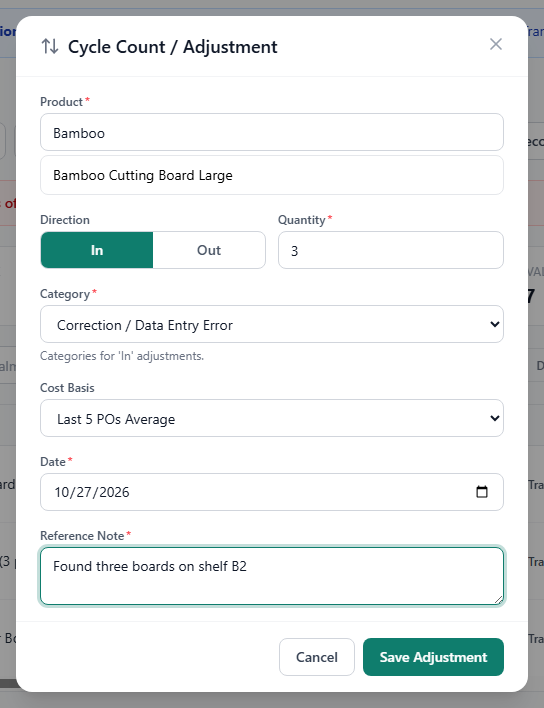
In Product, type part of the name and click the product.
In Batch, choose the batch. Each line names the batch number, PO, warehouse, lot and units; held batches say "On hold". Only Admins and Managers can take units Out of a batch on hold: they confirm Take units out of a lot on hold? with Adjust held lot, and the rest of the lot stays on hold. Other roles get "Only an Admin or Manager can take units out of a lot on hold."
Click Out or In under Direction.
Enter the Quantity.
Choose a Category. The list shows only the categories for the direction you chose.
For In only: choose the Cost Basis (see below).
Check the Date and enter a Reference Note that explains the reason (required).
Click Save Adjustment.
What an adjustment does to stock and cost
Out: the units leave the chosen batch. They are valued at that batch's own unit cost, which the dialog shows ("An Out adjustment is valued at the batch's own unit cost"). The cost of the units that stay is not changed.
In: the found units become a new batch of their own, next to the batch you chose: same warehouse, receipt date, lot, expiry, bin and hold. The chosen batch's cost is not changed. The new batch's cost comes from the Cost Basis:
- Last 5 POs Average: average landed cost per unit of the product on its 5 most recent purchase orders.
- Overall PO Average: average landed cost per unit across all of the product's purchase orders.
- Manual: enter the Manual cost per unit yourself.
The dialog shows the unit cost it will use ("Unit cost applied: …"). A product without purchase order history needs Manual.
Example: you find 2 units of "Stainless Steel Water Bottle 32oz" and the Last 5 POs Average is $4.50. The In adjustment adds a new batch of 2 units worth $9.00.
Adjustment categories
Each adjustment needs a category, so your reports can tell losses from damage, found stock and corrections. A new company starts with these:
| Category | Direction |
|---|---|
| Damaged – Prep Center | Out |
| Damaged – Walmart WFS | Out |
| Lost – Unknown | Out |
| Lost – Walmart | Out |
| Expired / Unsellable | Out |
| Write-Off – Other | Out |
| Vendor Credit / Return | In |
| Found Inventory | In |
| Correction / Data Entry Error | Both |
| Removal Reversal | In |
Some categories are also used by LivingRoom itself. Removal Reversal is used when a removal order is reversed. WFS Reconciliation is added the first time you accept Walmart's count in Warehouse Reconciliation; if it has been deactivated, accepting Walmart's count turns it back on. Both appear in your list like any other category. One category is internal and never shown or offered: Sales Gap Fill, which the sales import uses when it adds missing units (see Chapter 7).
How to add or deactivate an adjustment category
Admins and Managers can manage categories for the company.
Click Settings in the sidebar, then the Adj. Categories tab.
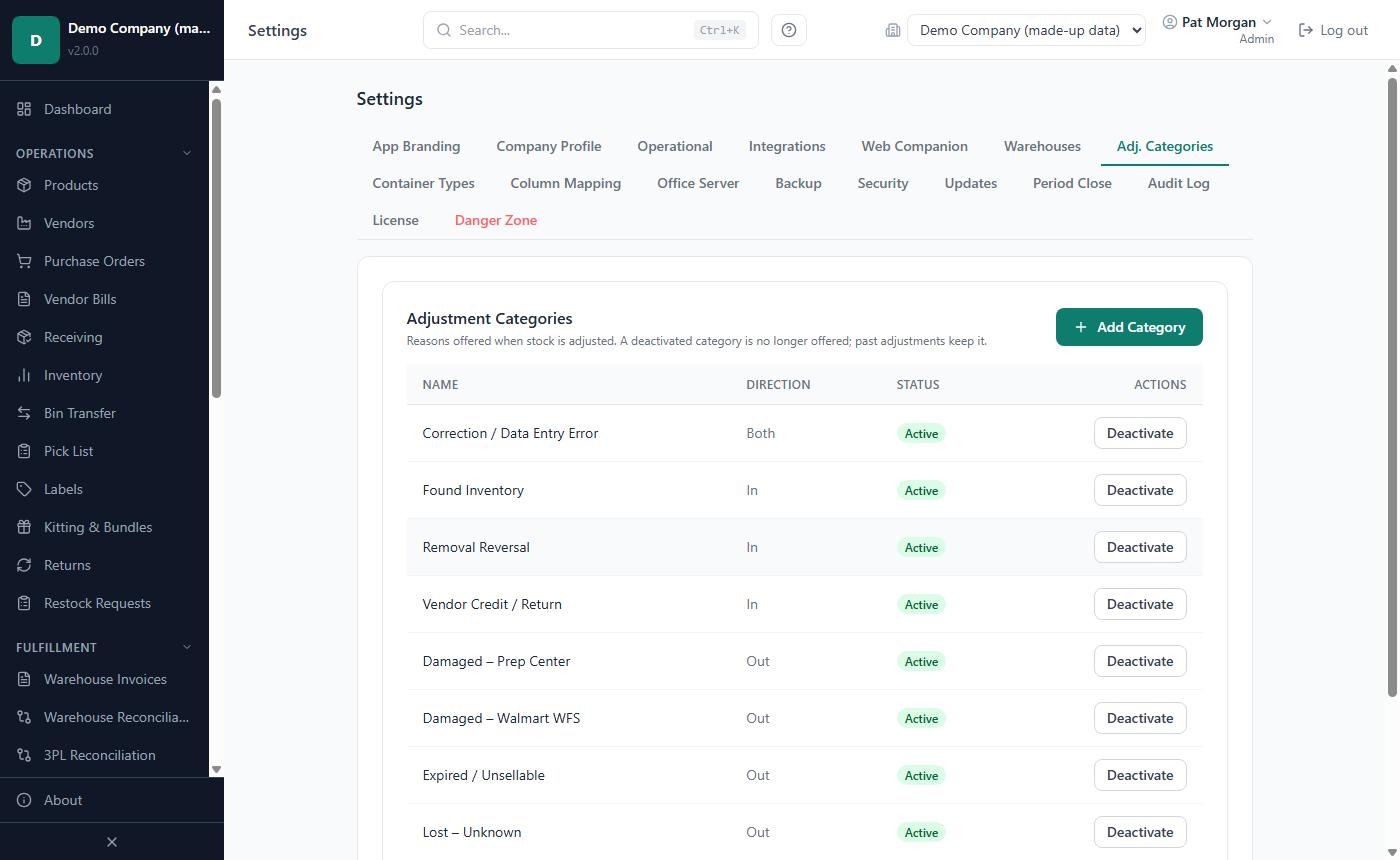
To add one: click Add Category, type the Category name, choose In, Out or Both, and click Add.
To stop offering one: click Deactivate on its row and confirm. Past adjustments keep their category.
To offer it again: click Reactivate.
Categories cannot be renamed or deleted on this screen.
Cycle counts
A cycle count is a physical count of some of your products, compared with what LivingRoom expects. There is no separate count sheet yet: you count, compare with the batch quantities and post each difference as an adjustment in the Cycle Count / Adjustment dialog.
How to do a cycle count
On the Inventory page, click Batches on the product's row and note the Qty Remaining of each batch at the warehouse you are counting. If you use bins, choose the bin in the bin list first.
Count the units on the shelf.
Click Cycle Count / Adjustment and pick the product and the batch you counted.
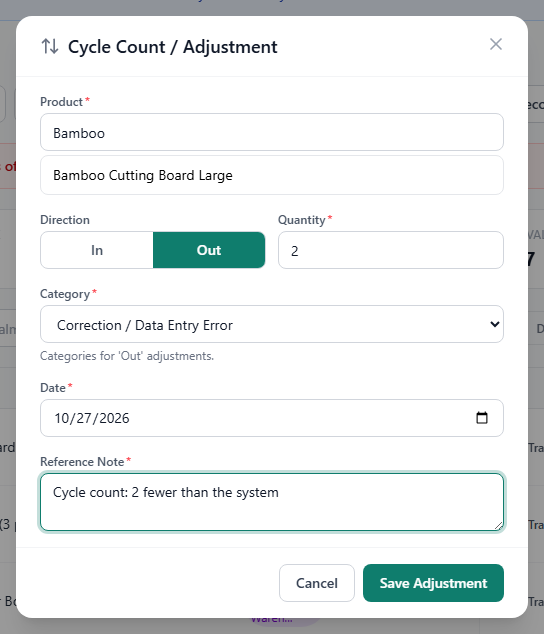
Post the difference:
- Fewer units than expected: Out, the missing quantity, a category such as Lost – Unknown or Correction / Data Entry Error.
- More units than expected: In, the extra quantity, Found Inventory or Correction / Data Entry Error, and a cost basis.
Enter a Reference Note such as "Cycle count 14 Oct, shelf A3" and click Save Adjustment.
Repeat for each batch with a difference.
Example: Batch #12 shows 40 units and you count 37. Record Out, quantity 3. The batch then holds 37 units.
Tip: Count when no receipts, transfers or sales imports are running, so the numbers do not change while you count.
How to count a lot (Lot Reconciliation)
For lot-tracked stock you can count by lot instead of by batch.
- Open Fulfillment > Lot Reconciliation. Each lot shows how many units should be on hand from its recorded movements (Expected), how many are on hand, the Difference, the units per warehouse and the last count. Tick Only lots with a difference to see the lots that need a look.
- Click Count on the lot, choose the warehouse, enter the units you counted and, if you like, a note.
- Click Save count. A difference is posted as a Correction / Data Entry Error adjustment: fewer units are taken from the lot's oldest stock first (earliest expiry first for a product costed FEFO), more units are added at the lot's own cost. An equal count changes nothing but is recorded as the lot's last count.
Counts show in the Activity Log as Lot Counted. Taking units out of a lot on hold needs an Admin or Manager and a confirmation, as for any held lot.
Transfers between warehouses
A transfer moves units from one warehouse to another, for example from your prep center to Walmart WFS when a shipment leaves. The units keep their cost, lot and expiry. Admins, Managers and Receiving can transfer.
Tip: The sales import takes stock only from the fulfillment warehouse you choose at upload. Record the transfer to WFS before you import the sales of those units (see Chapter 7).
How to transfer one product
On the Inventory page, click Transfer to Warehouse on the product's row.
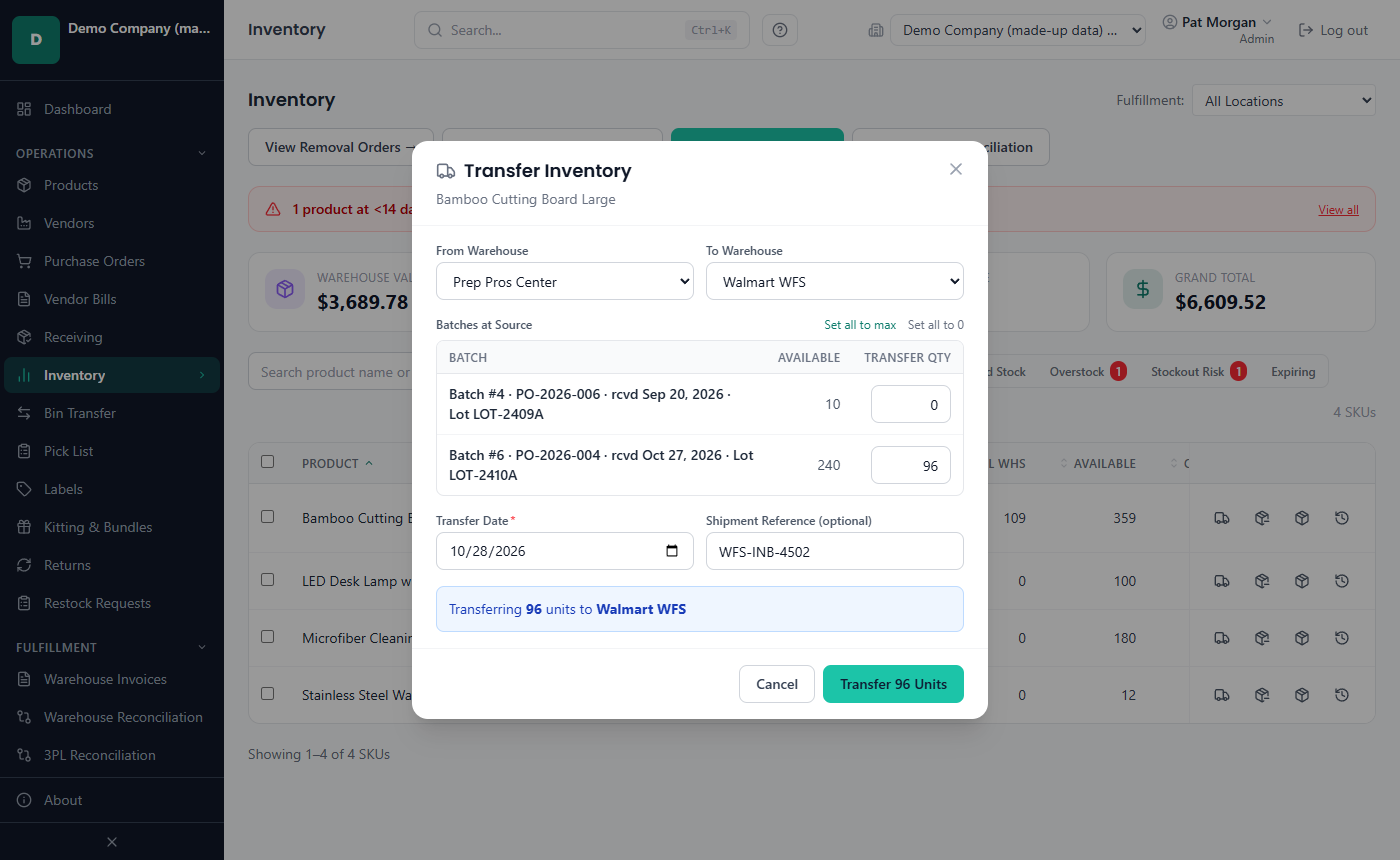
Choose From Warehouse and To Warehouse.
Under Batches at Source, enter a Transfer Qty for each batch you are moving. Set all to max fills in every available unit; Set all to 0 clears them. Held batches are listed but cannot be moved.
Check the Transfer Date. For a WFS shipment, use the day it left; this date starts the Ful Age count.
Enter the Shipment Reference (optional), for example the Walmart inbound shipment ID.
Click Transfer n Units.
Either every batch moves or none does: if one batch is refused (for example, on hold or too few units), the message names it and nothing is transferred.
How to transfer several products at once
- On the Inventory page, tick the products you want to move, then click Transfer to Warehouse in the blue bar. Or click Transfer Inventory at the top to list every product that has stock.
- Choose From Warehouse and To Warehouse.
- Enter a Transfer Qty for each product (all start at 0). Products with no stock at the source are listed as "not transferred".
- Enter the Shipment Reference (optional, applies to all).
- Click Transfer n Units.
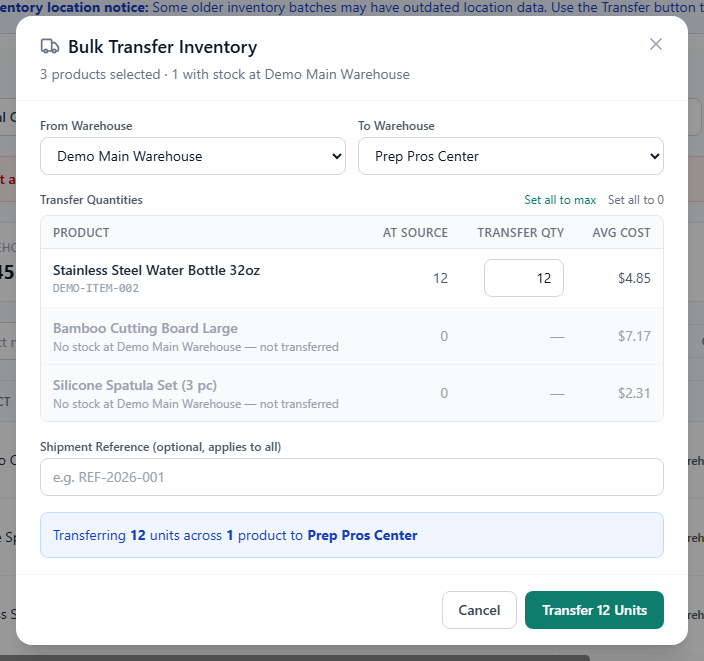
A bulk transfer uses today as the transfer date and moves the oldest-received batches first, skipping batches on hold. When a transfer moves only part of a batch, the batch is split and each part keeps the same unit cost. Moved units have no bin at the destination; set one in Batches if you use bins.
Note: After part of a receipt has been transferred, the receipt can no longer be reversed (see Chapter 5). Correct a wrong quantity with an inventory adjustment instead (see Inventory adjustments).
Pick lists
A pick list tells you what to take off the shelves for a WFS transfer, a removal or a sales order, sorted by bin so you walk the warehouse once. It reserves and moves nothing: afterwards you record the transfer, removal or sale as usual.
How to make a pick list
- Open Inventory > Pick List and choose what it is for: WFS transfer, Removal or Sales order.
- Choose the Warehouse to pick from (for a sales order you can leave it empty: the order's warehouse is used) and, if you like, a Reference to print on the list.
- Say what to pick:
- WFS transfer: choose an open Inbound shipment to pick its items, or type the products.
- Sales order: enter the Sales order number to pick its lines, or type the products.
- Removal: search each product, add it and enter the quantity.
- Click Make pick list to see it, or Download PDF to print it.
The units are taken in the order stock goes out: oldest first, or earliest expiry first for a product costed FEFO. For a sales order that was already imported, the list shows the batches the sale took its cost from. Stock on hold is never picked; the list names it, the products without enough stock and any line the app cannot match to a product.
Labels
Print product or batch labels with a barcode and a QR code, as a PDF for your label printer or for label sheets.
How to print labels
- Open Inventory > Labels and choose Batch labels or Product labels.
- Search the product. For batch labels, its batches with stock are listed and ticked; untick the ones you do not need. For product labels, add each product you want.
- Choose the Label size: 2" x 1", 2.25" x 1.25" or 4" x 6" (one label per page, for thermal label printers), or a Letter sheet of Avery 5160 (30 labels) or Avery 5163 (10 labels). For a sheet you have already used in part, enter the Start at position of the first free label (left to right, top to bottom).
- Enter the Copies of each, tick or untick QR code, and click Download labels (PDF). Print the PDF at 100 % (actual size).
The barcode is the product's scannable code: its custom barcode, else its UPC / EAN (GTIN), else its item ID, so the label scans in Receiving and anywhere else you scan products. A product with none of them gets its SKU as the barcode; the app does not look SKUs up, so add a barcode to the product if you want to scan it. A batch label also shows the batch number, bin, lot and expiry, and its QR code carries them. On the small sizes the QR code is small: for scanning it with a phone, choose 2.25" x 1.25" or larger.
Removal orders
A removal order records units that leave your stock without a sale: sent back to the vendor (RTV), disposed of, or returned to you by a warehouse (Return to Seller). Admins, Managers and Receiving can log removals.
How to log a removal
- On the Inventory page, click Log Removal on the product's row.
- Check the Removal Date and choose the Type: RTV, Disposal or Return to Seller.
- Enter the Quantity and, if the warehouse charged for it, the Fee Amount (optional).
- If you have more than one warehouse, choose the Warehouse Location. All / Unspecified takes from every location and is only accepted for the product's full quantity.
- Leave Take from a specific lot (optional) on Automatic (FIFO/FEFO, skips lots on hold), or choose a lot.
- Enter the Reference # (optional), such as Walmart's removal order number, and Notes (optional).
- Click Log Removal.
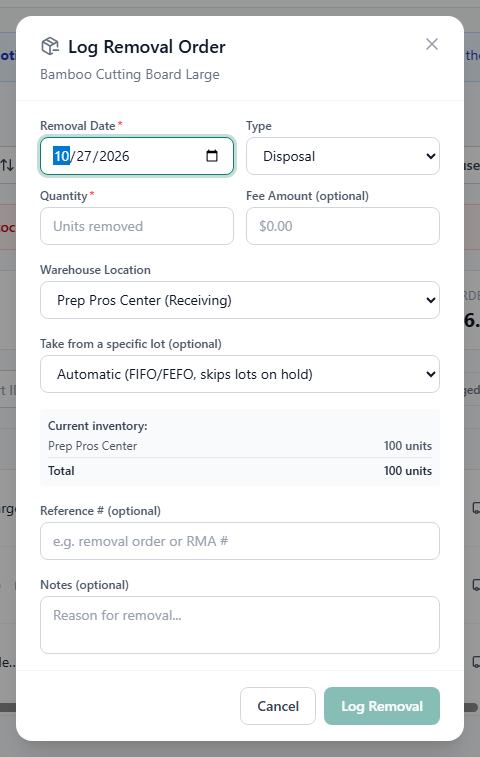
The units leave the batches at their own cost. A removal order cannot be edited or deleted; an Admin can reverse it.
How to view and reverse removal orders
Admins and Managers see the list in the Activity Log.
- On the Inventory page, click View Removal Orders → (it opens Activity Log › Removal Orders).
- Click the eye icon to see a removal order's details.
- Admins only: click the reverse icon (Reverse this removal order) on an active row.
- Enter the Reason for reversal (at least 10 characters) and click Reverse Removal.
The units go back into the batches they came from, with the same cost, lot, expiry and place in the FIFO / FEFO order. The removal order stays in the list marked Reversed.
Restock requests
A restock request flags a product that has run out and needs to be ordered again. Purchasers, Receiving, Managers and Admins can create requests; Purchasers, Managers and Admins can edit, delete and convert them; every role can see the list. The Dashboard shows how many requests are pending.
| Status | Meaning |
|---|---|
| Pending | New request, not looked at yet. |
| Reviewed | Seen by a buyer, not ordered yet. |
| On Next PO | Will go on the next purchase order to that vendor. |
| Ordered | A purchase order was created (Convert to PO sets this). |
| Received | The ordered stock has arrived. |
| Cancelled | No longer needed. |
Statuses other than Ordered are set by hand with the pencil icon.
How to create a restock request
Click Restock Requests in the sidebar.
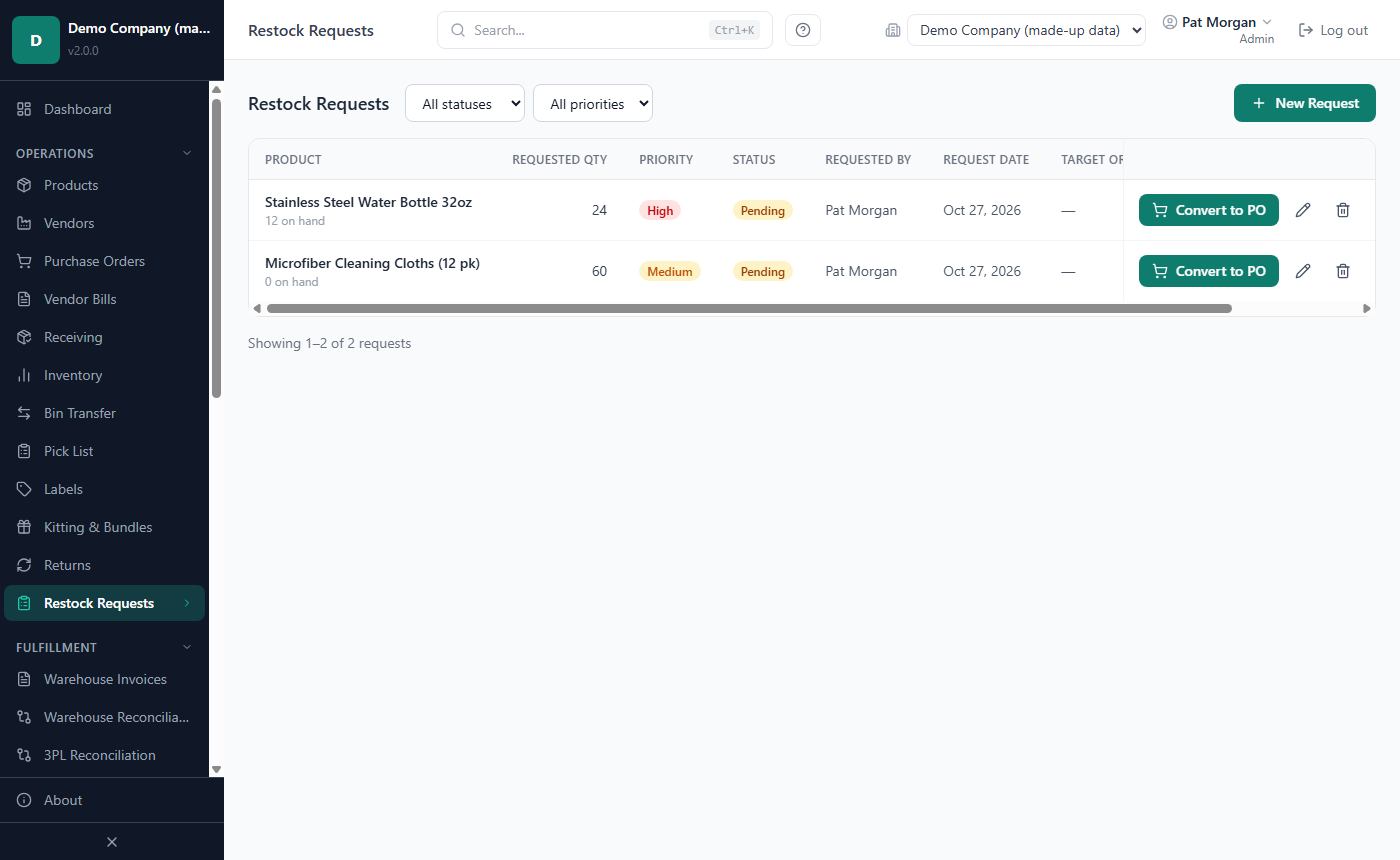
Click New Request.
Search for the product under Product (out of stock only) and click it. Only active products with no stock on hand are listed.
Enter the Requested qty and choose the Priority (High, Medium or Low).
Optionally enter a Target order date and Notes.
Click Create Request.
How to update or delete a restock request
- Click the pencil icon on the request's row.
- Change the Requested qty, Priority, Status, Target order date or Notes, and click Save.
- To delete a request, click the trash icon and confirm. This cannot be undone.
How to turn a restock request into a purchase order
- On a Pending or Reviewed request, click Convert to PO.
- Check the Vendor. The product's preferred vendor is selected; choose another one if needed. If the product has no active vendor, you must choose one, and the purchase order links the product to that vendor.
- Leave Unit cost (optional) empty to use the vendor's cost on file, or enter a cost.
- Click Create PO.
LivingRoom creates an Unreceived purchase order with one line for the requested quantity and opens it. The request becomes Ordered and shows the PO number as a link. Receive the purchase order as usual (see Chapter 5), then set the request to Received.
Kitting and bundles
A bundle is a product you sell that is made from other products, for example a kitchen set made of a cutting board and a spatula set. You define the bundle once, then record kitting sessions when you assemble kits. The bundle itself must already exist as a product (see Chapter 4).
Admins and Managers create and edit bundle definitions. Admins, Managers and Receiving record kitting sessions.
How to create a bundle definition
Click Kitting & Bundles in the sidebar.
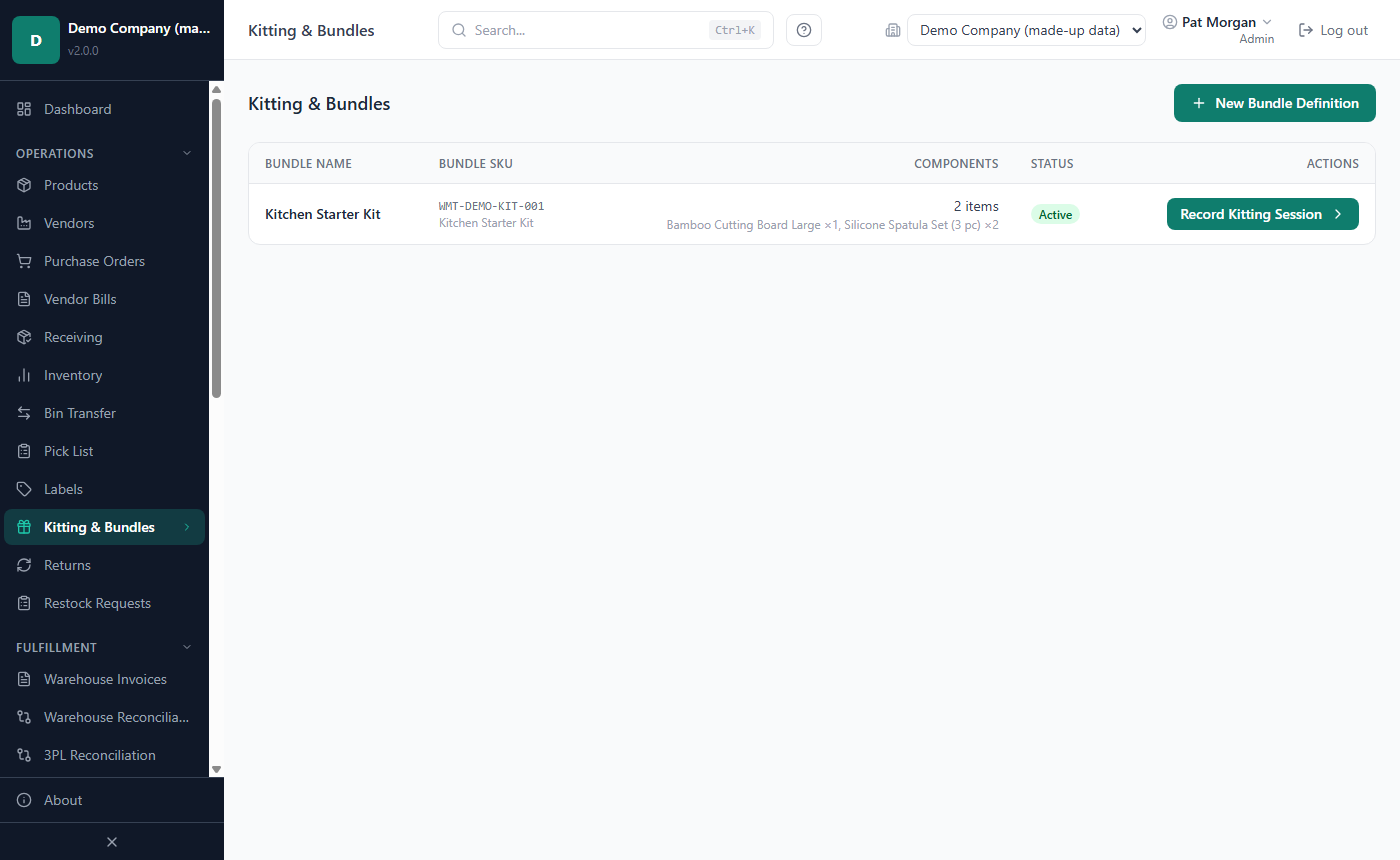
Click New Bundle Definition.
In Bundle SKU Product, search for the bundle product and click it. The Bundle Name is filled in; change it if you like.
Under Components, search for the first component, click it and enter how many go into one bundle. Click Add Component for each further component. Components must be active products.
Optionally add Notes, then click Create Bundle.
How to build kits (record a kitting session)
- On the Kitting & Bundles page, click Record Kitting Session on the bundle's row.
- Enter the Quantity to Kit.
- Choose the Warehouse where you assemble the kits. Components are taken from this warehouse's stock only, and the kits are booked there.
- Check the Date and add Notes if needed.
- Check Components Needed: for each component it shows Need and Avail, and Short when there is not enough at that warehouse. Execute Kitting stays disabled while anything is short; lower the quantity or transfer components to that warehouse first.
- Click Execute Kitting.
The component units leave their batches (oldest first, or earliest expiry first for FEFO products; batches on hold are skipped). A new batch of the bundle product is created at the warehouse, dated with the kitting date.
What a kit costs
A kit's unit cost is the cost of its components: for each component, the cost of the units actually taken from its batches × the quantity per bundle, added together. The preview shows the Total Cost before you confirm.
Example: one "Bamboo Cutting Board Large" at $8.00 and one "Silicone Spatula Set (3 pc)" at $3.50 make a kit unit cost of $11.50. Kitting 10 kits uses 10 of each component and books a kit batch of 10 units worth $115.00.
How to edit or deactivate a bundle
- Click the bundle's row to open its details (components and past kitting sessions with their unit cost).
- Click Edit to change the name and notes. Components can be changed only until the first kitting session is recorded.
- Click Deactivate to stop new kitting sessions for it (kits already made stay in stock), or Activate to allow them again.
There is no action to take kits apart again (un-kitting), and a kitting session cannot be deleted.
Returns
The Returns page records items customers send back and whether each unit goes back into stock or is written off. Admins, Managers and Receiving can record returns.
How to record a return against a sales order
Click Returns in the sidebar, then New Return.
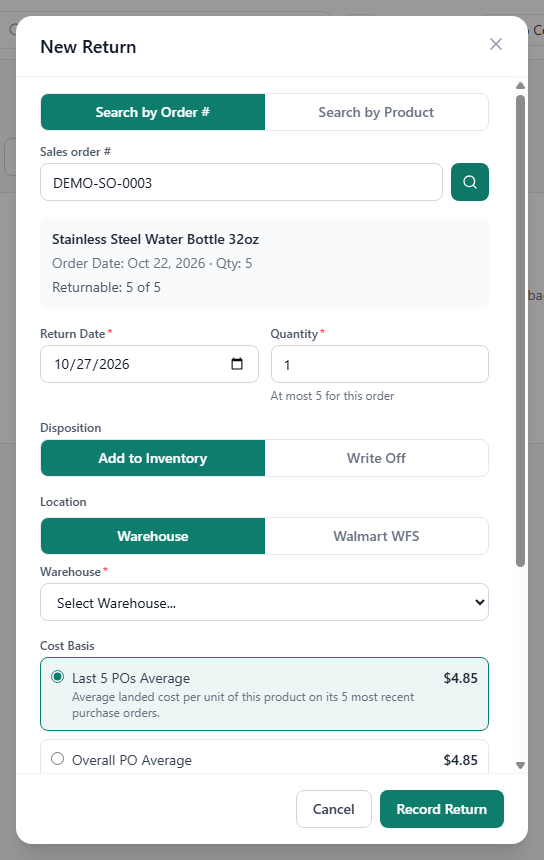
Leave Search by Order # selected, type the Sales order # and click the search button (or press Enter).
Check the order card: product, order date, quantity and "Returnable: x of y".
Check the Return Date and enter the Quantity.
Choose the Disposition:
- Add to Inventory: the units are sellable again. Choose the Location: Warehouse (then pick the Warehouse) or Walmart WFS (the units go to your default fulfillment warehouse).
- Write Off: the units are recorded as a loss and no stock is added.
Choose the Cost Basis (see below) and add Notes if needed.
Click Record Return. For a write-off, click Write off to confirm.
If you do not have the order number, click Search by Product instead and pick the product. The return is then not linked to an order, and Original Order Cost is not available.
Which cost basis to use
The cost basis sets the cost per unit of the returned units. Each option shows its value once the order or product is known; an option without data says "No data for this product".
| Cost Basis | Cost per unit |
|---|---|
| Last 5 POs Average | Average landed cost of the product on its 5 most recent purchase orders. |
| Overall PO Average | Average landed cost across all purchase orders of the product. |
| Original Order Cost | The cost recorded for the units the original order sold (needs the order lookup). |
| Manual Entry | The Manual cost per unit ($) you enter. |
Units sold as No cost in a sales import were recorded at $0, so a return of those units under Original Order Cost comes back at $0 per unit. Choose another cost basis if you want them valued at a purchase cost.
What happens to stock and cost
- Add to Inventory creates a new batch at the chosen warehouse, at the chosen cost. When the order's units came from one lot, the batch takes that lot and expiry; otherwise set them in Batches. Units returned to stock against an order are no longer counted as sold in your profit reports.
- Write Off adds nothing to stock; the return is recorded at the chosen cost.
- With an order number, Walmart's return fees for that order (from imported settlements) are linked to the return.
- You cannot return more units against an order than it sold, minus the units already returned. The Quantity field shows "At most n for this order".
How to upload a returns file
Admins and Managers can import many returns at once.
- On the Returns page, click Upload Returns File.
- Choose the file and match its columns: Product SKU/GTIN and Quantity are required; Sales Order #, Return Date, Unit Cost and Notes are optional.
- Set the disposition for all rows or row by row, and choose the Warehouse for returned stock.
- Click Check n Rows. Every row is checked without recording anything: you see how many returns can be recorded and their total cost, the rows that cannot be recorded, and the rows that look already recorded (the same product, date, quantity and order - for example when the file was imported before).
- Click Import n Returns. If you change a disposition or the warehouse, check the rows again.
Rows with a Unit Cost use it; other rows use Last 5 POs Average. The import is all or nothing: if any row has a problem, nothing is recorded and the rows to fix are listed, so you can correct the file and upload it again.
Warehouse Reconciliation (Walmart WFS)
Warehouse Reconciliation compares your WFS stock with Walmart's live inventory data and helps you settle the differences. It uses the Walmart API, so the integration must be set up first (see Chapter 9).
Only stock at warehouses whose Fulfillment Platform is Walmart WFS (Settings › Warehouses) counts as WFS stock. Stock at a 3PL, your own warehouse or another fulfillment warehouse is never compared with Walmart's count.
Admins, Managers and Reports Only users can open the page; Admins and Managers run reconciliations and resolve differences.
How to run a reconciliation
Click Warehouse Reconciliation in the sidebar (or the Warehouse Reconciliation button on the Inventory page).
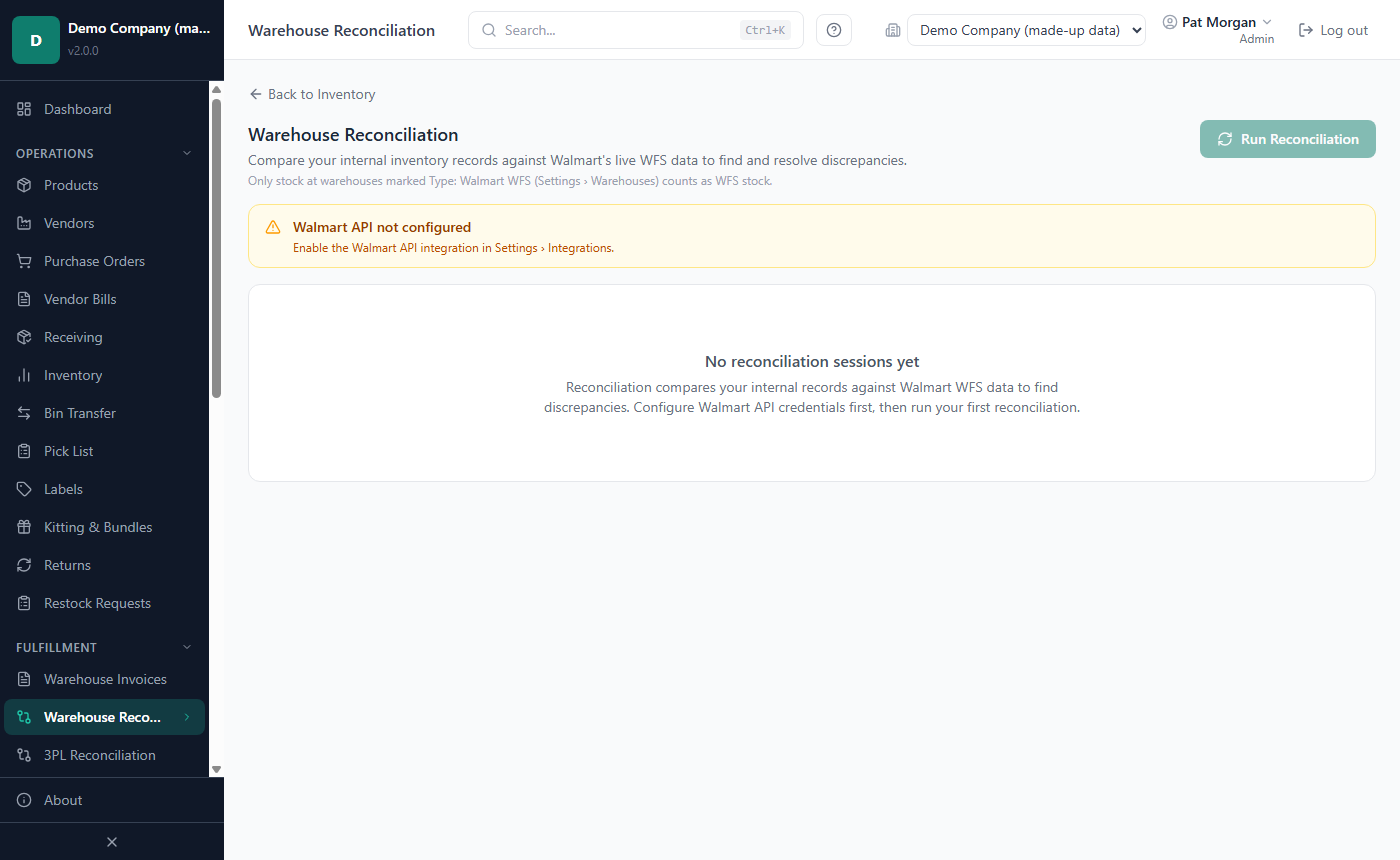
Click Run Reconciliation.
Read the result: Walmart items, matched products and variances. Products Walmart lists that are not in your catalog are counted separately.
Click the new session in the list to open it.
Each run creates a session. A newer run replaces older sessions: their variances can no longer be resolved.
How to resolve a variance
The Variance is Walmart's total (available + reserved + inbound) minus your internal WFS stock. For example, with 120 units in your records and Walmart showing 100 available, 6 reserved and 10 inbound (116), the variance is −4.
- In the session, tick Variances only to hide matched products.
- Click Resolve on a product.
- Choose an action:
- Accept Walmart's Count: adjusts your WFS stock to Walmart's total. Missing units are written off from your WFS batches, oldest first, each at its batch's own cost - never from a batch on hold: batches on hold are listed under the product ("N unit(s) on hold - not adjusted here") and in the dialog, and units that would have come from them are not booked (the result says how many). If all of the product's WFS stock is on hold, nothing is booked. An Admin or Manager handles held batches with Log Removal, or releases the hold first. Extra units are added as a found batch next to the newest WFS batch, at the WFS average cost. The adjustments use the WFS Reconciliation category.
- Keep My Count: no stock change.
- Flag for Investigation: no stock change; the item stays open so you can record the outcome later.
- Dismiss: no stock change, for known acceptable differences.
- Add Notes (optional) and click Confirm Resolution.
If your WFS stock has changed since the run (for example, a sales import or transfer), the item shows "Stock changed" and Accept Walmart's Count is not offered. Run a new reconciliation first.
Use Export CSV to save a session, and Close Session when you are done; a closed session is read-only.
3PL Reconciliation
If you use a connected 3PL, 3PL Reconciliation (sidebar) compares the stock the 3PL reports with your own records. The comparison is refreshed with Sync Now in Settings › Integrations › 3PL, with the Inventory option on (see Chapter 9). Admins, Managers, Receiving and Reports Only users can open the page.
- The table lists each SKU with 3PL, Ours and Difference. A SKU that matches none of your products is marked "Not matched to a product". Tick Show resolved to see closed items, and use Export CSV to save the list.
- To close a difference (Admins, Managers and Receiving), click Resolve, choose "The 3PL is right (I will adjust our stock myself)", "We are right (3PL to recount)" or Dismiss, add a note and click Close discrepancy. Closing records your decision only; it does not change stock. If the 3PL is right, record an inventory adjustment.
- Inbound shipments sent to the 3PL lists the purchase orders sent with Send to 3PL and what the 3PL has received. Refresh status updates them.
Inbound Shipments
Inbound Shipments (sidebar) shows the WFS inbound shipments pulled from Walmart, so you can compare what you sent with what Walmart received. It is read-only and does not change your stock. Admins, Managers, Receiving and Reports Only users can open it.
- Admins and Managers: click Sync from Walmart, tick the shipments to keep in Review shipments from Walmart and click Save n shipments.
- Read the cards: Open shipments, Units in transit, With shortfall and Shortfall units. Filter by status if needed.
- Click a shipment to see its items with Expected, Received and Shortfall.
A closed shipment with a shortfall is a candidate for a reimbursement claim with Walmart (see Chapter 7).
Related chapters
- Chapter 4 — Products: products, bundle products, costing method per product.
- Chapter 5 — Vendors, purchasing, receiving and prep centers: receiving stock, lots and expiry at receipt, warehouses and bin formats.
- Chapter 7 — Sales and settlements: sales import from the fulfillment warehouse, shortages, reimbursements.
- Chapter 8 — Reports and dashboards: inventory value, aged stock and losses.
- Chapter 9 — Integrations: the Walmart API and 3PL connections.
- Chapter 10 — Settings, backups and updates: Operational settings such as the age flag and the costing method.