
5. Vendors, purchasing, receiving and prep centers
This chapter follows your stock from the supplier to your shelf: you set up vendors and warehouses, order with purchase orders (POs), receive what arrives, and enter the invoices of your prep center or warehouse. Along the way LivingRoom builds the landed cost of every unit: what you paid the vendor plus that unit's share of freight, fees, prep and tax. Your profit reports use this cost, and the last section shows step by step how it is calculated.
In this chapter:
- Who can do what
- How to add and manage vendors
- How to set up warehouses and prep centers
- Quantities: sellable units, cases and packs
- How to create a purchase order
- How to add costs, fees and credits to a purchase order
- How to edit, duplicate, print and e-mail a purchase order
- Purchase order statuses
- How to import purchase orders in bulk
- How to receive a purchase order
- How to receive several purchase orders at once
- How to handle short and over shipments
- How to reverse a receipt
- How to close out a purchase order
- How to enter a warehouse invoice
- How to import a warehouse invoice
- Landed cost explained with a worked example
Who can do what
| Task | Admin | Manager | Purchaser | Receiving |
|---|---|---|---|---|
| View vendors and purchase orders | Yes | Yes | Yes | Yes |
| Add and edit vendors | Yes | Yes | Yes | - |
| Deactivate or reactivate vendors | Yes | Yes | - | - |
| Add, edit or remove warehouses (Settings › Warehouses) | Yes | View only | - | - |
| Create, edit, duplicate, print and e-mail POs; add costs and vendor credits | Yes | Yes | Yes | - |
| Receive stock, bulk receive, close short while receiving, GRN PDFs | Yes | Yes | - | Yes |
| Accept an overage (more units than ordered) | Yes | - | - | - |
| Close a line short from the PO page, Lock & Close, Reopen Receiving | Yes | Yes | - | - |
| Reverse a receipt, delete an unreceived PO | Yes | - | - | - |
| Enter, import and delete warehouse invoices | Yes | Yes | - | Yes |
The Reports Only role does not see these pages.
How to add and manage vendors
Vendors are the suppliers you buy from. Every purchase order is placed with one vendor, and you can order a product from a vendor only when the product is linked to that vendor (on the product's Vendors tab, see Chapter 4).
Add a vendor
In the sidebar, click Vendors.
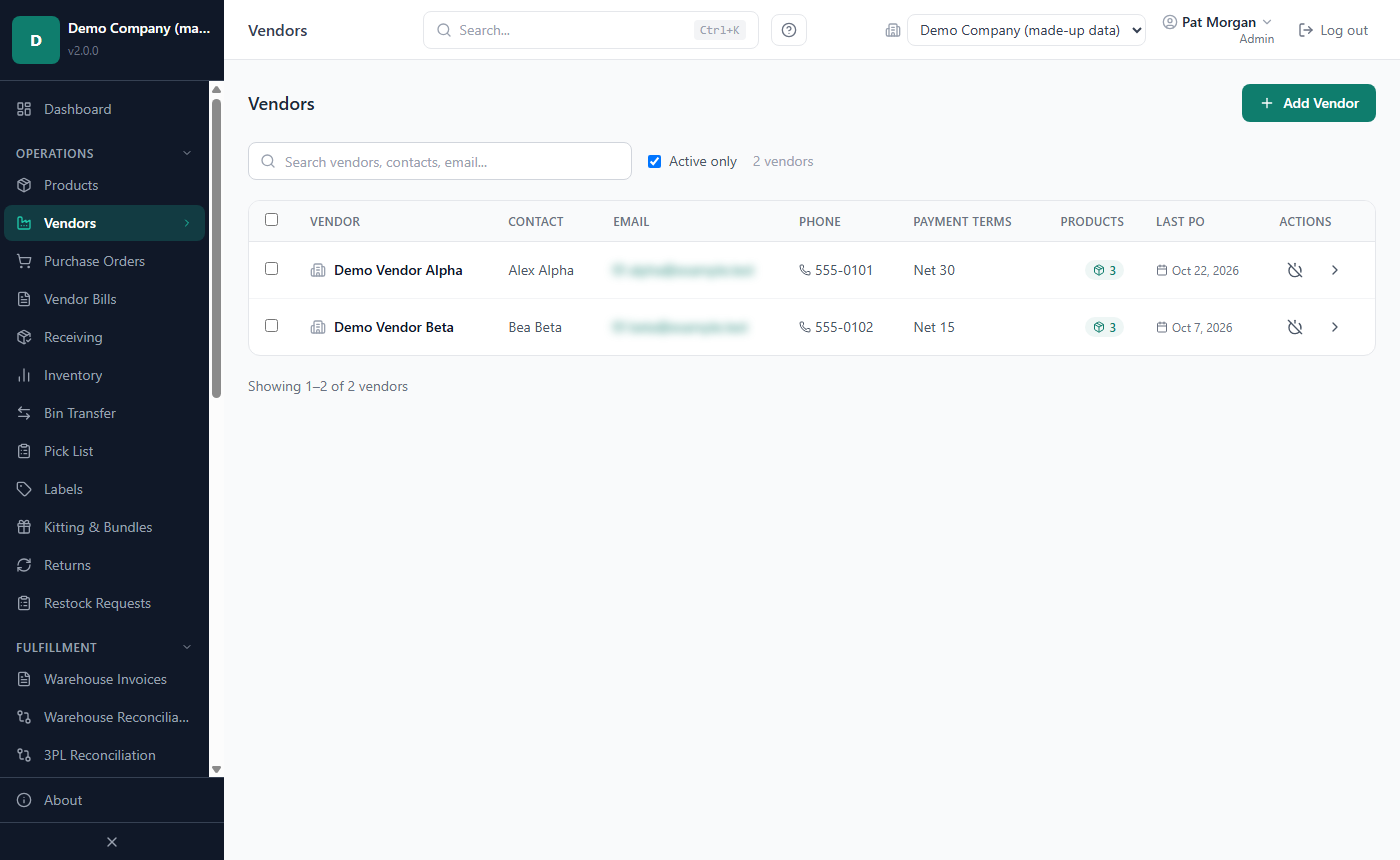
Click Add Vendor.
Enter the Vendor Name. It is required and must be unique ("ACME" and "acme" count as the same name).
Fill in what you know: Contact Name, Email, Phone, Website, Street Address, City, State, ZIP, Payment Terms and Notes.
Click Create Vendor.
The list shows each vendor's contact, e-mail, phone, payment terms, the number of linked products (click the number to see them) and the date of the last PO. The search box finds vendors by name, contact or e-mail. Active only is ticked by default and hides deactivated vendors.
The Payment Terms list offers Credit Card, Cash, Net 15, Net 30, Net 60, Net 90, 2/10 Net 30 and COD. A vendor's payment terms are filled in automatically on new purchase orders and printed on the PO PDF.
View a vendor's details and price history
On the Vendors page, click the vendor's row.
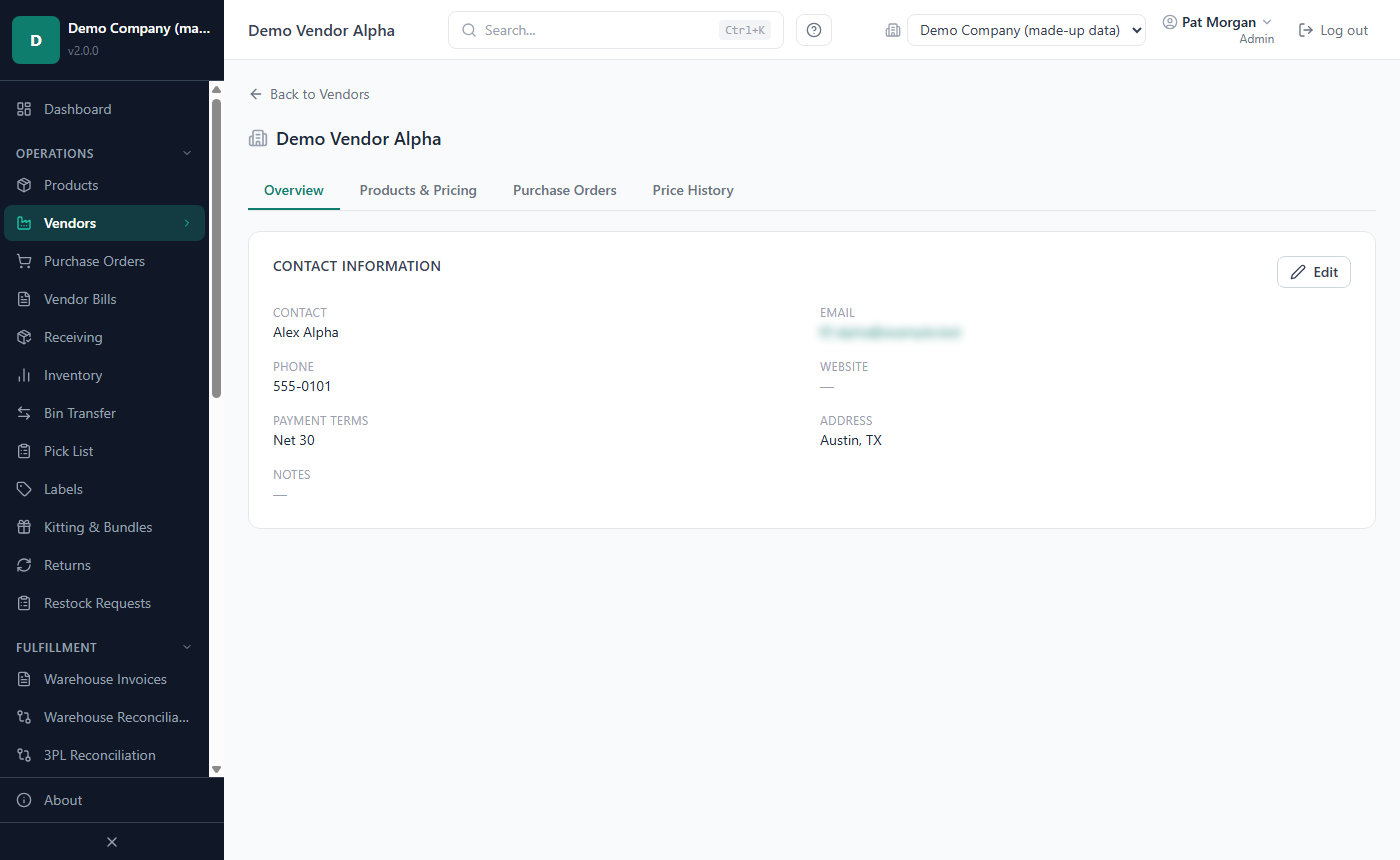
Use the tabs:
- Overview shows the contact information and payment terms. Click Edit, change the fields and click Save Changes.
- Products & Pricing lists the linked products with their SKU, Current Cost (this vendor's price on the product link), status and the date of the last PO.
- Purchase Orders lists the vendor's recent PO lines with quantity, unit cost and status.
- Price History: pick a product under Product:. The table shows each change of this vendor's price with the date, the new Unit Cost, the difference vs Standard (the product's standard cost) and who changed it. With two or more changes a Cost Trend chart appears; red dots mark prices more than 10% away from the standard cost.
A price change is recorded whenever the vendor's cost on the product link changes, either by an edit on the product or by a product import. The prices you type on purchase orders do not add to the price history.
Deactivate or reactivate a vendor
Admins and Managers can deactivate a vendor you no longer buy from. On the Vendors page, click the power icon in the vendor's row and confirm. A deactivated vendor is hidden from the list (untick Active only to see it) and cannot be chosen for new purchase orders; its products, purchase orders and price history are kept. Click the icon again to reactivate it.
To change several vendors at once, tick their check boxes and use Activate, Deactivate or Export (a CSV file of the selected vendors) in the bar that appears.
How to set up warehouses and prep centers
LivingRoom calls every place that holds your stock a warehouse: your prep center, your home storage, a 3PL, Walmart WFS. Each warehouse has a type that decides what it is used for:
| Warehouse Type | Use it for | What it does |
|---|---|---|
| Receiving Warehouse | Prep center, home storage, inbound 3PL | You receive vendor shipments here. |
| Fulfillment Location | Walmart WFS, a 3PL that ships your orders | Your sales are taken from here. |
| Both (Receiving + Fulfillment) | Your own warehouse that receives and ships | You receive here and sell from here. |
Sales ship only from the fulfillment warehouse you choose. When you import a Walmart sales file you pick the Fulfillment Location the orders came from, and the import takes stock from that warehouse only, never from another one; units it cannot cover are reported as a shortage (Chapter 7). Stock you receive at a prep center therefore has to be transferred to the fulfillment location before it can be sold there (see transfers in Chapter 6).
Admins add warehouses:
In the sidebar, click Settings, then the Warehouses tab.
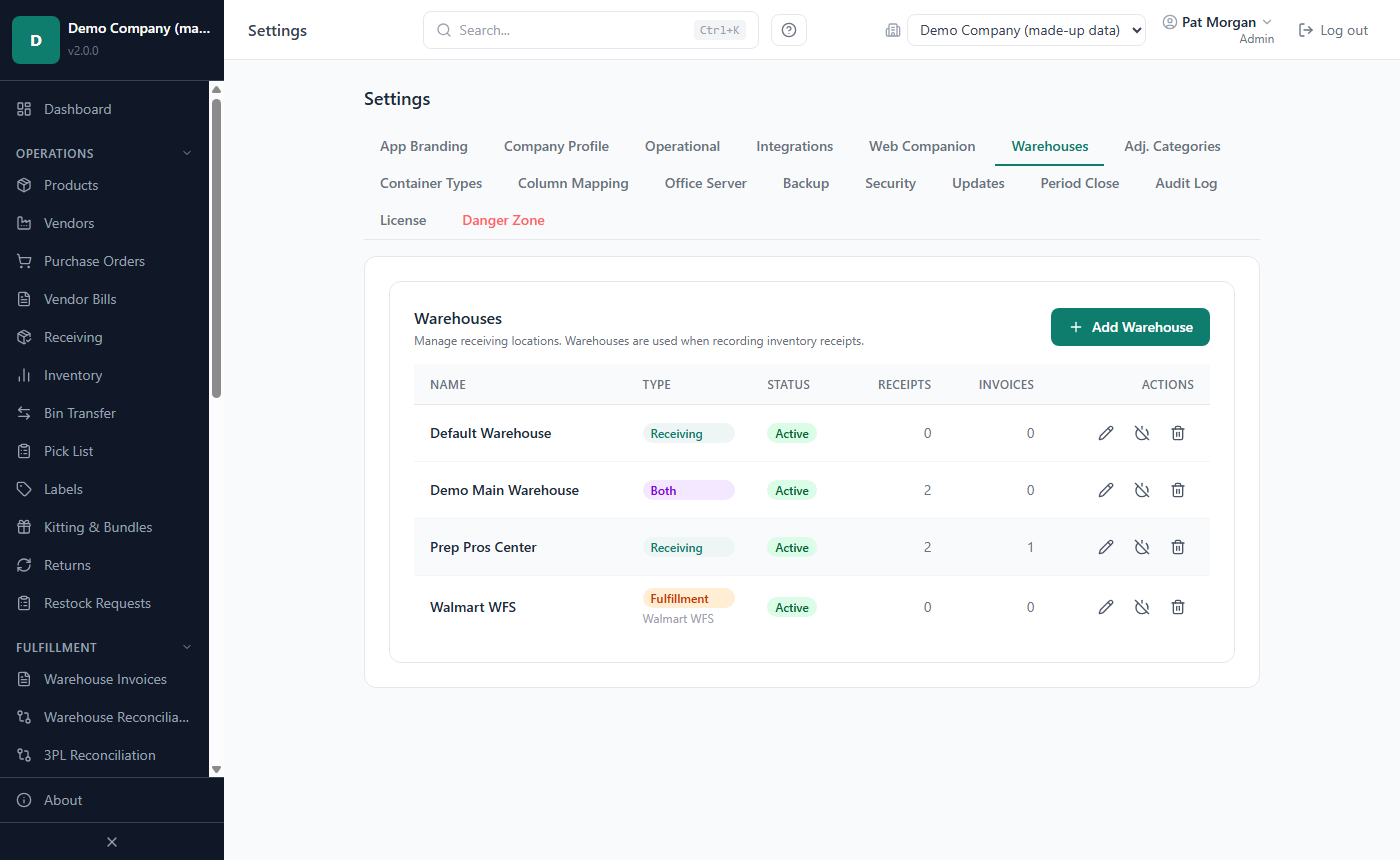
Click Add Warehouse.
Enter the Warehouse Name. Address, Contact and Notes are optional.
Choose the Warehouse Type.
For a fulfillment location (or Both), you can choose a Fulfillment Platform (optional): General / Other, Walmart WFS, Amazon FBA, Third-Party 3PL or Own Warehouse. Choose Walmart WFS for your WFS location: Warehouse Reconciliation needs it (Chapter 6). Tick Default fulfillment warehouse for the location your sales usually ship from: Sales Import and Settlement Import start with it selected and use it when none is chosen. Only one warehouse is the default (marked with a star in the list); ticking it on another clears it here.
Optionally enter a Bin location format:
#stands for a digit,@for a letter, anything else is copied as it is.@#-@#-@#accepts bins such as A3-S2-B1. When a format is set, every bin entered while receiving into this warehouse must match it.Click Add Warehouse.
The list shows each warehouse's type, status and how many receipts and invoices it has. Use the pencil icon to edit a warehouse and the power icon to deactivate it (it is hidden from new receipts; its stock stays where it is). A warehouse that still holds stock cannot be deleted: transfer or write off the stock first. A warehouse with past receipts or invoices is offered Deactivate or Archive instead of deletion. Managers can see this tab but cannot change it.
Quantities: sellable units, cases and packs
Every quantity in LivingRoom (on a purchase order, in stock, in sales) is counted in sellable units: one unit as you list and sell it on Walmart. If you sell single bottles, a sellable unit is one bottle; if you sell 2-packs, it is one 2-pack.
Two numbers from your product data convert vendor cases into sellable units:
- Pack Qty on the product's vendor link: the individual items in one vendor case.
- Sell Pack Qty on the product: the individual items in one sellable unit.
One case is Pack Qty ÷ Sell Pack Qty sellable units. A case of 12 bottles sold one by one is 12 sellable units; the same case sold as 2-packs is 6 sellable units.
When you order, enter the quantity in sellable units and the cost as the total for the line. For example, 5 cases of 12 bottles at $72.00 a case, sold one by one: quantity 60, line cost $360.00, unit cost $6.00. When you receive, you can count in cases, individual items or sellable units; the receive form converts for you.
Important: The Edit PO form of a single-product PO shows a hint that the Order Quantity can be in cases, packs or units. Enter sellable units there too: LivingRoom always treats the ordered quantity as sellable units.
How to create a purchase order
Admins, Managers and Purchasers create purchase orders. You can order only Active products, from an active vendor they are linked to. One PO can hold several products (lines).
In the sidebar, click Purchase Orders.
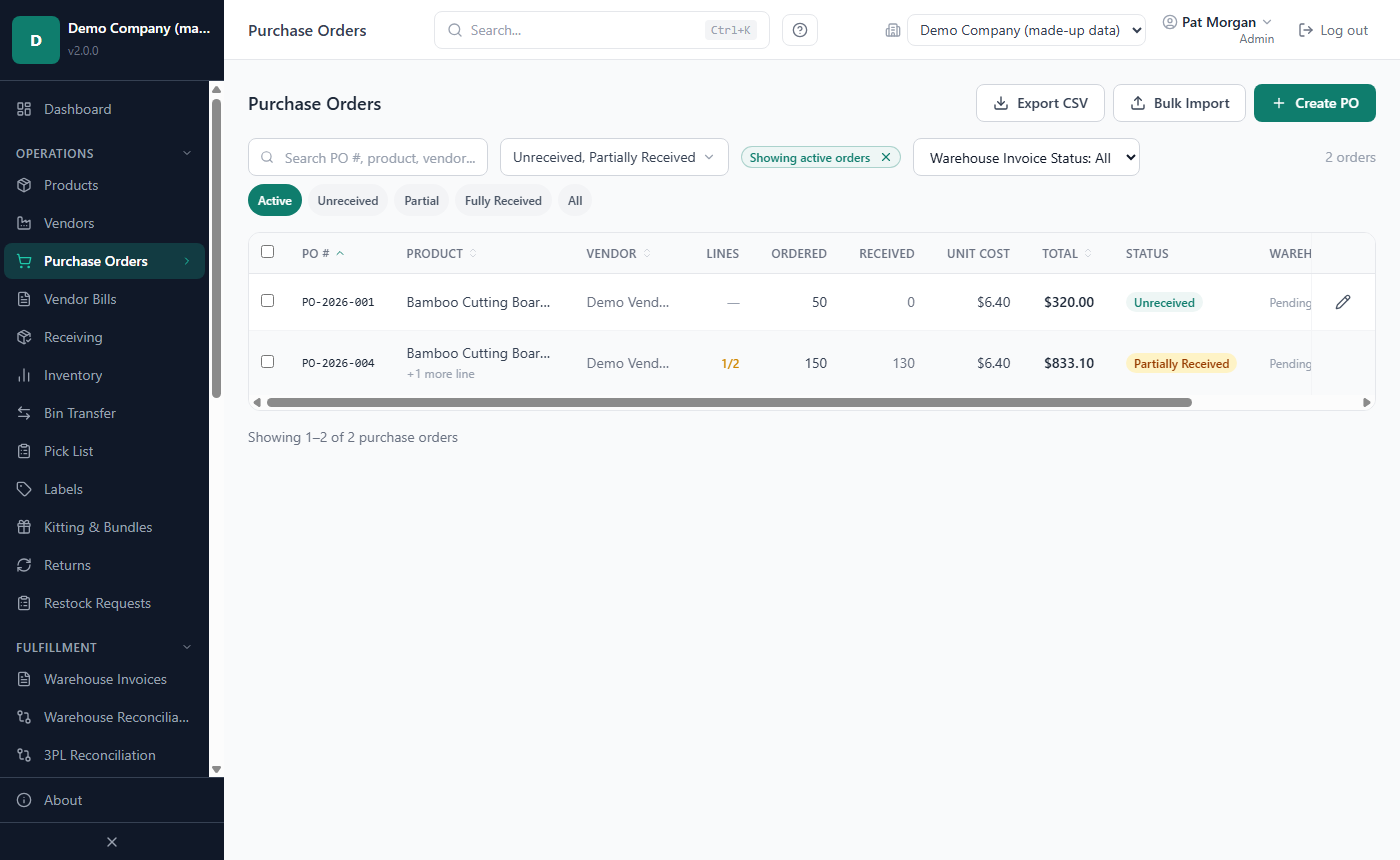
Click Create PO (or press Ctrl+N when you are not typing in a field).
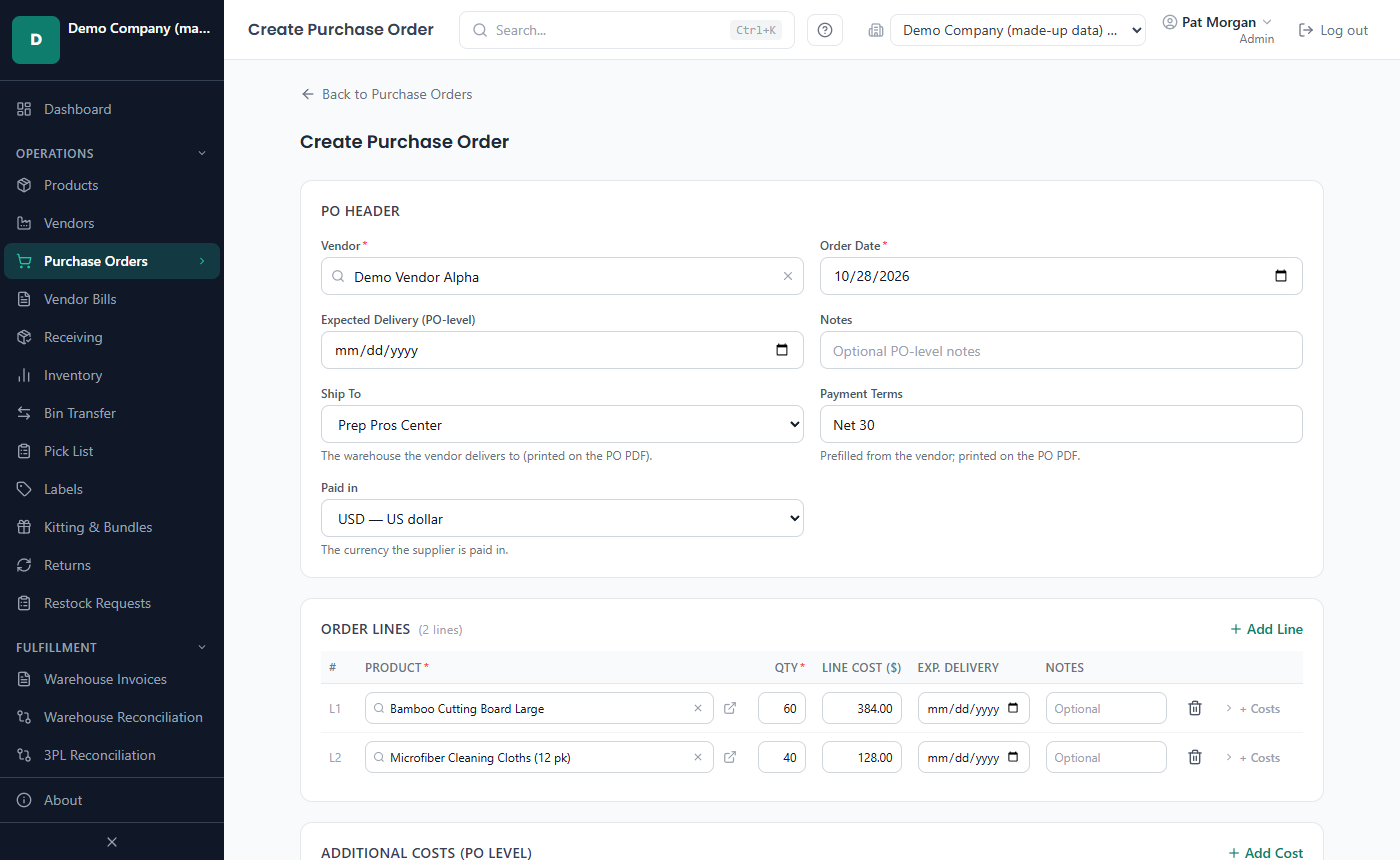
Under PO Header, type part of the vendor's name in Vendor and pick it from the suggestions. Typing the name alone is not enough.
Check the Order Date (today by default). Optionally fill in Expected Delivery (PO-level), Notes, Ship To (the warehouse the vendor delivers to) and Payment Terms (filled in from the vendor). Ship To and Payment Terms are printed on the PO PDF.
Under Order Lines, click in Product on line L1 and pick a product. Once a vendor is chosen, the list shows only that vendor's products.
Enter the Qty in sellable units and the Line Cost ($), the total cost of the line (not the price per unit). Optionally add an Exp. Delivery date and Notes for the line.
Click Add Line for each further product. A product can appear on only one line of a PO.
Add shipping, tax and other costs if you know them (see the next section).
Check the Cost Summary: for each line it shows the Unit Cost (line cost ÷ quantity), the line's share of the PO-level costs (Shared Fees), its own Line Fees and the Est. Landed/Unit, plus the Grand total.
Click Create Purchase Order.
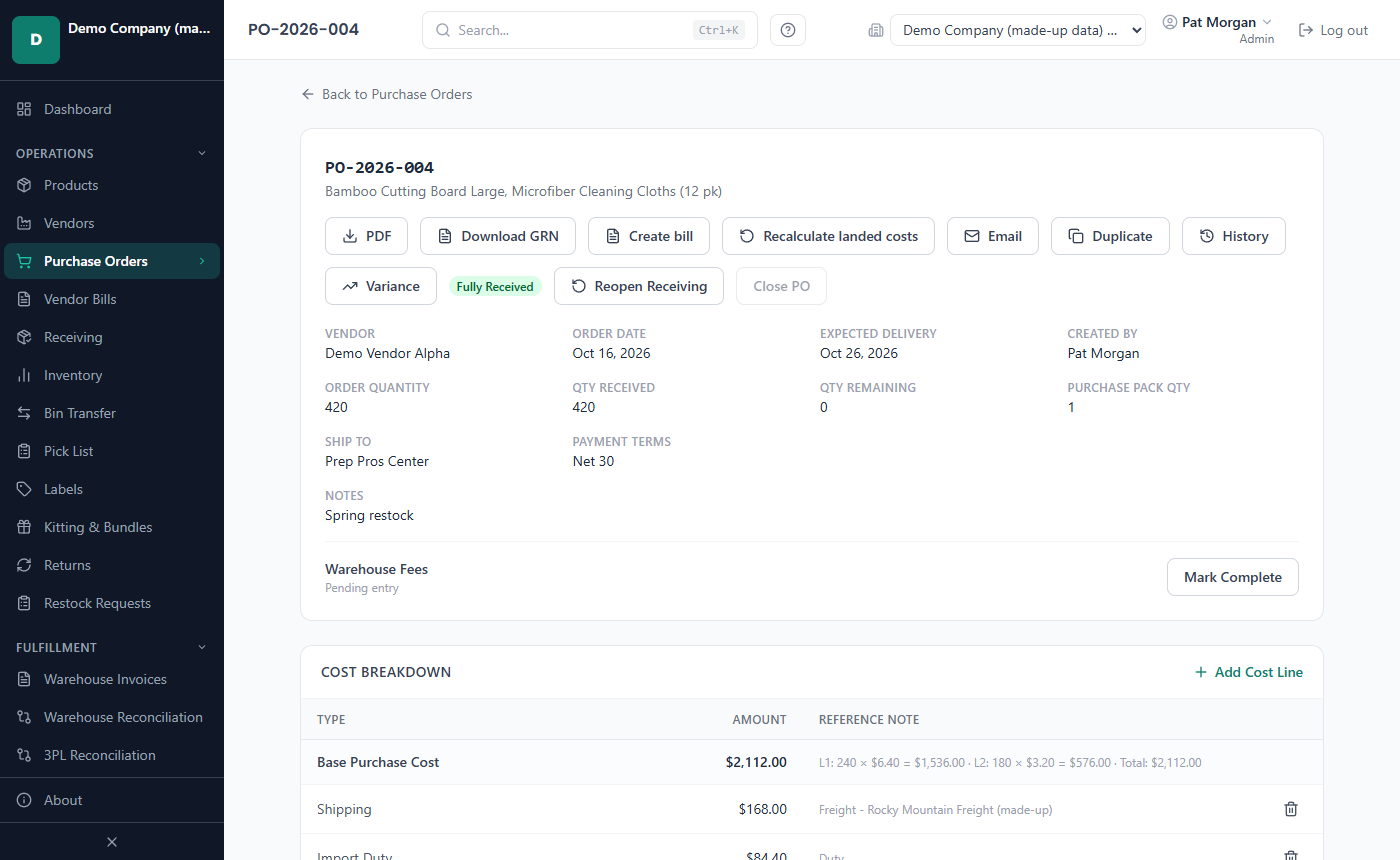
The PO gets the next number, such as PO-2026-001 (an Admin or Manager can change the prefix under Settings › Operational, PO Number Prefix), and opens with the status Unreceived. Nothing is in stock yet; the units count as on order.
If Create Purchase Order stays grey, the reason is shown under it, for example that the vendor was typed but not picked. An amber line warning "This product has no active vendor links" means the product has no vendor to buy it from: click Fix Now → to add one in the product's quick view.
How to add costs, fees and credits to a purchase order
Costs on a PO raise or lower the landed cost of its units:
| Cost type | Effect | Reference note |
|---|---|---|
| Shipping, Tax | Adds to the cost | Optional |
| Other Fee | Adds to the cost | Required |
| Import Duty, Customs/Brokerage Fee, Freight Forwarding Fee | Adds to the cost | Optional |
| Refund, Vendor Credit, Discount | Lowers the cost (type the amount as a positive number; it is shown negative) | Required |
You can enter a cost for the whole PO or for one line:
- PO-level costs (under Additional Costs (PO Level), Add Cost) are shared by all lines. Each unit's share is the cost ÷ the total units ordered on the PO.
- Line-level costs (click + Costs on a line, then Add Line Cost) apply only to that line. Each unit's share is the cost ÷ the units ordered on that line.
The share is fixed when a unit is received: receiving the rest of the PO later never changes the cost of units received earlier. The one exception is closing a line short, see the worked example.
Add a cost to an existing purchase order
Open the purchase order.
Under Cost Breakdown, click Add Cost Line.
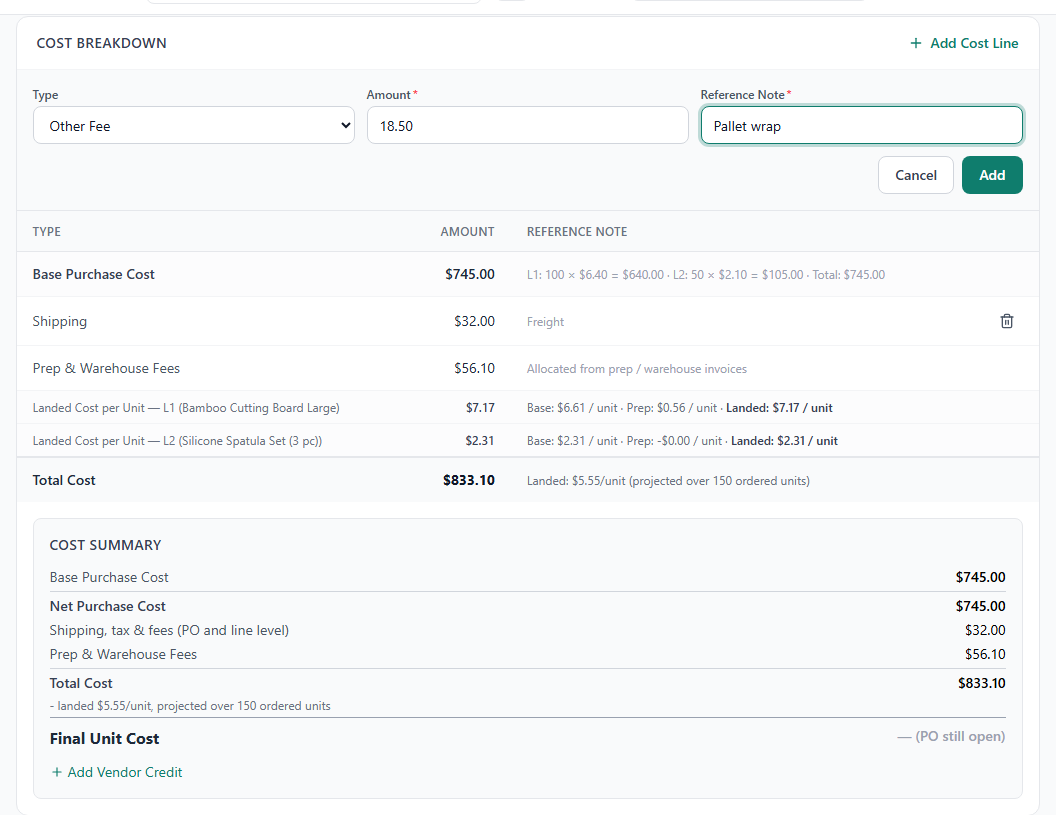
Choose the Type: Other Fee, Refund, Vendor Credit, Import Duty, Customs/Brokerage Fee or Freight Forwarding Fee. (Shipping, Tax and Discount are entered when you create the PO.)
Enter the Amount and the Reference Note (for example the invoice or credit memo number).
Click Add.
The landed cost is recalculated at once, including for units already received. The trash icon removes a cost line. A closed PO accepts no new costs except vendor credits.
Add a vendor credit after receiving
When a vendor gives you a credit (for damaged units or a price adjustment), record it on the PO:
- Open the purchase order. The Cost Summary panel appears once units have been received.
- Click Add Vendor Credit.
- Enter the Credit Amount ($) as a positive number and a Reference Note. Always fill in the note: the credit is not saved without it.
- Click Apply Credit.
The credit is shared over all units ordered on the PO, like shipping: a $16.00 credit on a PO of 160 units lowers every unit by $0.10. The message shows the new unit cost. Credits can also be added to a closed PO.
Tip: Recalculate landed costs on the PO page re-applies all of the PO's costs, fees and credits to the units received. You do not normally need it; use it if a PO's figures look out of date.
The Variance button compares each line's unit cost with the product's current standard cost. For a difference of more than 5% you can Note it, or an Admin or Manager can Update Std Cost.
How to edit, duplicate, print and e-mail a purchase order
Edit. You can change quantities and costs only while the PO is Unreceived. Click Edit PO on the PO page (or the pencil icon in the list). On a single-product PO you edit the Order Quantity, Total Purchase Cost (all units) and, after ticking Override, the Purchase Pack Qty; on a PO with several lines you edit Qty Ordered and Line Cost ($) per line. Dates, notes, Ship To and Payment Terms can be changed too. Click Save Changes. Once receiving has started, quantities and costs are locked, but you can still add lines, costs and credits.
Add a line. Under Order Lines, click Add Line, pick the Product, enter the Quantity and optionally a Unit Cost (blank uses the vendor's cost on the product link) and Exp. Delivery, then click Add Line. A line added after receiving has started takes no share of the PO-level costs; they stay with the original lines.
Delete. An Admin can delete a PO that is still Unreceived: click Delete PO and type DELETE to confirm.
Duplicate. Click Duplicate, set the New Order Date, choose whether to Copy PO-level costs and Copy line-level costs, and click Duplicate PO. The copy opens as a new Unreceived PO.
Print or save as PDF. Click PDF to download the vendor copy of the PO. It shows your company name, address and document logo (from Settings › Company Profile, see Chapter 10), the PO number and dates, payment terms, the ship-to warehouse, the vendor's contact and the lines with quantity, unit cost and subtotal. A line whose product needs a lot number or an expiry date at receiving says so under the product ("Lot number required on delivery", for example), so the vendor marks them on the goods. Your internal costs, such as prep fees, are not on it. To print it, open the file and print from your PDF viewer.
E-mail. Click Email. The To Email field is filled with the vendor's e-mail address; check the Subject, add a Message (optional) and click Send Email. The PO is attached as a PDF. E-mail needs the mail (SMTP) settings described in Chapter 9. Sent e-mails are listed under Communications on the PO. When a PO is past its expected delivery date and not fully received, an Overdue badge and a Send Follow-up button appear there.
History. Click History to see the PO Revision History: every change to the PO with who made it, when, the old and new value and the reason.
Purchase order statuses
| Status | Meaning |
|---|---|
| Unreceived | Nothing has been received yet. Quantities and costs can still be edited. |
| Partially Received | Some units have arrived; more are expected. |
| Fully Received | Every line is received in full or closed short. |
| Closed | The PO was closed with Lock & Close; its costs are locked. |
Each line has its own status: Unreceived, Partially Received, Fully Received or Closed Short. A fully received PO with lines closed short also shows a Closed Short badge.
The Purchase Orders list starts with Showing active orders (Unreceived and Partially Received). Use the status drop-down or the chips Active, Unreceived, Partial, Fully Received and All to change this, and Export CSV to save the listed POs (the file is prepared in the background and saved when it is ready). The Warehouse Fees column shows Done once someone has clicked Mark Complete under Warehouse Fees on the PO page, to note that all prep and warehouse invoices for the PO are entered; the Warehouse Invoice Status filter finds the POs still pending. This mark is a reminder only and does not change any cost.
On a Partially Received PO, Mark Fully Received sets the PO to Fully Received without receiving the rest. Use it only to correct a data-entry mistake; to record that the rest will not come, close the line short instead (see How to handle short and over shipments). If more units arrive after a PO was fully received, an Admin or Manager clicks Reopen Receiving, enters a reason of at least 10 characters and clicks Reopen PO; lines that were closed short are reopened too. A Closed PO cannot be reopened.
How to import purchase orders in bulk
Use the bulk import to create many purchase orders from a spreadsheet. Each row becomes one PO for one product.
- On the Purchase Orders page, click Bulk Import.
- Click Download template and fill in the Purchase Orders sheet from row 3 (delete the example in row 2). The columns are Walmart Vendor SKU, Vendor / Supplier Name, Sellable Units (qty into inventory), Total Purchase Cost, Units Purchased (raw, reference only), Pack Size (indiv. units per sellable unit), Shipping Cost, Tax, Other Fee Amount, Other Fee Reference Note, Order Date (YYYY-MM-DD), Expected Delivery Date (YYYY-MM-DD) and Notes. The SKU must belong to an Active product linked to that vendor, and an Other Fee needs a reference note.
- Drop the saved .xlsx file on the upload box (or click it to browse) and click Upload & Preview.
- Review the rows. Each row is marked ready, with warnings or with errors. Rows with errors cannot be imported; untick any other row you do not want.
- Click Import (the button shows how many POs will be created). A bar shows the progress (Importing the purchase orders); the whole file is saved or nothing.
All imported POs are created as Unreceived with automatic PO numbers. The import also reads a purchase-history spreadsheet for loading past purchases (with columns such as Purchase Date, Walmart ID, Order From, Sellable Units and Purchasing Cost). The options Auto-create missing products and Allow non-Active product statuses apply only to such a history file, not to the template.
How to receive a purchase order
When a shipment arrives, record it against its purchase order. Admins, Managers and Receiving staff can receive.
In the sidebar, click Receiving.
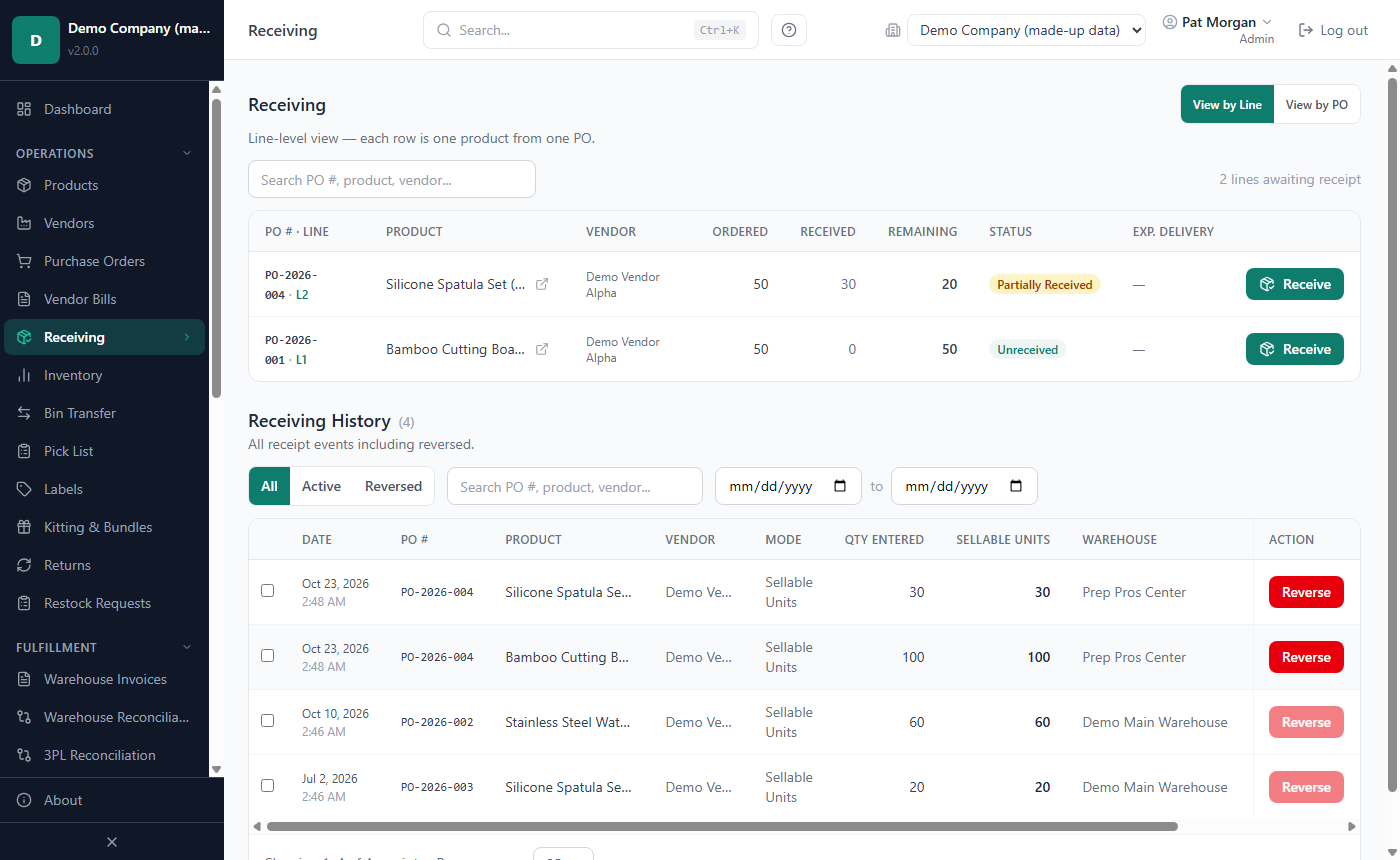
The page opens in View by Line: each row is one product of one open PO. View by PO lists whole POs, with the tabs Awaiting Receipt, All and Fully Received.
Click Receive on the line that arrived. (On the PO page, Receive in the Order Lines table does the same.)
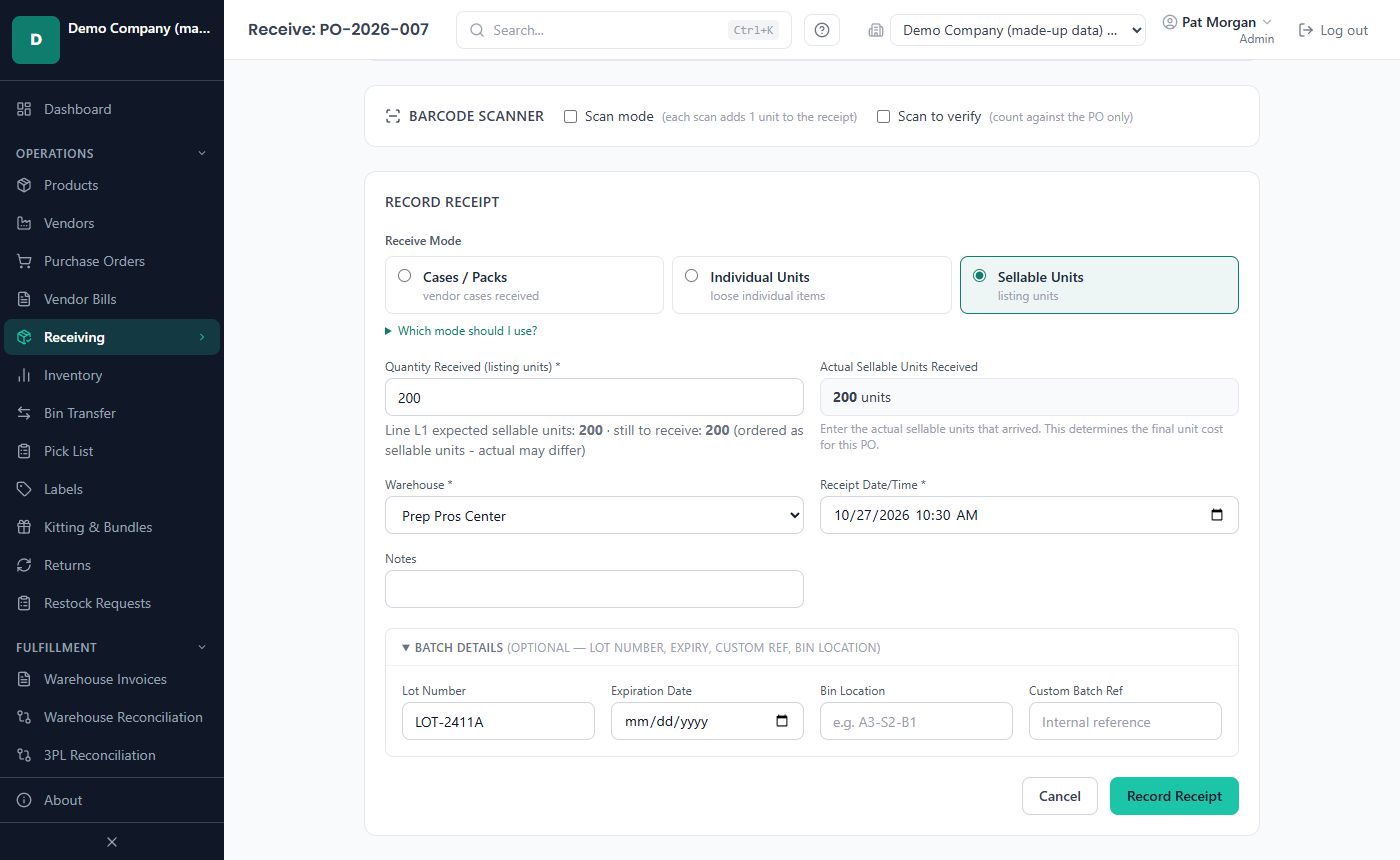
Check the PO Summary: the expected, received and remaining quantities and the Pack Config (items per vendor case → items per sellable unit). On a PO with several lines, a blue banner names the line you are receiving; use Line to switch to another line.
Choose the Receive Mode: Cases / Packs (the default), Individual Units or Sellable Units.
Enter the Quantity Received in that unit. Actual Sellable Units Received shows what it converts to.
Choose the Warehouse the units arrived at, usually your prep center. If you have only one active warehouse, it is already selected.
Check the Receipt Date/Time and add Notes if needed.
Open Batch Details to enter the Lot Number, Expiration Date, Bin Location and a Custom Batch Ref. If the product requires a lot number or expiry date (set on the product, see Chapter 4), the section opens by itself and the field is required. A product that goes out first expiry, first out (FEFO) always needs an expiration date, so that its stock is used in date order.
If fewer or more units arrived than expected, handle it as described in the next sections.
Click Record Receipt.
The units are added to stock at the chosen warehouse as a new batch with the lot, expiry date and bin you entered. The batch's cost is the line's unit cost plus the unit's share of the PO's costs and of any warehouse fees already entered. The PO's received quantity and status are updated, and the receipt appears under Receiving History. When the PO is fully received, the form returns to the Receiving page by itself.
Barcode scanner. The Barcode Scanner panel on the receive form works with a scanner that types the code and presses Enter (or type the code yourself). With Scan mode ticked, each scan adds one sellable unit to the receipt (scanning a product from another line of the PO switches to that line). Scan to verify counts the scanned items against the PO first and lets you apply the count. An unknown barcode can be turned into a new product with Create a product with this barcode, if you are allowed to create products.
Goods Receipt Note (GRN). On the PO page, Download GRN saves a PDF of all receipts of the PO with product, quantity received, unit cost, lot number, expiry date and bin location. On the Receiving page, the GRN PDF link under a receipt in Receiving History gives the same for that one receipt. Reversed receipts are never included.
How to receive several purchase orders at once
Bulk Receive records whole shipments for several POs in one step, for example when a pallet with stock from several orders arrives.
On the Receiving page, switch to View by PO (or use the Purchase Orders list).
Tick the POs that arrived (Unreceived or Partially Received).
Click Bulk Receive.
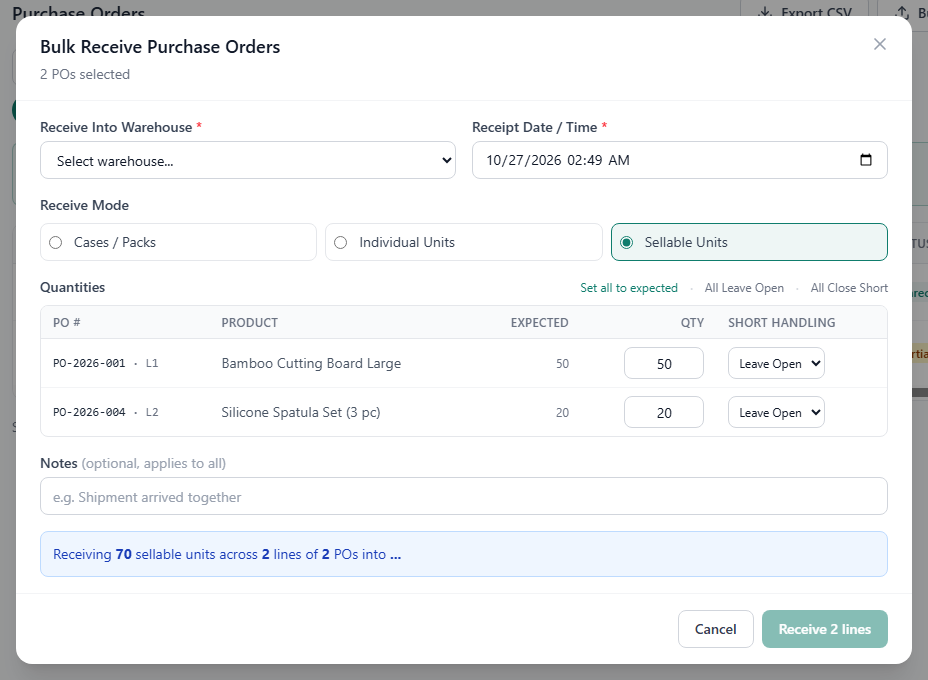
Choose Receive Into Warehouse, check the Receipt Date / Time and choose the Receive Mode. Note that Bulk Receive starts in Sellable Units.
Each open line has its own row. Enter the Qty for each, or click Set all to expected. Rows you leave empty are skipped.
For lines that arrived short, choose Leave Open or Close Short under Short Handling (or use All Leave Open / All Close Short). If any line is closed short, enter the Reason for closing short (at least 10 characters).
Optionally add Notes; they apply to every receipt.
Click Receive (the button shows the number of lines).
The result lists each line as received, failed or skipped; click Close & Refresh. Bulk Receive has no lot, expiry or bin fields, so receive products that require a lot number or expiry date one at a time. It cannot record more units than ordered either; receive such a PO on its own.
How to handle short and over shipments
Fewer units than ordered
When the quantity you enter would leave the line short, the receive form shows Receiving Fewer Units Than Expected and asks what to do with the rest:
- Close PO Short (on a line: Close Line L2 Short, for example): the rest will not come. Enter the Reason for closing short (at least 10 characters). The line becomes Closed Short, the missing units are not paid for, and the line's share of the PO costs and warehouse fees is spread over the units that did arrive.
- Leave Open - Receive More Later: the line stays Partially Received until the rest arrives.
Click Change to pick the other option before you record the receipt.
Close a line short from the purchase order
When you learn that the rest of a line will never arrive (the vendor cancelled it, for example), an Admin or Manager can close the line without receiving anything:
Open the purchase order and, in the Order Lines table, click Close Short on the line.
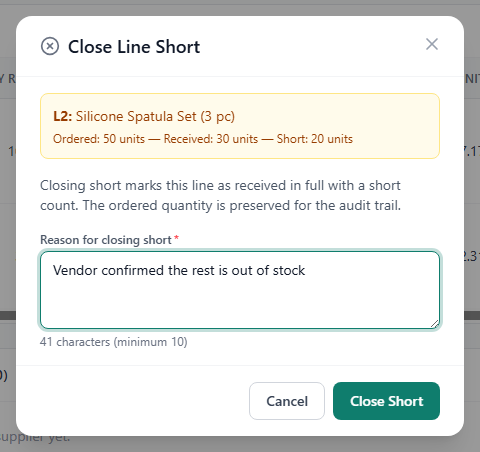
Enter the Reason for closing short (at least 10 characters).
Click Close Short.
The line becomes Closed Short with the ordered quantity kept for the record, the change is written to the PO's history, and the line's costs are spread over the units it received. When every line is fully received or closed short, the PO becomes Fully Received. To undo it, an Admin or Manager uses Reopen Receiving.
More units than ordered
If more units arrive than ordered, the form shows Receiving More Than Ordered. Only an Admin can tick I confirm this overage is correct and want to proceed and record the receipt; other users see a message to ask an Admin. The extra units are added at the line's unit cost; PO-level costs are never booked twice, so the extra units carry only what is left of them.
How to reverse a receipt
An Admin can reverse a receipt that was recorded by mistake, for example against the wrong PO or with the wrong quantity.
- On the Receiving page, find the receipt under Receiving History (the PO page has the same list).
- Click Reverse.
- Read the check. LivingRoom refuses the reversal when units from the receipt have already been sold, used in a kit, returned, or moved to another warehouse (all of them or only some); the reason is shown. If warehouse invoice fees are allocated to the PO, a warning says they are not removed; tick the box to go on.
- Enter the Reason for reversal (at least 10 characters).
- Click Reverse Receipt.
The units and their cost are removed from the warehouse, and the PO's received quantity and status go back. The receipt stays in the history marked Reversed, with the date, the person and the reason. To reverse several receipts, tick them and click Reverse Selected.
Important: Once part of a receipt has been transferred to another warehouse, the receipt cannot be reversed: the check says "Some of these units were transferred. Reverse the transfer first, or use an adjustment." A transfer has no undo, and moving the units back with another transfer does not make the receipt reversible, so correct a wrong quantity with an inventory adjustment (Chapter 6). In Receiving History such a receipt shows no Reverse button.
How to close out a purchase order
Lock & Close is the last step for a finished PO: it locks the PO so that, apart from vendor credits, its costs no longer change. A PO is eligible when it is Partially or Fully Received, it was ordered at least 90 days ago and every unit received from it has left your stock (sold or otherwise used). The Dashboard shows an alert for eligible POs, and the Purchase Orders list offers an Eligible for closeout chip.
- Open the purchase order.
- Click Lock & Close. (Or click Defer 30 Days to take it off the closeout list for 30 days.)
- Confirm with Lock & Close.
The PO becomes Closed: no more cost lines, no PO or line edits and no new warehouse invoice fees; warehouse invoices with fees on it can no longer be deleted. Vendor credits can still be added. Closing cannot be undone. Admins and Managers can close POs; on a PO that is not yet eligible, the grey Close PO button explains why when you point at it.
How to enter a warehouse invoice
Prep centers and warehouses bill you for prep, labeling, bagging and handling. Enter their invoices so the fees become part of the landed cost of the units they were charged for. Admins, Managers and Receiving staff can enter invoices.
In the sidebar, click Warehouse Invoices.
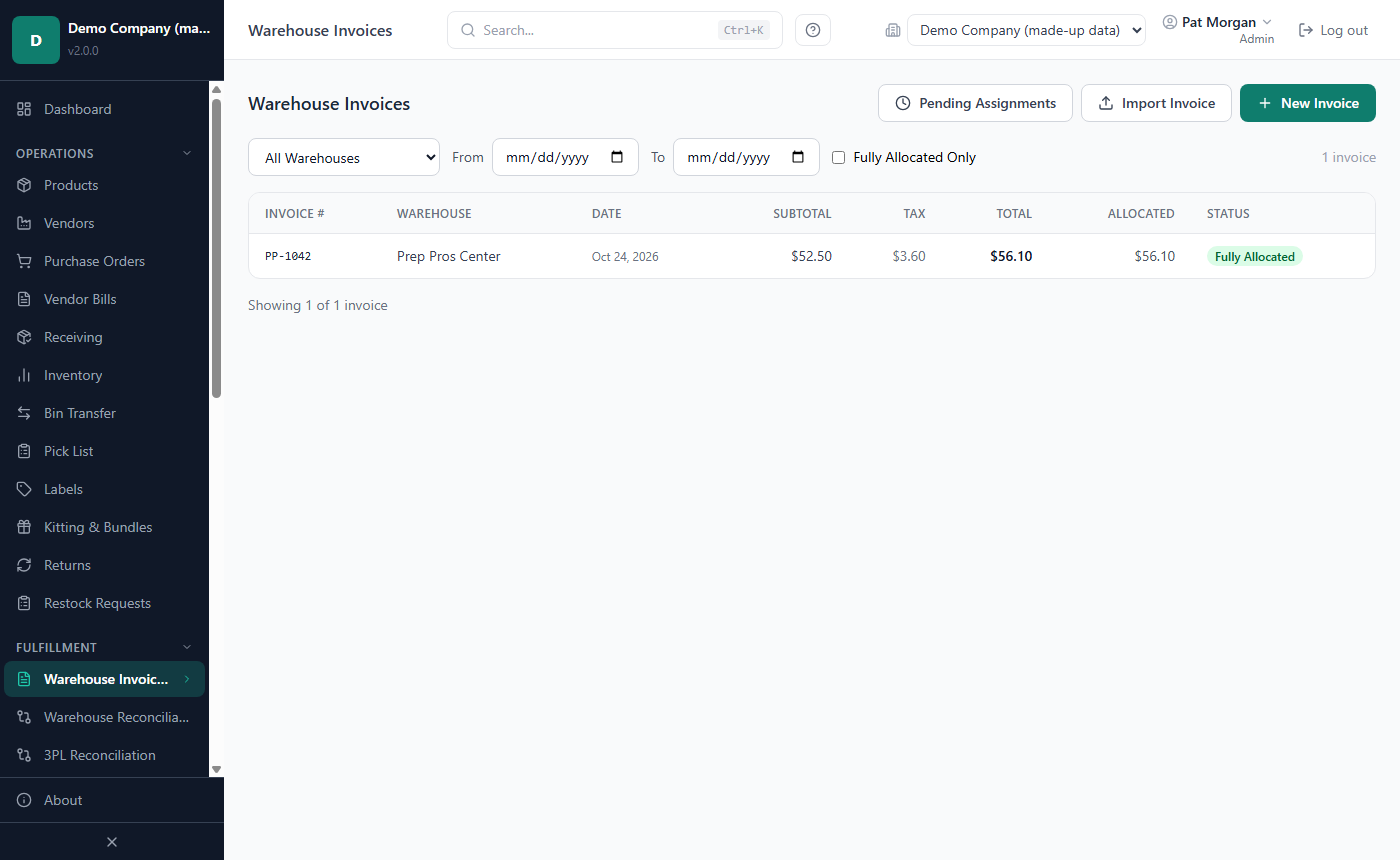
Click New Invoice.
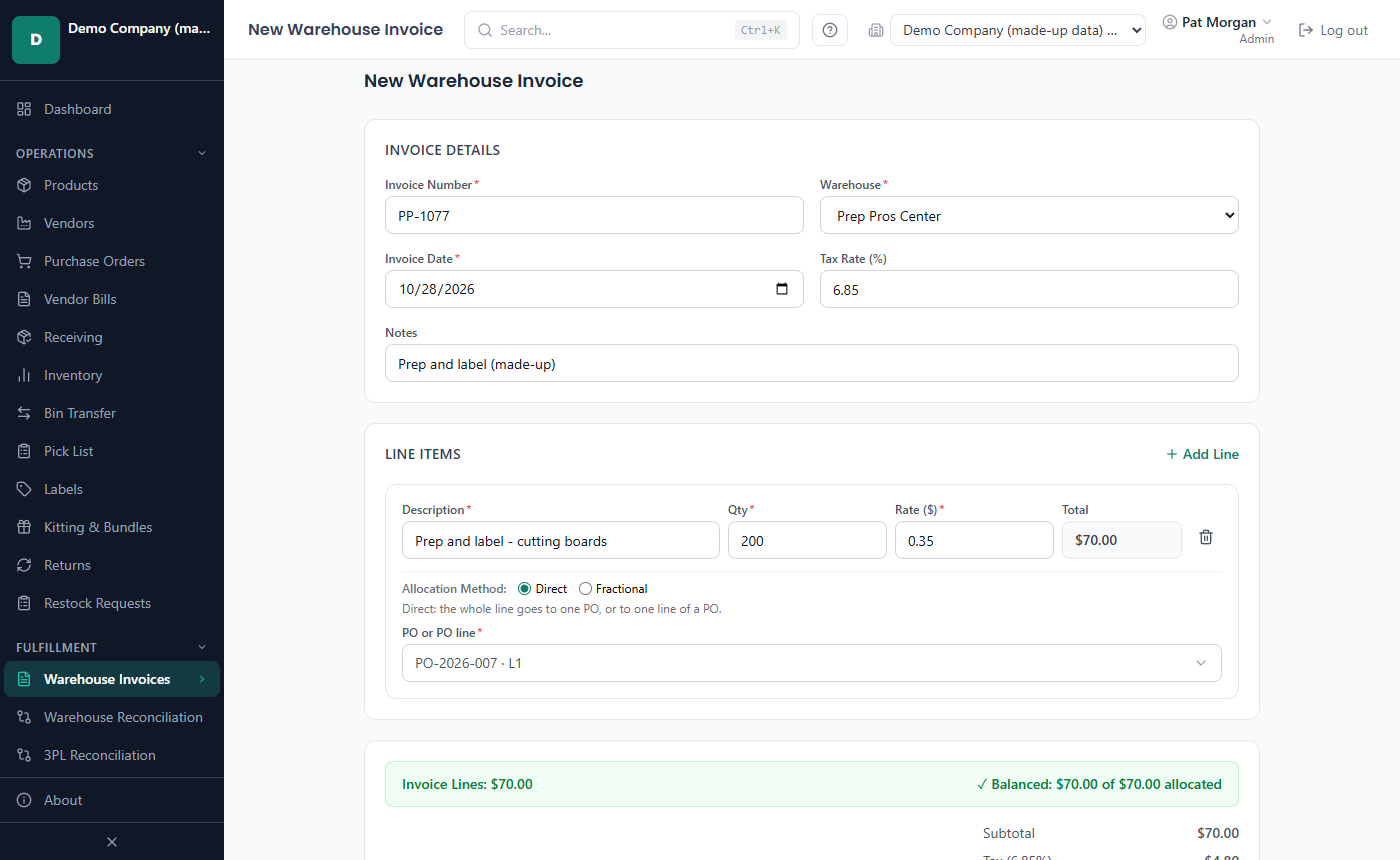
Under Invoice Details, enter the Invoice Number, choose the Warehouse that sent it, and check the Invoice Date. Enter the Tax Rate (%) if the invoice has tax, and Notes if needed.
Under Line Items, enter the first line's Description, Qty and Rate ($). The Total is calculated.
Choose the Allocation Method:
- Direct: the whole line goes to one PO or one PO line.
- Fractional: the line is split across two or more POs or PO lines in proportion to the PO Units entered for each (the units ordered are filled in; you can change them). The Split column shows each share.
Click the PO or PO line box and pick the PO. A PO with several lines appears as "all lines" and once per line (for example PO-2026-001 · L1); pick the line the fee belongs to when the invoice says so. Every PO that is not Closed is offered, including POs not yet received and POs already fully received.
Click Add Line for each further invoice line.
Watch the bar above the totals: it stays amber and says what is missing until every line is allocated, then shows ✓ Balanced.
Click Save Invoice.
Tax. The tax (tax rate × subtotal, in cents) is landed cost too: each allocation carries its share, tax × allocation ÷ subtotal. The invoice's Allocated total therefore includes the tax, and a fully allocated invoice shows Allocated = Invoice Total.
How the fee is spread. A fee on one PO line is shared by that line's units: fee ÷ units ordered on the line. A fee on a whole PO is shared by all its units: fee ÷ units ordered on the PO. Each unit's share is fixed once booked.
Invoices that arrive after the stock. Warehouse invoices usually come after the units are received, and that is fine. Units already in stock get their share as soon as you save the invoice, and units already sold have their cost and profit updated. If you enter the invoice before the units arrive, each unit gets its share when it is received.
Corrections. Amounts, lines and allocations cannot be edited: delete the invoice and enter it again. On the invoice page, Edit date changes only the date, and the pencil next to Notes edits the notes. Delete shows which POs lose how much in fees; after you click Delete invoice, those POs' costs return to what they were without it, including the cost of units already sold. An invoice with fees on a Closed PO cannot be deleted.
How to import a warehouse invoice
If your prep center sends invoices as a spreadsheet, import them instead of typing. The file (.xlsx, .xls or .csv) needs a header row; LivingRoom finds the description, quantity, unit fee and total columns by their names (such as Description, Qty, Rate and Total).
On the Warehouse Invoices page, click Import Invoice.
On the Upload Invoice tab, optionally choose the Vendor (optional), then drop the file on the box (or click it to browse).
Under Invoice Details, choose the Vendor and check the Invoice Date and Reference #. Type the Invoice Total (optional) from the invoice: the import then checks that the lines add up to it. The cards show the Total Rows, how many rows were Auto-matched, Unmatched and Assigned, the Invoice Total and the Fees to Allocate (excl. ignored).
Go through the Line Items. For each row LivingRoom suggests a product (by a Walmart Item ID or vendor SKU in the description, or by a similar product name) and that product's most recent line on a PO that is not Closed. Matches are only suggestions:
- Confirm assigns the fee to the suggested PO line.
- Split spreads the fee over all open PO lines of that product, by units ordered.
- Ignore leaves the row out (for example a subtotal row). Undo takes back your choice.
Click Complete Import (a bar shows the progress: Importing the invoice). Confirmed and split rows are allocated; every other row goes to Pending Assignments. Assign Later (Save Pending) sends all rows you have not assigned or ignored there.
The file must have a description column and an amount column (a total, or a quantity and a unit fee); otherwise the import says which is missing. If an invoice with the same vendor, reference number and total was imported before, you are asked whether to import it again - answer Import again only for a genuine second invoice.
The allocated fees appear as warehouse invoices on the Warehouse Invoices page, at the PO's Ship To warehouse (or your first receiving warehouse). An imported invoice has no tax rate; enter an invoice with tax using New Invoice.
Pending Assignments. While rows wait, an amber number next to Warehouse Invoices in the sidebar shows how many. Click Pending Assignments on the Warehouse Invoices page, then Assign on a row. Use Assign to suggested line, or search for the PO (Search), pick the PO and the line and click Assign; Split across all lines of … spreads the fee over the product's open lines. If you delete an invoice that came from an import, its rows return to Pending Assignments.
Landed cost explained with a worked example
The landed cost of a unit is its purchase price plus its share of everything else it took to get it ready to sell. LivingRoom follows these rules:
- Unit cost: the line cost ÷ the units ordered on the line.
- PO-level costs (shipping, duties, credits): cost ÷ total units ordered on the PO, fixed when the unit is received.
- Line-level costs: cost ÷ units ordered on that line.
- Warehouse invoice tax is landed cost: each allocation carries tax × allocation ÷ invoice subtotal.
- Warehouse fees (tax included): fee ÷ units ordered on the PO line (or on the PO, for a fee on the whole PO), fixed once booked, whether the invoice arrives before or after the stock.
- Close short: when a line is closed short, the part of its share that its received units have not yet carried is spread once over those units. Apart from costs, credits or invoices you add or remove later, this is the only time the cost of units already received changes.
The purchase order
PO-2026-001 from VT Vendor Alpha, with $80.00 shipping entered as a PO-level cost:
| Line | Product | Qty (sellable units) | Line Cost | Unit cost (rule 1) |
|---|---|---|---|---|
| L1 | Bamboo Cutting Board Large | 100 | $600.00 | $6.00 |
| L2 | Stainless Steel Water Bottle 32oz | 60 | $480.00 | $8.00 |
Shipping (rule 2): $80.00 ÷ 160 units ordered = $0.50 per unit. L1 carries 100 × $0.50 = $50.00 and L2 60 × $0.50 = $30.00. On the Create Purchase Order form the Cost Summary shows these as Shared Fees and an Est. Landed/Unit of $6.50 and $8.50; the prep fees are not known yet.
The prep center's invoice
After the stock arrives, VT Main Warehouse sends this invoice, entered with New Invoice and Direct allocations to the PO lines:
| Line | Qty | Rate ($) | Total | PO or PO line |
|---|---|---|---|---|
| Prep & label cutting boards | 100 | $0.40 | $40.00 | PO-2026-001 · L1 |
| Bubble wrap & label water bottles | 60 | $1.00 | $60.00 | PO-2026-001 · L2 |
| Subtotal | $100.00 | |||
| Tax (5%) | $5.00 | |||
| Invoice Total | $105.00 |
Tax (rule 4): L1 gets $5.00 × $40.00 ÷ $100.00 = $2.00; L2 gets $5.00 × $60.00 ÷ $100.00 = $3.00. The allocations are $42.00 and $63.00, together $105.00, so the invoice is Fully Allocated.
Prep fee per unit (rule 5): L1: $42.00 ÷ 100 units ordered = $0.42. L2: $63.00 ÷ 60 units ordered = $1.05. All units are already in stock, so each gets its share when the invoice is saved.
The result
| Per unit | L1 cutting board | L2 water bottle |
|---|---|---|
| Unit cost | $6.00 | $8.00 |
| Shipping share | $0.50 | $0.50 |
| Prep fee incl. tax | $0.42 | $1.05 |
| Landed cost per unit | $6.92 | $9.55 |
| × units received | 100 = $692.00 | 60 = $573.00 |
Check: $692.00 + $573.00 = $1,265.00, which is exactly what you spent: $600.00 + $480.00 (goods) + $80.00 (shipping)
- $105.00 (warehouse invoice). On the PO page, the Landed/Unit column shows $6.92 and $9.55, and the Cost Breakdown shows for L1 "Base: $6.50 / unit · Prep: $0.42 / unit · Landed: $6.92 / unit". These are the costs your sales of these units will carry in the profit reports.
Variation: the vendor ships only 50 water bottles
Suppose only 50 of the 60 bottles arrive and the vendor cancels the rest. You receive 50 and close L2 short (rule 6). The prep center bills only what it prepped: 50 × $1.00 = $50.00, so its invoice is $40.00 + $50.00 = $90.00 subtotal, tax 5% = $4.50, total $94.50. L1 still gets $40.00 + $4.50 × 40 ÷ 90 = $42.00 ($0.42 per unit, unchanged); L2 gets $50.00 + $4.50 × 50 ÷ 90 = $52.50.
| L2, per unit | First booking (÷ 60 ordered) | Close-short true-up (÷ 50 received) | Final |
|---|---|---|---|
| Unit cost | $8.00 | - | $8.00 |
| Shipping share ($30.00) | $0.50 (50 × $0.50 = $25.00) | $5.00 ÷ 50 = $0.10 | $0.60 |
| Prep fee incl. tax ($52.50) | $0.875 (50 × $0.875 = $43.75) | $8.75 ÷ 50 = $0.175 | $1.05 |
| Landed cost per unit | $9.65 |
Check: 50 × $9.65 = $482.50 = 50 × $8.00 ($400.00) + $30.00 + $52.50. The 10 missing bottles are not paid for (the PO shows "Closed short (10 units not received)" with −$80.00), L1 keeps its $6.92, and the whole $80.00 shipping and $94.50 invoice are carried by the units you actually have: $692.00 + $482.50 = $1,174.50 = $600.00 + $400.00 + $80.00
- $94.50.
Related chapters
- Chapter 4 — Products: vendor links, pack quantities, lot and expiry requirements.
- Chapter 6 — Inventory: batches, transfers to your fulfillment location, adjustments.
- Chapter 7 — Sales and settlements: how sales take stock from the fulfillment warehouse.
- Chapter 8 — Reports and dashboards: profitability, on-order value and receiving discrepancies.
- Chapter 9 — Integrations: e-mail (SMTP) settings for sending POs.
- Chapter 10 — Settings, backups and updates: Company Profile and document logo.