
1. Introduction
LivingRoom is a Windows desktop program that keeps track of the products you buy, the stock you hold and the money each sale really makes. It is built for established sellers on Walmart Marketplace - shipping through Walmart Fulfillment Services (WFS) or themselves - and on other marketplaces, who may also sell to their own customers; the staff who receive and prepare the goods, in the seller's warehouse or at a prep center, use it too. This chapter explains what the program does, the costing idea behind it, the main parts of the screen, what your computer needs, where your data is kept and what (little) leaves your computer.
In this chapter
- What LivingRoom does
- The core idea: true landed cost per unit
- How stock is used up: FIFO and FEFO
- A quick tour of the screen
- System requirements
- Where your data is stored
- Privacy: what leaves your computer
- How to read this manual
What LivingRoom does
LivingRoom follows each product from the vendor to the Walmart customer, and records every cost on the way. A typical cycle looks like this:
- Products. You keep your catalog: names, Walmart Item IDs, GTINs, the vendors you buy each product from, their prices and case sizes. You can also keep "Potential" products while you evaluate them. See Chapter 4.
- Vendors and purchase orders. You order from a vendor with a purchase order (PO). A PO can have several lines, plus shared costs such as shipping, tax and fees, and credits or discounts. See Chapter 5.
- Receiving at the prep center. When the goods arrive at your prep center or warehouse, you record what came in, with lot numbers and expiry dates if you track them. Each receipt becomes a batch of stock with its own cost. See Chapter 5.
- Prep-center and warehouse fees. You enter the prep center's invoice and allocate its fees (and its tax) to the purchase orders they belong to, so the fees become part of the product's cost. See Chapter 5.
- Transfers to WFS. You record the units you send from the prep center to Walmart's fulfillment centers (or to another fulfillment warehouse). See Chapter 6.
- Sales import. You import the sales report you download from Walmart. Each unit sold takes its cost from the stock at your fulfillment warehouse. See Chapter 7.
- Settlement import. You import Walmart's settlement report. Walmart's fees and refunds are matched to your orders, so you see the real profit of each sale; charges such as storage fees, and the reimbursements Walmart pays for lost units, are recorded for the period. See Chapter 7.
- Returns and stock corrections. You record customer returns, removal orders, damaged or found units, cycle counts and kitting (building bundles from other products). See Chapter 6.
- Reports. Profitability by product, vendor and period, inventory value and age, costs, cash flow and an executive summary, all exportable. See Chapter 8.
Around this cycle, LivingRoom can run several companies from one installation, each with its own data (see Chapter 3), and it can connect to the Walmart API, QuickBooks, a 3PL and reporting tools such as Power BI (see Chapter 9). None of these connections is switched on until you set it up.
The core idea: true landed cost per unit
Most sellers know what they paid the vendor per unit. Fewer know what a unit really cost by the time it was ready to sell at Walmart. LivingRoom works out that full figure, the landed cost per unit, and uses it for every sale.
The landed cost of a unit is:
- the vendor's price for the unit (the line cost divided by the units ordered),
- plus the unit's share of the purchase order's own costs: shipping, tax, import duty, customs, freight forwarding and other fees, minus any refund, vendor credit or discount,
- plus the unit's share of the prep-center or warehouse fees allocated to that purchase order,
- plus the unit's share of the sales tax on those prep-center invoices.
Shared costs are split evenly over the units ordered on the purchase order, so a unit's share does not change as later deliveries of the same order arrive. If a vendor ships fewer units and the line is closed short, the share the missing units would have carried is spread over the units that did arrive, so no cost is lost.
A short example. You order 200 units of a cutting board for $800.00, pay $60.00 shipping on the PO, and the prep center bills $40.00 for labeling plus 5% sales tax:
| Cost | Total | Per unit |
|---|---|---|
| Vendor price (200 units) | $800.00 | $4.00 |
| PO shipping | $60.00 | $0.30 |
| Prep-center labeling fee | $40.00 | $0.20 |
| Sales tax on the warehouse invoice (5% of $40.00) | $2.00 | $0.01 |
| Landed cost | $902.00 | $4.51 |
When one of these boards sells on Walmart for $14.99, LivingRoom books $4.51 as its cost of goods sold. Once the settlement report is imported and Walmart's fees for that order are known (say $4.20), the sale shows a net profit of $14.99 − $4.51 − $4.20 = $6.28.
Tip: Until you import the settlement report for a period, the fees of its orders are not known, so net profit for recent sales looks higher than it will finally be. The Dashboard reminds you when no settlement has been imported for a while.
Chapter 5 explains landed cost in full, with a worked example.
How stock is used up: FIFO and FEFO
You usually hold the same product in several batches, bought at different prices and received on different days. When a unit is sold, removed or used in a kit, LivingRoom must decide which batch it comes from, because that decides its cost. The program offers two methods.
FIFO (First In, First Out) is the default. The oldest batch, by receipt date, is used first. When it runs out, the next oldest is used, and so on. If one sale takes units from two batches, each unit keeps the landed cost of the batch it came from. FIFO suits most products: your cost of goods sold follows the order in which you bought the stock.
FEFO (First Expired, First Out) is for products with a shelf life. The batch with the nearest expiration date is used first. Batches with no expiration date are used after all dated batches, oldest first. To make FEFO work, enter the expiration date when you receive the goods; the Dashboard warns you about FEFO batches that have no expiry date.
An Admin chooses the method in Settings › Operational › Inventory Costing Method. The choice applies to all companies on this installation. An Admin can give a single product its own method in the Inventory Costing Override section of its product page. A few rules apply whatever the method:
- A sales import takes stock only from the fulfillment warehouse you choose for that import, never from another warehouse such as your prep center.
- Batches on hold (for a recall or a quality check) are skipped.
- Transfers do not use the costing method: when you transfer one product you choose how many units to move from each batch, and moved units keep their cost and receipt date.
See Chapter 6 for batches, lots, expiry dates and holds.
A quick tour of the screen
After you sign in, LivingRoom opens the Dashboard of your company:
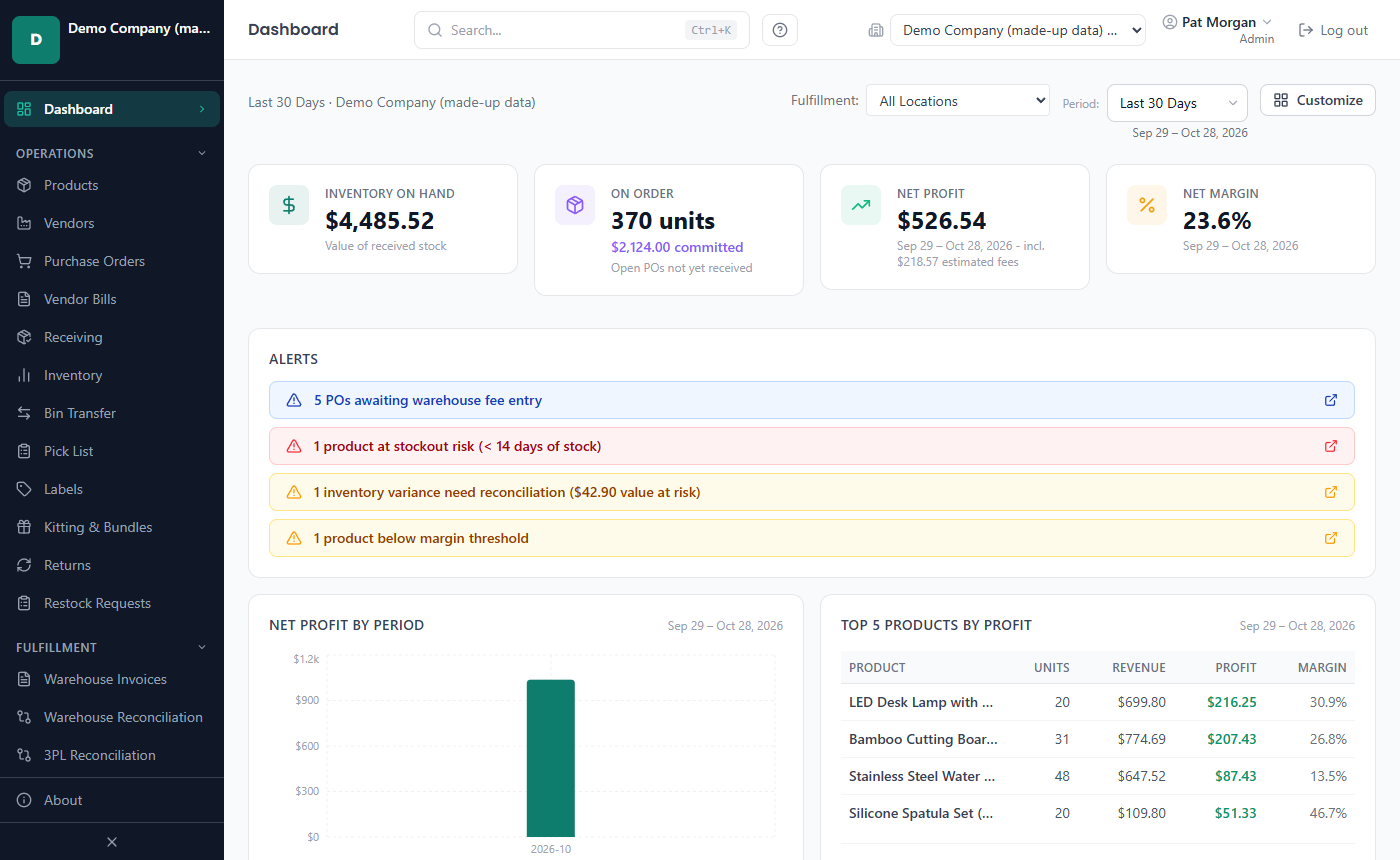
The window has three parts.
The sidebar (left). At the top you see your company's name and the program version. Below it, Dashboard, then the pages grouped in five sections. Click a section name to fold or unfold it. About (version, support contact, keyboard shortcuts) is at the bottom, and the button under it collapses the sidebar to icons.
The header (top). From left to right:
- the name of the page you are on;
- the search box (Search products, POs, vendors...; press Ctrl+K to jump to it);
- the keyboard shortcuts button (or press ?);
- the company switcher, to move to another company you have access to;
- your name, which opens a menu with Change My Password;
- Log out.
License notices, for example a reminder that the license expires soon, appear in a strip under the header. Admins also see a strip there when an automatic backup has failed (see Chapter 10).
The page itself. On the Dashboard you find:
- a Period selector (Current Month, Prior Month, Last 30 Days and so on);
- cards with Inventory on Hand (the value of received stock), On Hold (only while units are on hold), On Order (units and dollars on open purchase orders), Net Profit and Net Margin;
- Alerts: things that need attention, such as overdue purchase orders, unmatched settlement fees, products at risk of running out, batches expiring within 30 days or a license that expires soon. Click an alert to go to the page that deals with it. When nothing needs attention you see All clear — no pending issues.;
- the Net Profit by Period chart and the Top 5 Products by Profit table, with a link to View All Reports.
Users without access to reports see the stock cards and the alerts, but not the profit figures. Customize (top right) lets each user choose, order and size the cards and charts of their own Dashboard (see Chapter 8).
The sidebar sections
Which pages you see depends on your role. The table shows what each built-in role sees. A user with several roles sees everything any of their roles allows.
| Section | Pages | What they are for | Who sees them |
|---|---|---|---|
| (top) | Dashboard | Overview and alerts | Everyone |
| Operations | Products, Vendors | Your catalog and suppliers | Admin, Manager, Purchaser; Receiving (view only) |
| Purchase Orders | Ordering from vendors | Admin, Manager, Purchaser; Receiving (view and receive) | |
| Vendor Bills | What you owe vendors and warehouses, and what you have paid | Admin, Manager, Receiving; Reports Only (view only) | |
| Receiving | Recording deliveries | Admin, Manager, Receiving | |
| Inventory | Stock by product and warehouse, transfers, adjustments | Admin, Manager, Receiving, Reports Only | |
| Bin Transfer | Moving a batch, or part of it, to another bin | Admin, Manager, Receiving | |
| Pick List | What to take off the shelves for a transfer, a removal or an order, by bin | Admin, Manager, Receiving | |
| Labels | Product and batch labels with a barcode and a QR code | Admin, Manager, Purchaser, Receiving | |
| Kitting & Bundles, Returns | Building bundles; customer returns | Admin, Manager, Receiving | |
| Restock Requests | Asking for out-of-stock products to be reordered | Everyone (Reports Only can only view) | |
| Fulfillment | Warehouse Invoices | Prep-center and warehouse fees | Admin, Manager, Receiving |
| Warehouse Reconciliation | Comparing your WFS stock with Walmart's count | Admin, Manager, Reports Only | |
| 3PL Reconciliation | Comparing your stock with a connected 3PL's count | Admin, Manager, Receiving, Reports Only | |
| Lot Reconciliation | Each lot's expected and actual stock; counting a lot | Admin, Manager, Receiving, Reports Only (view) | |
| Inbound Shipments | Shipments you sent to Walmart fulfillment centers | Admin, Manager, Receiving, Reports Only | |
| Imports & Orders | Sales Import, Sales Orders, Settlement Import, Settlement Orders | Bringing in Walmart sales and settlement reports | Admin, Manager, Receiving |
| Customers | Your direct and wholesale customers, their orders, invoices and payments | Admin, Manager; Receiving (view only) | |
| Import Wizard | One page to start any import; it sends other reports to their own page | Admin, Manager, Purchaser, Receiving (each sees the imports their role may do) | |
| Import Templates | Saved column layouts for import files | Admin, Manager, Purchaser | |
| Analytics | Reports, Cost Intelligence | Profit, inventory and cost analysis | Admin, Manager, Reports Only |
| Reimbursements | Units Walmart lost and what it has paid back | Admin, Manager, Reports Only | |
| WFS Claims | A claim for each WFS discrepancy, and its outcome | Admin, Manager; Reports Only (view only) | |
| Expenses | Business expenses that belong to no product | Admin, Manager (edit); Reports Only (view) | |
| Activity Log | Who did what, and when | Admin, Manager | |
| Settings & Admin | Settings, Users | Configuration and user accounts | Admin, Manager |
| License, Companies | Your license key and your companies | Admin |
A few more things change what you see:
- Warehouse Reconciliation, Inbound Shipments, Reimbursements and WFS Claims appear only for companies whose marketplace is Walmart.
- An Admin or Manager can hide pages a company does not use, in Settings › Operational › Sidebar Navigation.
- An Admin can switch to the Global view (All Companies (Global) in the company switcher) to see totals for all companies. The sidebar then shows only Dashboard, Reports, Settings, License and Companies. See Chapter 3.
You can open more than one window, for example to keep a product open beside a purchase order. All windows show the same company and share one sign-in: logging out in one window logs out all of them. File › Quit (close all windows) closes the program and ends your session.
System requirements
- Windows 11, 64-bit (Windows 10 22H2 may work but is not tested). LivingRoom is a 64-bit Windows program. There is no Mac or Linux version.
- Screen: the program window needs at least 1024 × 680 pixels.
- Disk space: the installer is about 170 MB. Leave room for your data and for backups. Each backup is a full copy of all your companies, and the newest 10 are kept by default.
- Nothing else to install. Everything the program needs, including its database, comes with the installer. To open the PDFs it creates (purchase orders, goods receipt notes) you need a PDF reader, and a spreadsheet program helps with CSV exports.
- Administrator rights: not needed if you install Only for me. Installing for Anyone who uses this computer asks for administrator rights.
- Internet connection: needed to activate a license key that is checked online, and at least once every 30 days after that (see Privacy). Also needed for e-mail and for the integrations you connect. Everything else works offline.
- Several PCs (optional): with a license that includes office server mode, one PC can keep the data for the other PCs of the office. The PCs must be on the same office network, the PC that keeps the data must stay on while others work, and every PC needs the same version of the app. The PC that keeps the data (the office server) works with up to 20 people on a 2-core PC (tested). For more than 10 people at once we recommend 4 or more cores. See Chapter 10.
See Chapter 2 for installation and the license.
Where your data is stored
LivingRoom keeps all its data on your computer, in your Windows user's application data folder, %APPDATA%\LivingRoom\. (To open it, type %APPDATA%\LivingRoom in the address bar of File Explorer.) Each Windows user on the PC has their own separate data.
| Folder | What it holds |
|---|---|
database\ | Install-wide data: users, roles, company list, license and settings that apply to all companies |
Data\companies\ | One database per company: products, vendors, purchase orders, stock, sales and so on |
Data\imports\ | Copies of the sales, settlement and product files you import |
attachments\ | Logos you upload (for example the company logo printed on PO and GRN PDFs) |
backups\ | Your encrypted backup files (.webak) |
logs\ | The program's technical log (backend.log), useful to support |
office-server\ | Only on an office server PC: its certificate and its key (never part of a backup) |
Some things to know:
- New companies and import copies can go elsewhere. Another location can be chosen during first setup, and an Admin can change it later with the Data Folder Path (all companies) setting. Only new companies and new import copies go there; existing companies stay where they are. Backups always stay in
backups\. - With an office server, the data is on one PC. The office server PC keeps every company, the backups and the logs in its own folders as above. The other PCs keep no copy: they only remember which office server they use (a small file,
office-client.json, in the same folder). See Chapter 10. - Exports go where you save them. When you export a report to CSV or download a PDF, you choose the place in the Save dialog.
- Uninstalling keeps your data. Removing the program does not delete
%APPDATA%\LivingRoom\, and installing a newer version over the old one keeps everything. Make a backup with Create Backup Now before you install an update. - Back up and copy off the PC. The program makes an automatic backup once a day (it checks when it starts and every hour while it stays open), makes one before an update changes your data, and you can make one at any time with Create Backup Now. Backups are encrypted with your license key, so keep the key in a safe place. Copy backups to a USB drive or a cloud folder regularly: a backup that lives only on the same PC does not help if the PC fails. See Chapter 10.
Important: Do not move, rename or edit the files in these folders yourself. Use Create Backup Now, the restore in Settings › Backup and the Data Folder Path setting instead.
Privacy: what leaves your computer
Your business data (products, costs, vendors, purchase orders, sales and order details, reports) stays on your computer, stored encrypted there since version 2.4 (see Chapter 10). The program's internal server accepts connections only from the same PC; other computers on your network cannot reach it. The one exception is office server mode, which an Admin turns on: the other PCs of your office then reach the office server PC over an encrypted connection on your office network, on private networks only (see Chapter 10); nothing goes to the internet that way. LivingRoom does not send usage statistics.
Only the following ever leaves your computer, and only in these cases:
The license check. If your license key is checked online, the License page shows a License server check section. In that case LivingRoom contacts the vendor's license server when you activate the key, each time the program starts and every 24 hours while it runs. Each check sends:
- your license key, which holds the details the vendor issued with it (business name, license type, limits, expiry date);
- the license ID;
- a machine fingerprint: a 32-character code calculated from your computer's name, its processor type, its network adapter's hardware address and the name of the operating system. Only the code is sent, never those details themselves.
When you enter an override code from support, the code is sent too, with the license ID and the fingerprint; an offline override code (it starts with WEO-) is checked on your PC and sends nothing. As with any internet connection, the license server also sees your internet (IP) address. No business data is ever part of the check. Some license keys, trial keys among them, are not checked online at all.
If a check cannot reach the server, the program keeps working. After 7 days without a successful check you see a reminder; after 30 days the program becomes read-only until a check succeeds. Chapter 2 explains this in full.
E-mail, only if you set it up. LivingRoom sends no e-mail until an Admin or Manager enters a mail server in Settings › Operational › SMTP Server (email delivery). After that, the alerts you switch on, the purchase orders you e-mail to vendors and (if you turn it on) the automatic reminders for overdue purchase orders go out through your mail server to the addresses you entered.
Integrations, only if you connect them. The Walmart API, QuickBooks, a 3PL and the Reporting API are all off until they are set up. When connected, the program exchanges data only with the service you connected. For example, the Walmart API connection reads your orders, inventory and settlements from Walmart. See Chapter 9.
Signing in instead of copying keys (coming soon). Walmart sign-in, QuickBooks Online, Amazon, eBay and Etsy are built to let you sign in with your account instead of copying API keys; each shows Coming soon until it has been tested. That sign-in goes through your software provider's connection service, which hands it to the program once and renews it when needed; the program then reads your data straight from the service you signed in to. Etsy is the exception: Etsy requires the provider's own key on every request, so what the program reads from Etsy (your shop's orders, listings and statement rows) passes through the connection service on its way to you. Nothing of it is kept there.
Files you move yourself. Backups you copy to a cloud folder, exports you e-mail, or a data folder you place in a cloud-synced folder go wherever you send them.
Spelling. Text you type in the program's fields is checked for spelling in English (US) on your computer, by Windows' own spellchecker or by a dictionary that comes with the program. No dictionary is downloaded, and nothing you type is sent anywhere for it.
Support sessions. If you ask for help, the vendor's support can sign in to LivingRoom on your computer with a time-limited support token made for your installation. You never share your own password. The support sign-in and every change made during a support session are marked "(vendor access)" in the Activity Log (viewing is not recorded), and your Admins see afterwards when each support session started and how long it lasted. See Chapter 11.
The agreements. The End-User License Agreement (shown by the installer) and the Privacy Policy are on the About page (link at the bottom of the sidebar), under Support & Licensing. They open inside the program, without an internet connection.
How to read this manual
The manual follows the order in which you will use the program:
| Chapter | Covers |
|---|---|
| 1. Introduction | This chapter |
| 2. Installing, first start and your license | Installation, the setup wizard, signing in, activating and renewing the license |
| 3. Companies, users and sessions | Companies, the Global view, users and roles, sessions, the Activity Log |
| 4. Products | The product catalog, vendor links, product imports, the Break-Even Calculator |
| 5. Vendors, purchasing, receiving and prep centers | Vendors, purchase orders, receiving, warehouses, warehouse invoices, landed cost |
| 6. Inventory | Stock, batches and lots, transfers, adjustments, cycle counts, kitting, returns, reconciliation |
| 7. Sales and settlements | Sales and settlement imports, sales orders, reimbursements |
| 8. Reports and dashboards | Reports, Cost Intelligence, exporting and printing |
| 9. Integrations | Walmart API, QuickBooks, 3PL, Reporting API, e-mail |
| 10. Settings, backups and updates | Settings, backup and restore, updating the program |
| 11. Troubleshooting and FAQ | Common problems, support |
| 12. Glossary | The terms used in this manual |
Conventions
- Words in bold are exactly what you see on the screen: page names, tabs, buttons, fields.
- Settings › Backup means: open Settings in the sidebar, then the Backup tab.
- When a task depends on your role, the manual says so ("Admins and Managers can …"). If a page or button described here is missing, your role probably does not include it, or an Admin has hidden the page.
- The screenshots come from a sample company with made-up data. Your screens show your own data.
- The manual uses Walmart wording (WFS, Walmart Item ID). A company set to another marketplace sees some labels changed to match it.
- Tip notes give shortcuts and good habits; Important notes warn about things that are hard to undo.
If you are stuck, Chapter 11 lists common problems and answers. Support is available by e-mail at support@livingroomlogistics.com (also shown on the About page).
Related chapters
- Chapter 2: Installing, first start and your license
- Chapter 3: Companies, users and sessions
- Chapter 5: Vendors, purchasing, receiving and prep centers, for the full landed-cost example
- Chapter 6: Inventory, for FIFO, FEFO and batches
- Chapter 10: Settings, backups and updates
- Chapter 12: Glossary